Wordpress Elements not appearing when editing

I'm trying to use the Wordpress Elements (posts, archives, etc.) and they're not appearing when editing. I can see them in this video example but mine does not show that and I have the most Brizy plugin activated.
Thanks,
Trish
-

Hello Trish,
Thank you for your message!
Can you please try to disable the plugin then install it again and see if the issue is still up? Hope to hear from you soon.
Kind regards,
Doina
0 -
Hi Doina,
I disabled the plugin and activated again and it didn't work. I'd like to be able to set up the blog article pages.
Thanks,
Trish0 -
Hi Trish,
Thank you for the message!
We had a new update of Brizy today - Free 2.3.33 and Pro 2.3.26 . Please make sure you have this versions and try to clear all the cache and disable all the plugins and themes you do not use. If the problem is still up, please tell me.
Kind regards,
Doina
0 -
Hello Doina,
This issue still persists. I've tried everything you suggested and this is the one roadblock we have to relaunching our website. What can we do? I can give you access to our staging environment if you like.
Thanks
0 -
To clarify, the Wordpress elements like "Post Content" are missing so I can't create a blog page.
0 -
Hi David,
Thank you for your message!
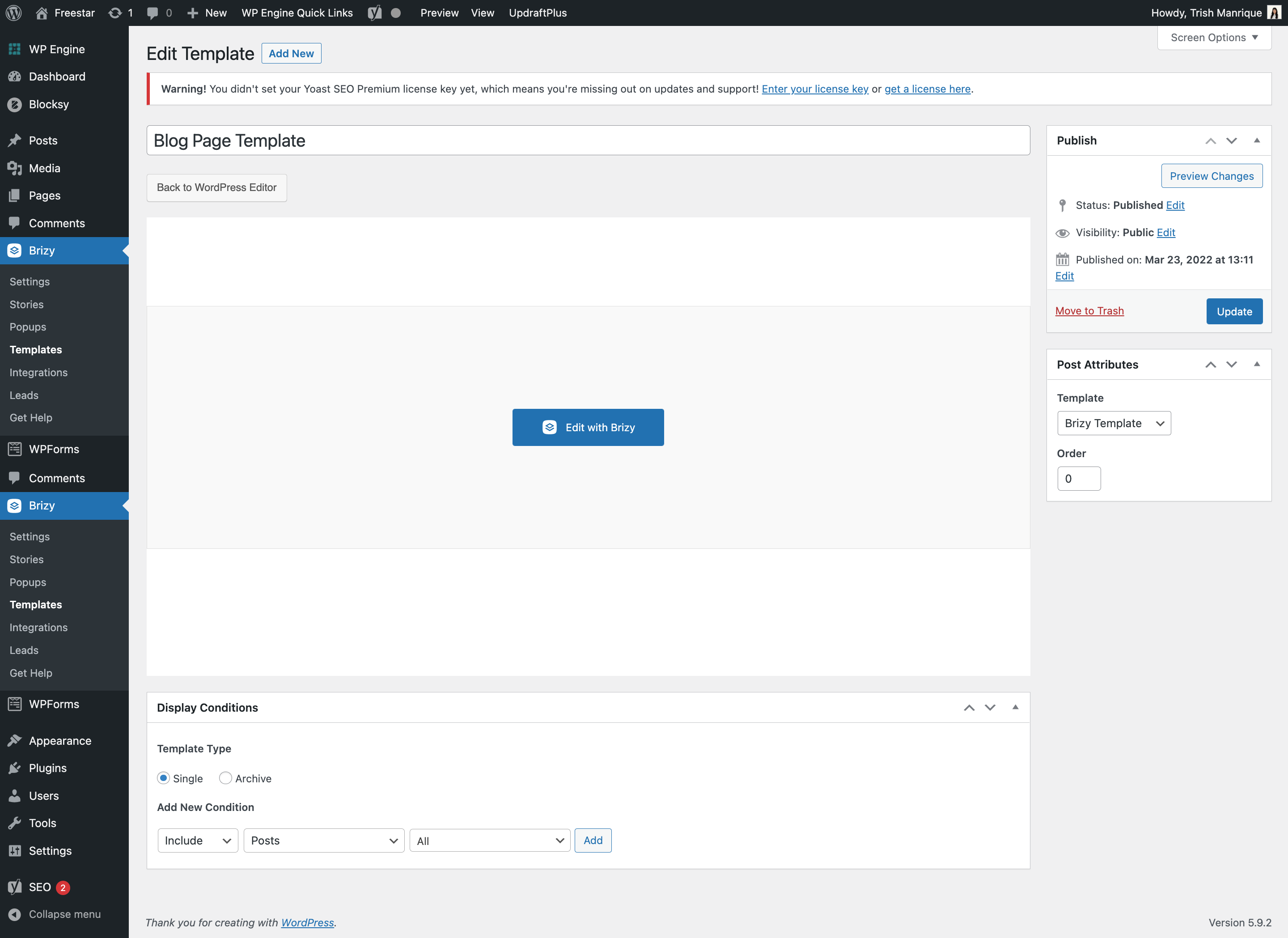
Can you please send me a few screenshots of what you have in your dashboard? Thanks!
Kind regards,
Doina
0 -
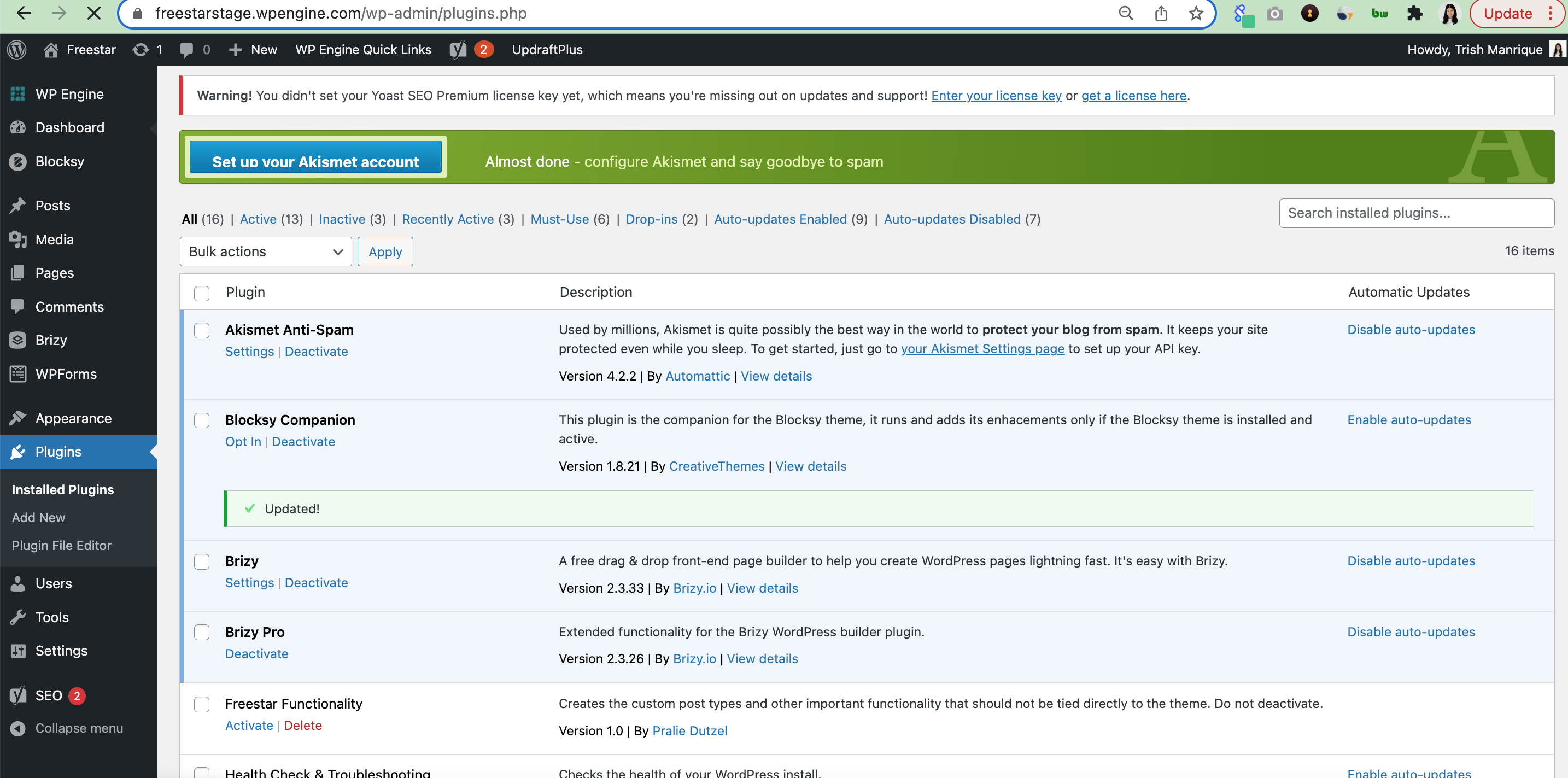
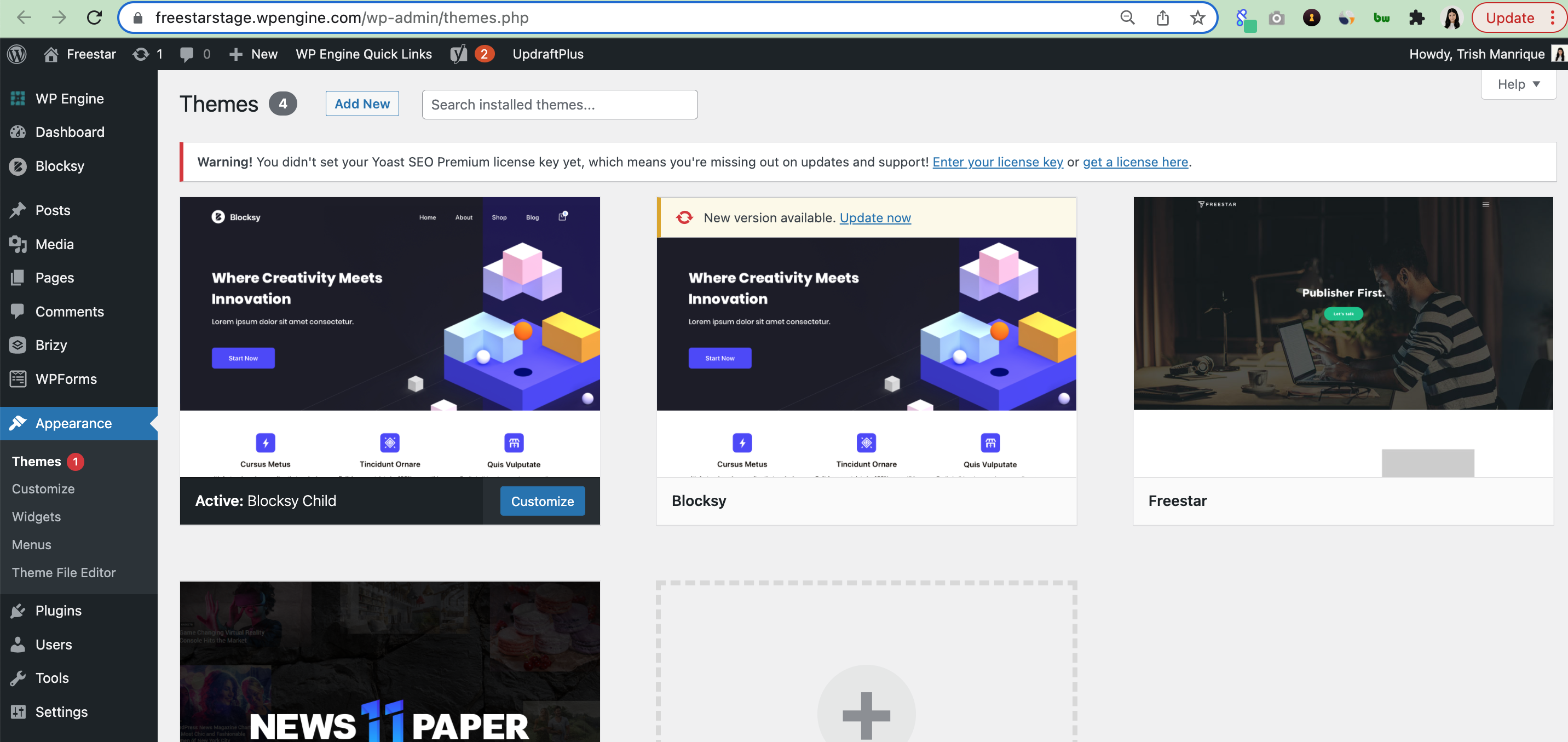
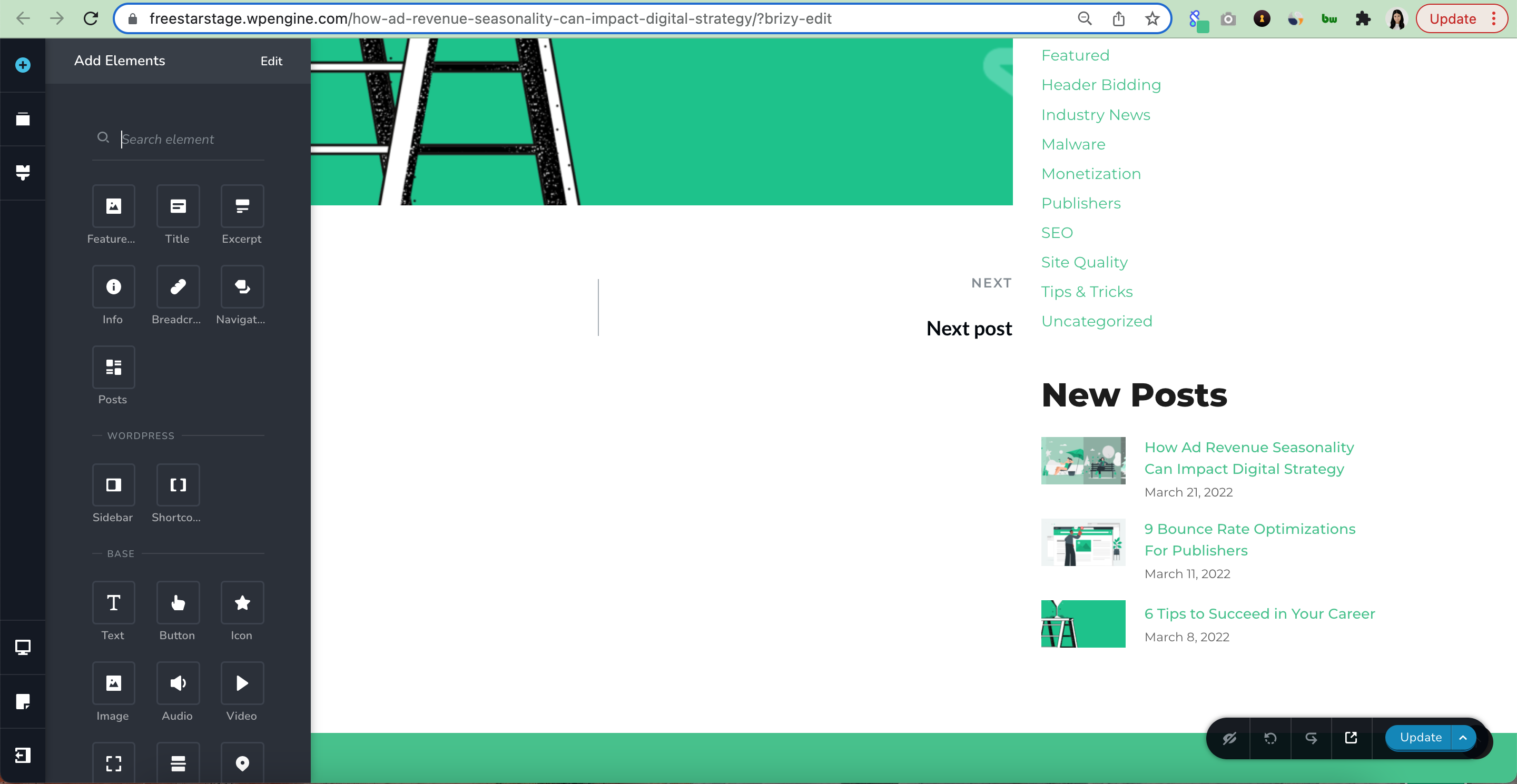
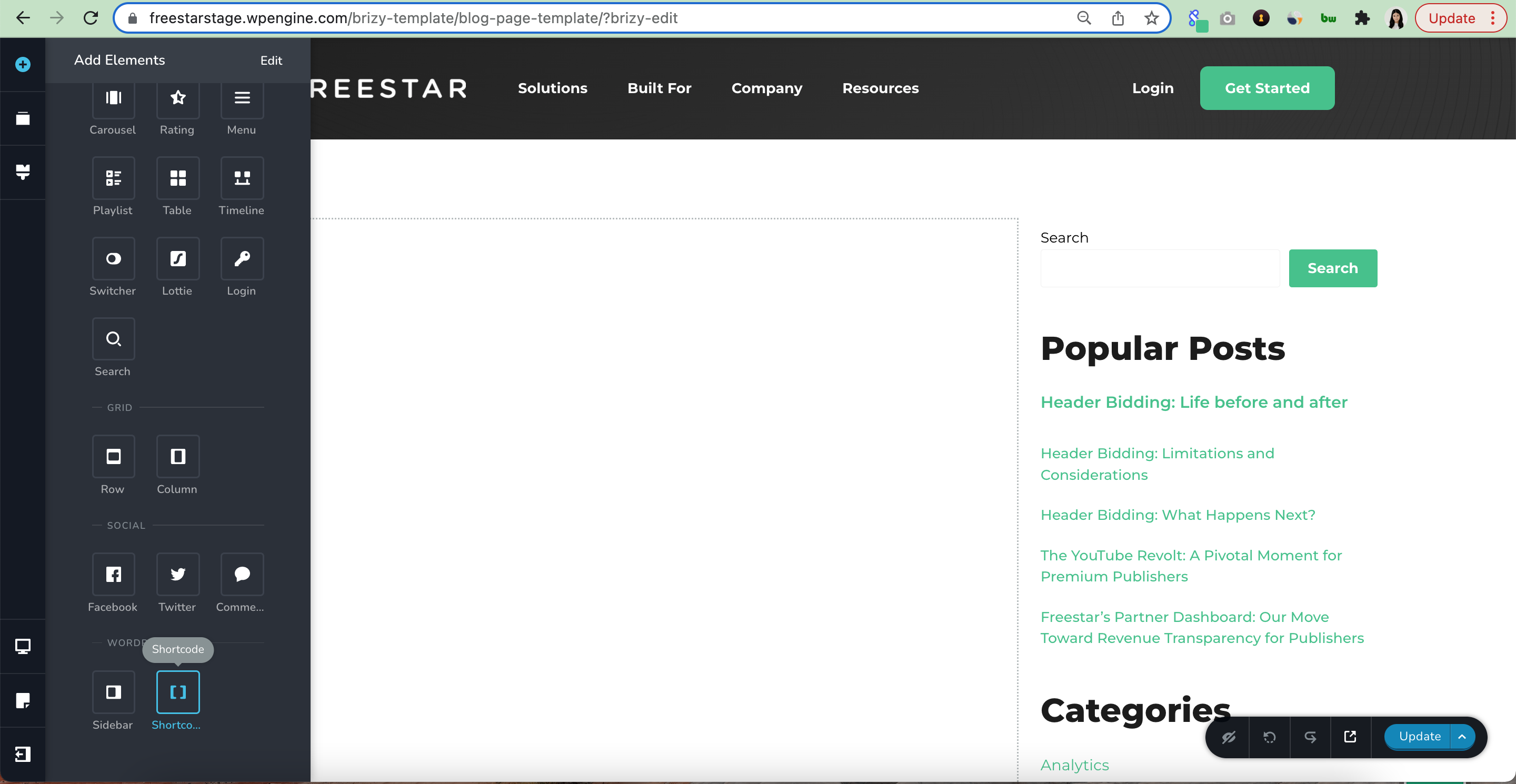
 0
0 -

Hi David
Thanks for the screenshots. In the last screenshot you have shared I can see Brizy menu appearing two times in you WordPress Dashboard. This is somewhat weird. 'Post Content' element should be available when you are designing your Blog Post template and Archive element should be available when you are designing Blog listing templates.
I would like to take a look at your WordPress Dashboard to check why these elements are missing. Please add me as a user to your WordPress Dashboard. My email: kc.george@brizy.io. Please enable the option "Send the new user an email about their account" as in this screenshot https://jmp.sh/tSRznJX
Once you have sent me an invitation, please let me know.
0 -
Hi KC, I have sent you access to our Wordpress. Please let me know if yo need anything else.
0 -
Hi David
I deleted the existing templates and added a new Blog Post template and a Category Archive template. In both the templates, the elements related to posts are available now. Please check
0 -
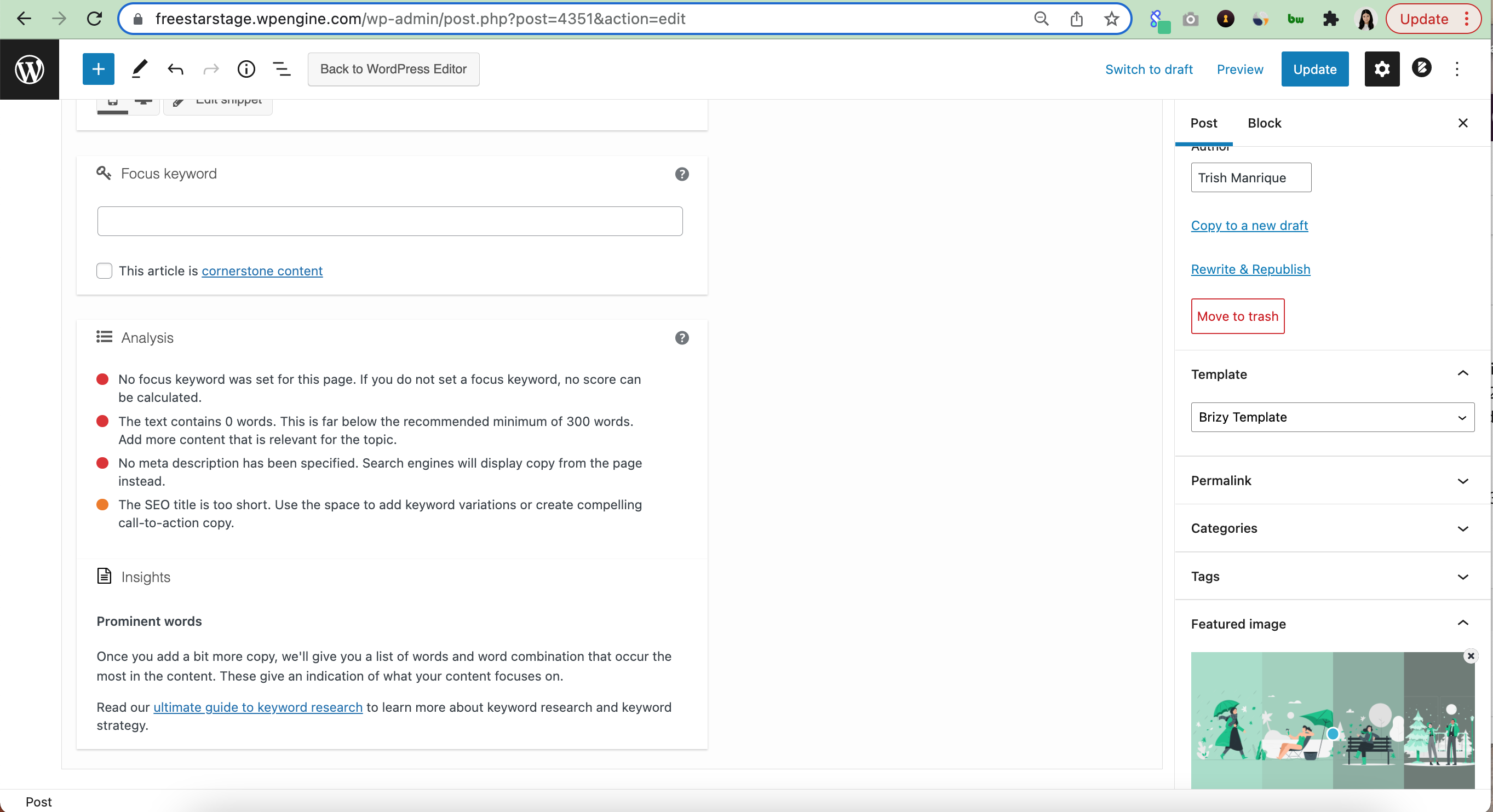
Hi KC, I do see it now, but how do I apply the template Blog Post template to my blog posts? I tried selecting the template within a blog post but it's not populating correctly.
 0
0 -
Hi David
In your Posts page, you can click on View link below any blog post to view it.
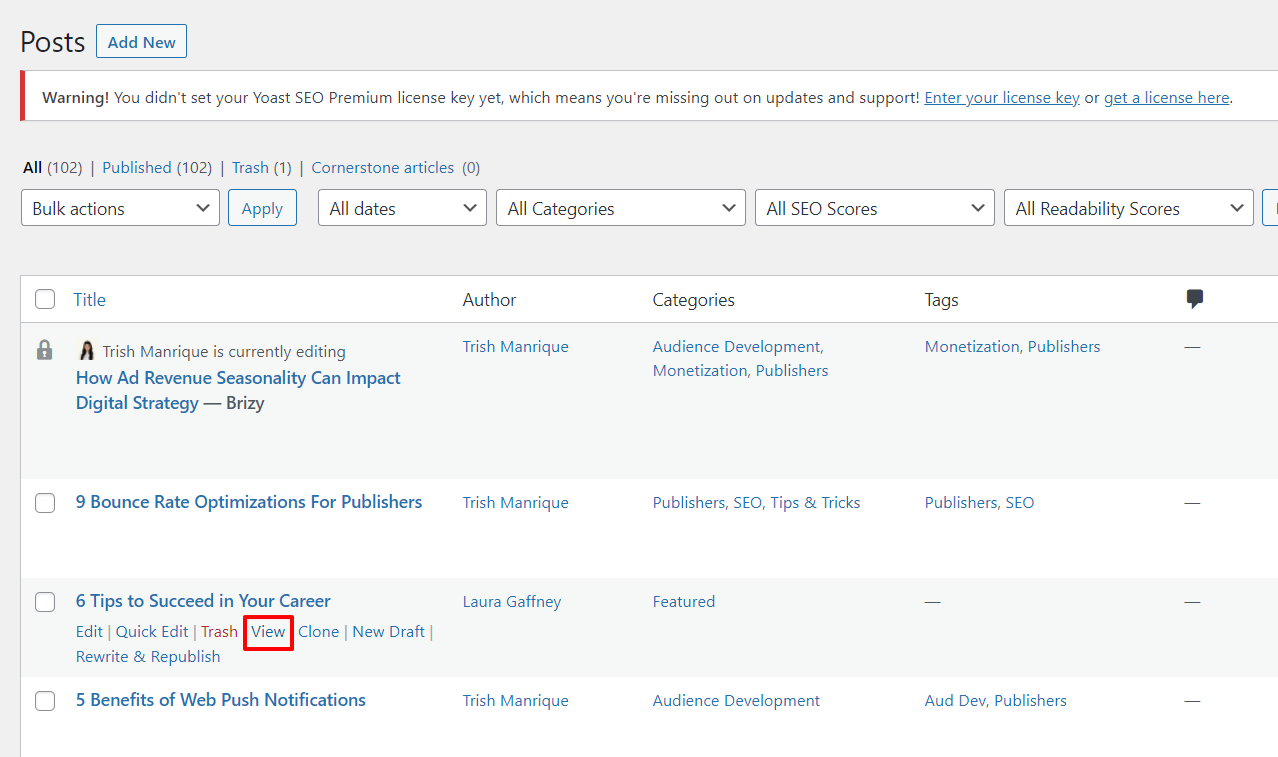
For example click on one of these URLs to see two your blog posts.
https://freestarstage.wpengine.com/bounce-rate-optimization-tactics/
https://freestarstage.wpengine.com/6-tips-to-succeed-in-your-career/
0 -
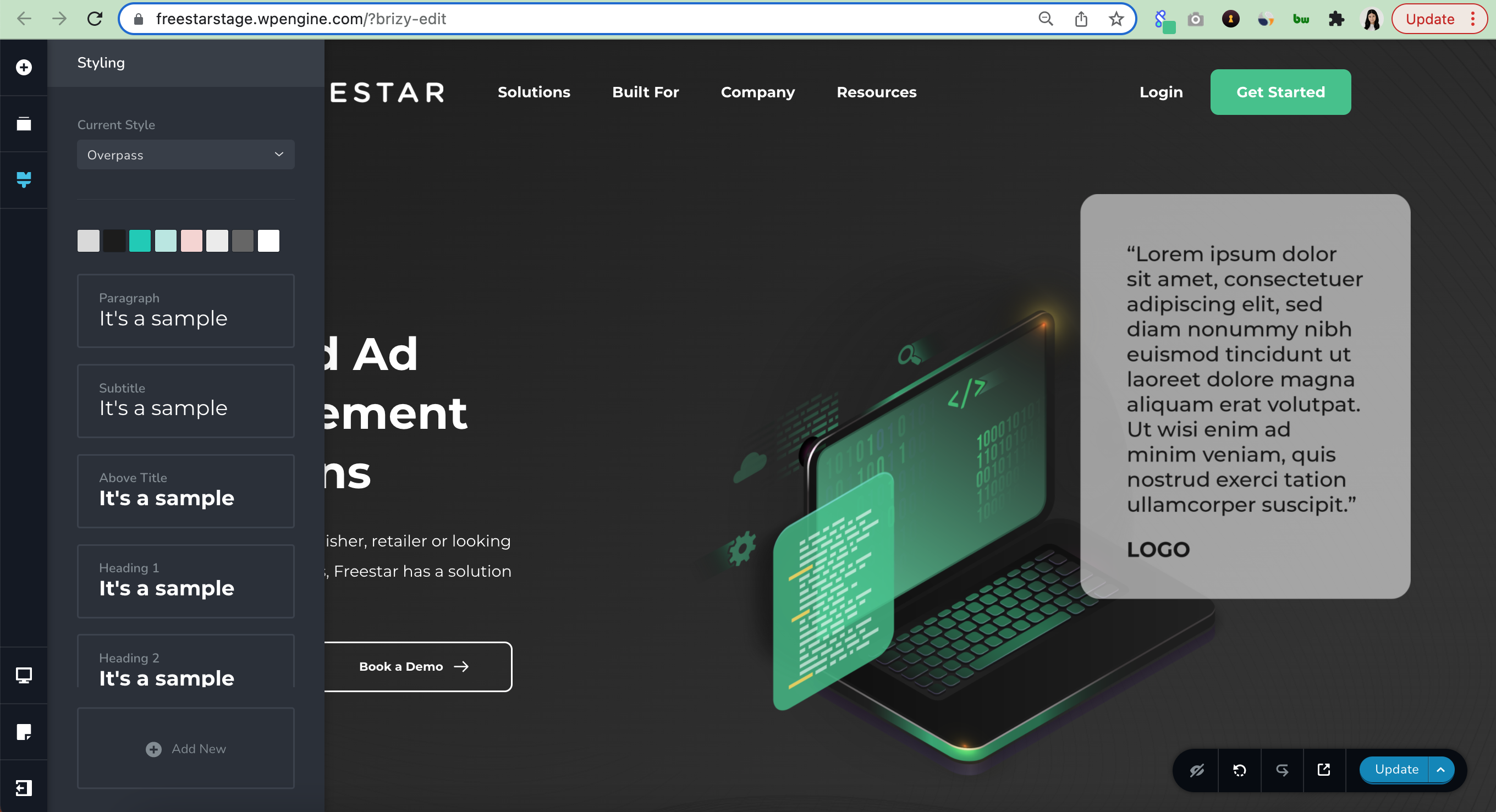
Okay! I see! Just one more thing, is there a way to change the set font and colours in the Styling?
 0
0 -
Hi David
Take a look at these to video lessons on how to set global typography and global colors in Brizy. You may want to skip the initial part and go to later part.
- Typography & Global Styling: https://youtu.be/cWNfl62vQyk
- Colors & Global Styling: https://youtu.be/zgm4go7jhiY
0 -
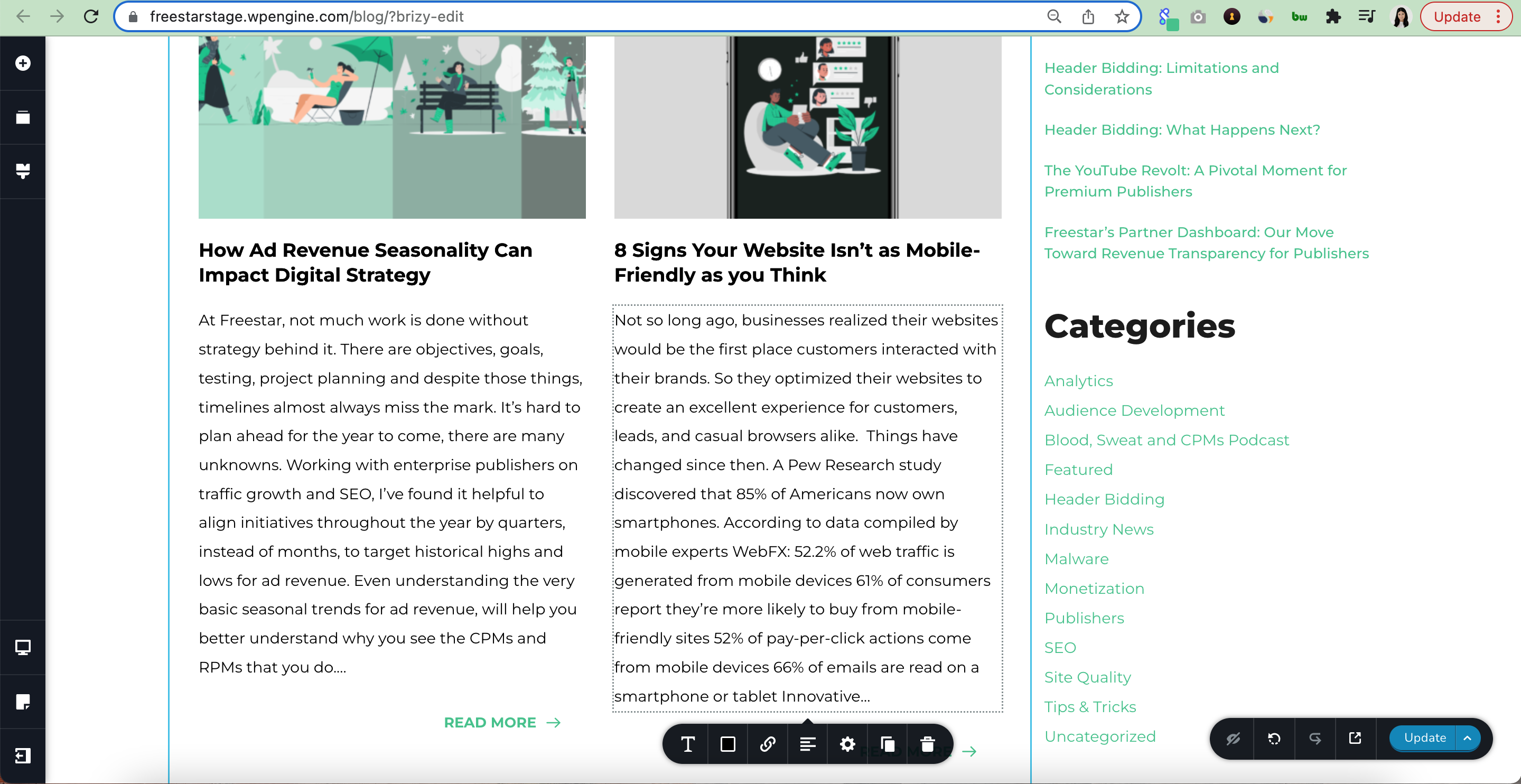
Thank you. Is there a way to reduce the length of an excerpt when using the Posts element?
 0
0 -
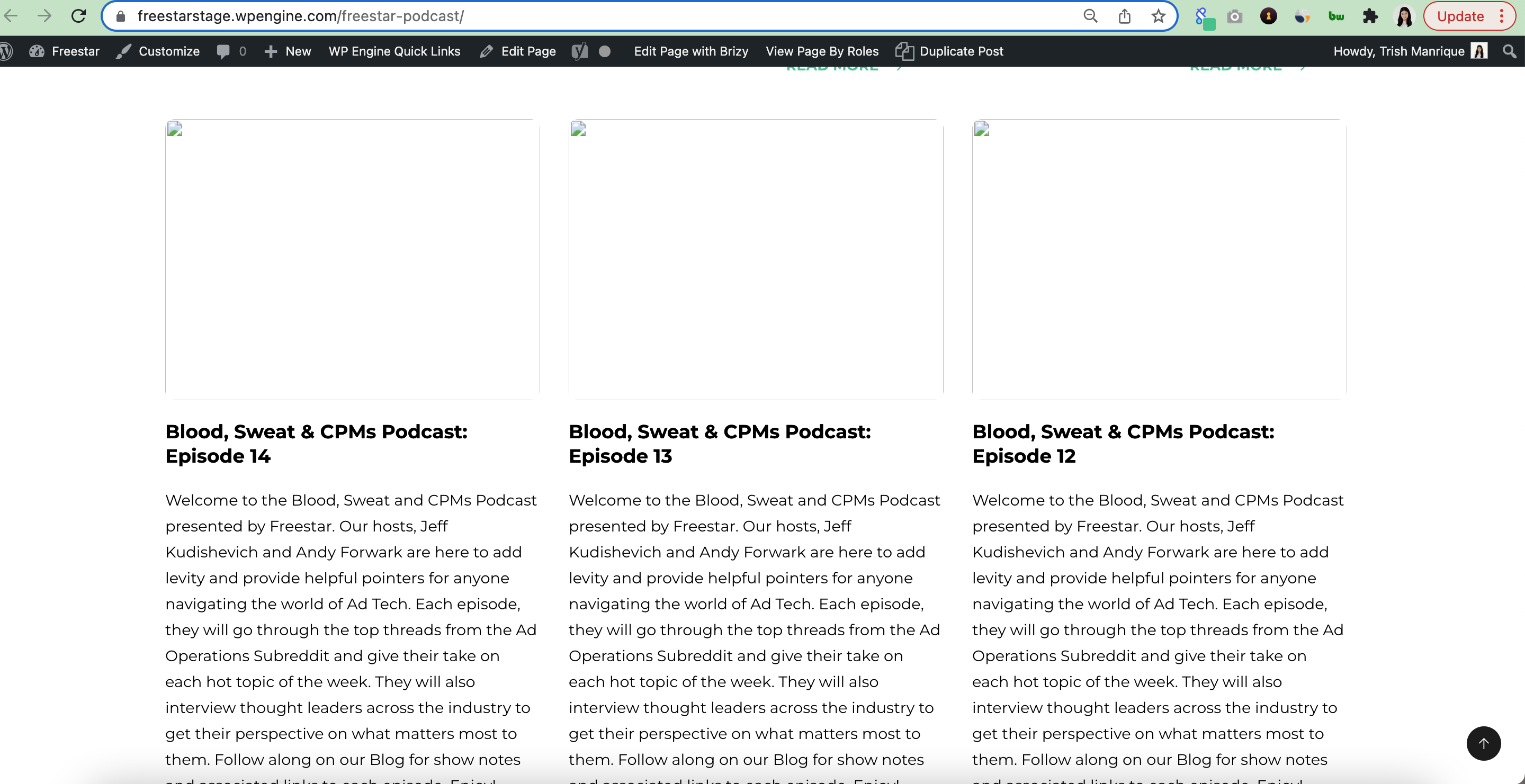
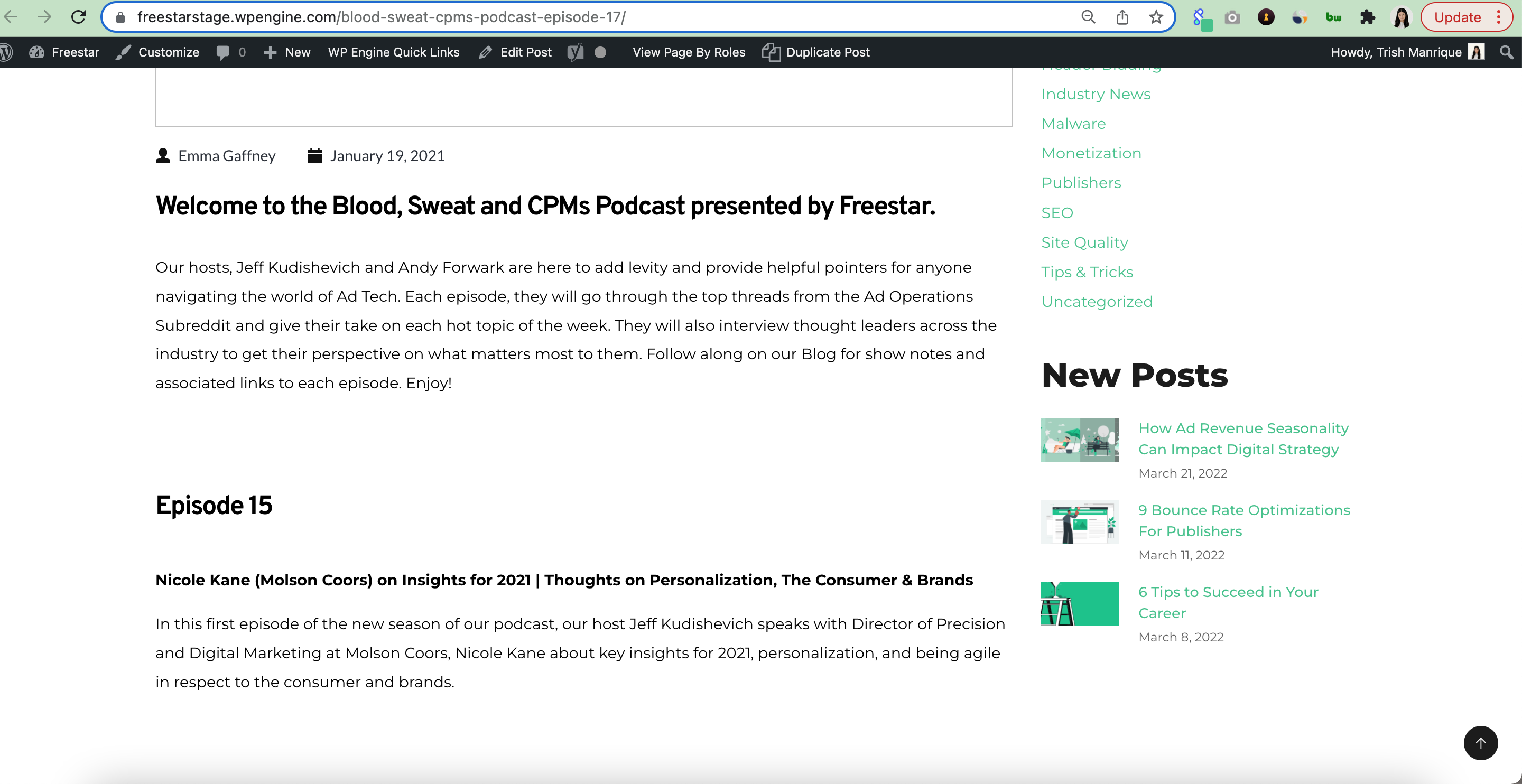
Why are some of my images not populating? How do I change the header fonts with in a Content element?
 0
0 -
Hi David,
You can draft your own excerpt for each blog post in Gutenberg editor. Please see this screenshot. https://jmp.sh/AXvRLNQ
Looks like there are some issue with some of your blog post Featured Images. The images are pointing to non existent image paths and hence the page is returning a 404 error. See if you can look into it. If you can't troubleshoot this, please let me know, I will look into again tomorrow.
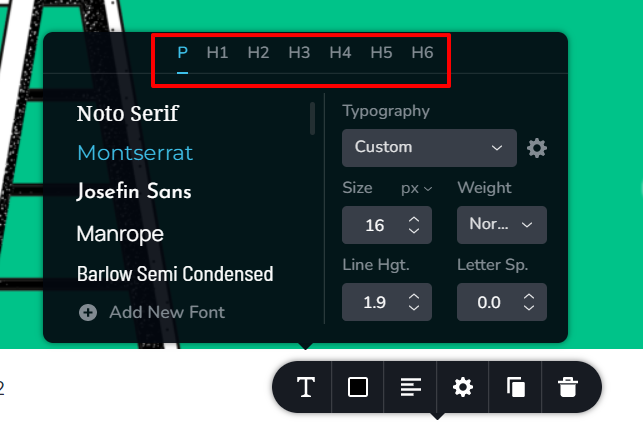
To change the heading of your blog post content section, open the blog post template and click on the Post Content element and select Typography icon. You will see P, H1, H2, H3 etc at the top of the toolbar. By clicking on H1-H6 here, you can set the headings for your blog posts
 0
0 -
Hi KC,
Could you help troubleshoot the images? I'm finding that images are disappearing (other than the featured images) after sometime and I don't know why.
Thanks
0 -
Hi David
I am not able to get to the root of the missing image issue. However, if you re-upload Featured Images, the problem gets resolved. I did it for four blog posts under the Podcasts category and it seems to work fine. Please fix the missing images issue by reuploading the images. These are the steps
- Go to the blog post, remove the Featured Image. The Medial Library will open with the current featured image selected.
- On the right hand side bottom, copy the image URL, paste it into a new browser window. Download the image by right clicking and saving it. Rename the image by changing one letter or a digit.
- Delete the previous Featured Image and upload the renamed image.
You can also watch the procedure in this video. https://www.loom.com/share/24b9afcacdf449be9d39ca5f853a3806
0 -
Hi KC,
For the meta description for the Podcast page, I added meta descriptions for each of the blogs but the previous description is still showing. How do I fix this? https://freestarstage.wpengine.com/freestar-podcast/
0 -
Hi David
Looks like you are referring to Post excerpts. I have added an excerpt for your two of your blog posts. You can see in this page that the first two blog posts have a different excerpt https://freestarstage.wpengine.com/freestar-podcast/
You can add excerpt in Gutenberg Editor to each post. Please see this screenshot https://jmp.sh/AXvRLNQ
0 -
Hi KC,
I'm having issues with some images that appear in the editor and then when I go to preview the page, the images are missing. On the home page, the logos under the "Become a member of our community" go missing on the preview page. I deleted the images and readded them but they're still missing. Is there something I can do about this?
0 -
Hi David
I have selected the Original size for the images in your carousel. Now the images appear to load fine. Please check
0 -
Hi KC,
The images are now working. What do you recommend I do next time that happens? Reupload the image to Media?
0 -
Hi David
You can try this.
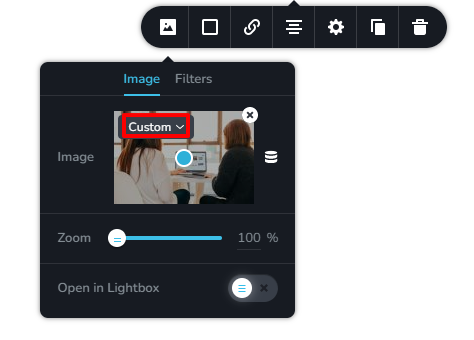
- Click on the image
- Click on the image icon in the toolbar that pops up.
- Click on the "Custom" on the image thumbnail
- Select an option other than Custom. If it is a small size image, choose a small image size. If you choose "Original" the image will be loaded in the Original size on all devices and will not be optimized.
 0
0 -
Hi KC,
Do you have a text element that expands when you hover?
0 -
Hi David
No; you cannot expand text on hover with Brizy
0 -
Hi KC,
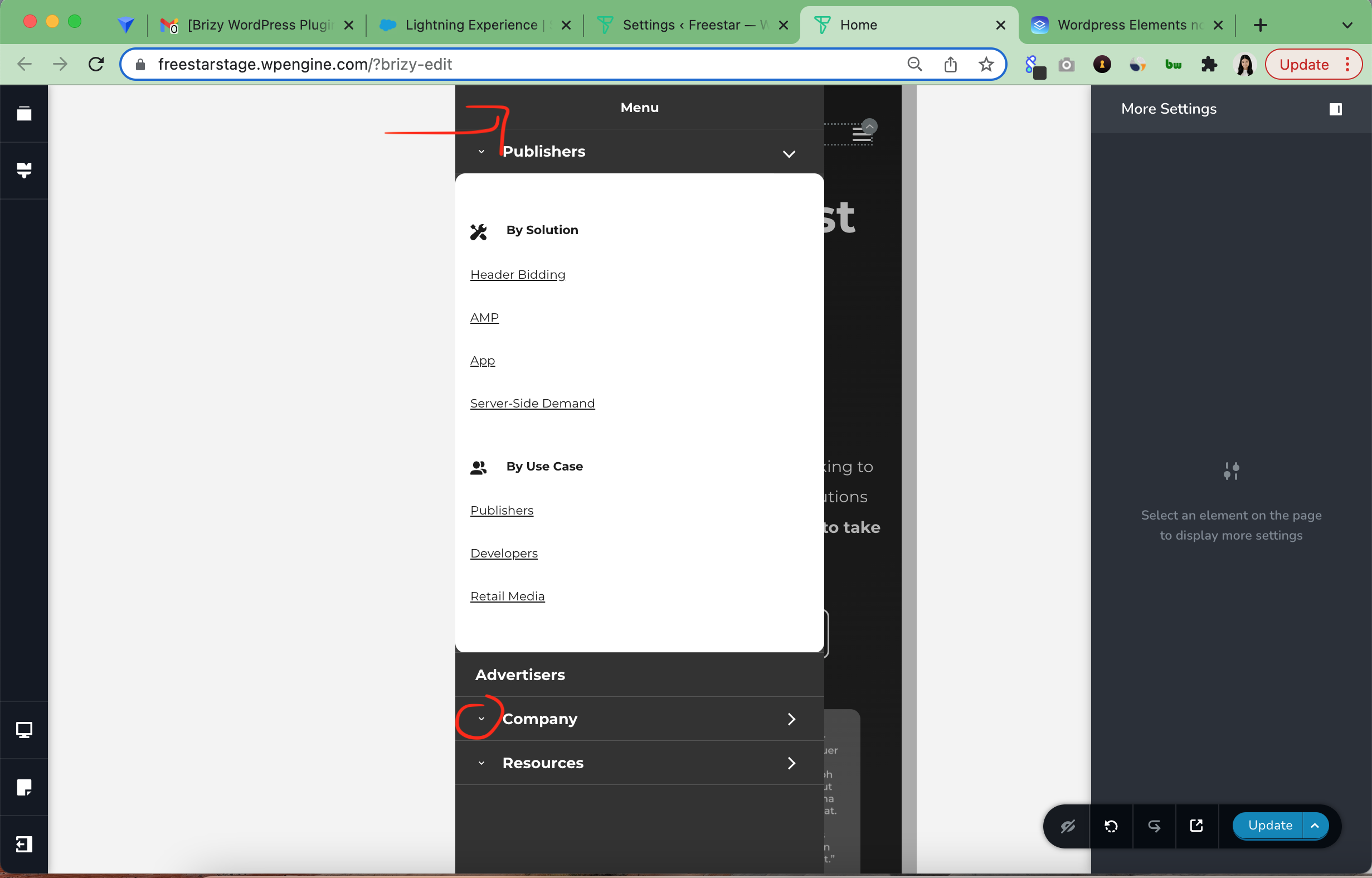
Is there a way to update the mobile menu background to white? And remove the arrow at the front?
 0
0 -
Hi KC,
Nevermind, figured it out!
0 -
Hi KC,
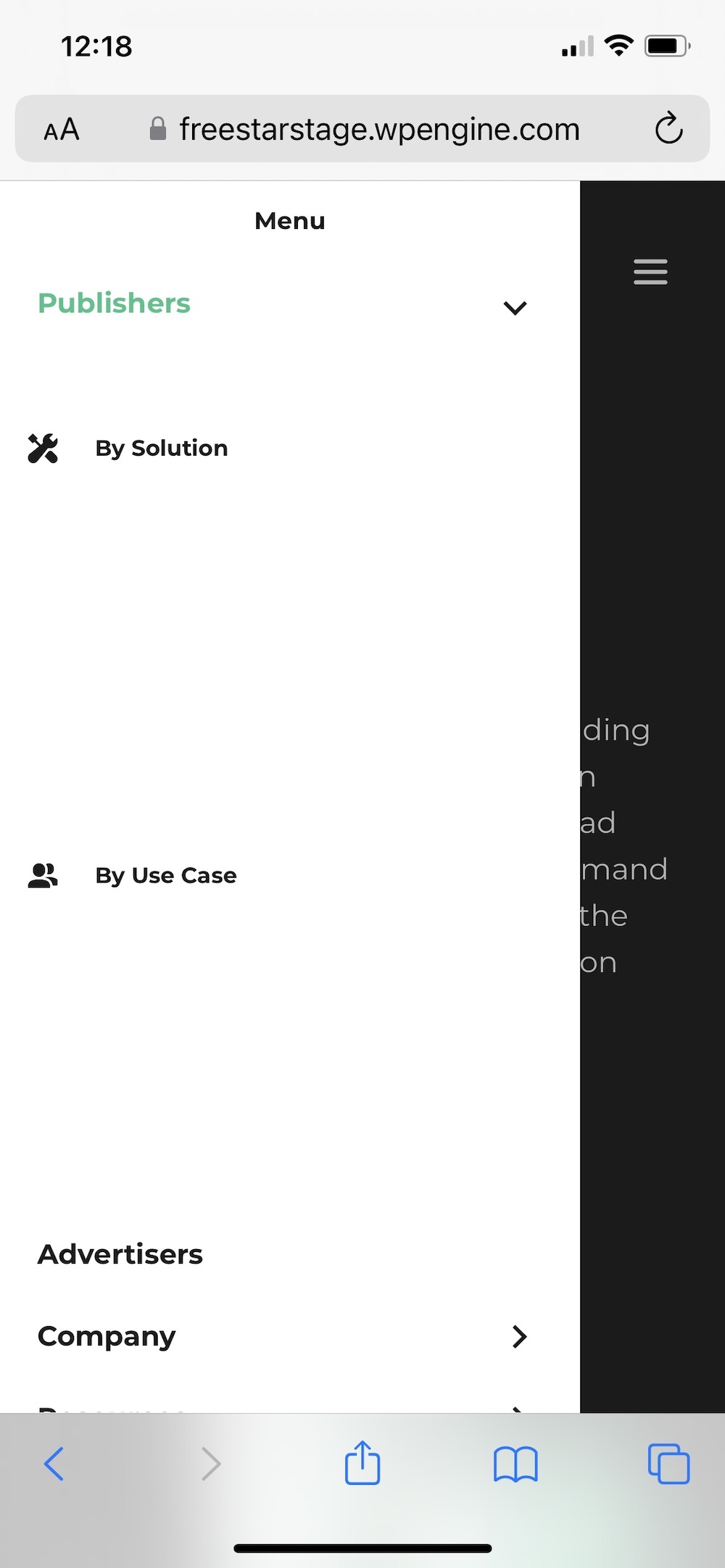
My mega menu text is appearing as white in mobile? How do I fix this?
 0
0
Please sign in to leave a comment.
Comments
42 comments