Menu issues

There are some weird menu issues across the site: https://thepalmbeachgarage.com/
Plugins are all updated, it happens on every page.
It look fine on the previewer inside the dashboard, but the live site.
-

Hi Rob,
Thank you for reaching out.
To help us investigate this further, could you please provide temporary access to your WordPress admin dashboard?
Kindly send the following details to communitysupport@brizy.io:
Community Post: https://support.brizy.io/hc/en-us/community/posts/39680395311250
WordPress Admin URL:
Username:
Password:We’ll review it as soon as we receive the access.
Best regards,
Ariel H.0 -
Hi Rob,
Thank you for your cooperation.
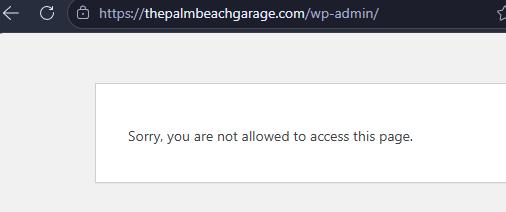
The user account provided doesn't currently have administrative access. Could you please update its role to Administrator?
You can do this by following these steps:
1. Log in to your WordPress dashboard.
2. Go to Users -> All Users.
3. Click Edit under the relevant user account.
4. Change the Role to Administrator.
5. Click Update User to save the changes.Please let us know once this is done so we can continue troubleshooting.
Best regards,
Ariel H.0 -
Updated.
Also, please note that the email/employee in which this account was created is no longer with the company. Can we update the contact to me:
dan@digitalelevator.co (not "dot com")0 -

Hello Dan,
We’ve made the following changes to address the mega menu issue:
-
Deactivated the "Fast Velocity Minify" plugin: A conflict between Brizy and this plugin may be contributing to the issue. We recommend keeping it deactivated, as reactivating it could cause the mega menu to malfunction again. If you need to reactivate it and the issue returns, please deactivate it and recompile all Brizy pages.
-
Recompiled all Brizy pages and posts: We used the Layout Recompiler for Brizy plugin to recompile your pages and posts.
Please check your website and confirm whether the mega menu is now working as expected. If the issue persists, please let us know, so we can assist you further.
You can update the email address linked to your Brizy account by following these steps:
-
Sign in to your Brizy account using Rob’s email address.
-
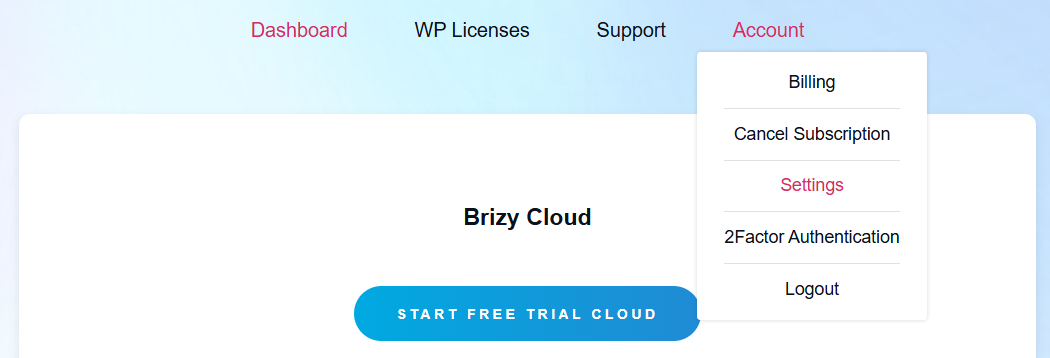
Navigate to Account → Settings
-
Enter your new email address in the "Email Address" field, then click "Save Account Settings" to apply the changes.
Once saved, you should be able to sign in using your new email address and existing password. If you’d also like to update your password, you can do so from the same "Settings" page.
Please let us know once you’ve checked the mega menu. We’ll be happy to help if you need any further assistance!
0 -
-
Great, looks good thank you for your help!
0
Please sign in to leave a comment.
Comments
5 comments