Button URLs work on desktop but lose href on tablet portrait/mobile

Brizy Support Report: Responsive Taxonomy Button Links Lose href
Environment: WordPress; Brizy 2.8.23; Brizy Pro 2.8.12
Problem
I have a reproducible problem on one page involving manually created buttons that link to WordPress custom taxonomy archives (Topics and Transitions). The affected buttons work correctly on desktop and on a real iPad in landscape orientation. They do not work on the same iPad in portrait orientation, and they do not work on a real iPhone/mobile.
There are 18 affected buttons: 15 Topic/Transition card buttons and 3 additional "Not Sure Where to Begin?" navigation-card buttons. All 18 point to Topic or Transition taxonomy archive URLs.
Other links on the same page work correctly at the narrow breakpoints, including the hero anchor buttons, normal WordPress page links, and Read Article buttons in the Featured Reading area.
Testing and Analysis
- Confirmed that the affected URLs are correct in the Brizy desktop editor.
- Confirmed that the affected buttons are configured using Brizy's URL link option and contain the full taxonomy archive URL.
- Removed and re-entered an affected URL, updated the page, and retested. The problem remained.
- Forced a harmless edit/save regeneration of the page and retested. No effect.
- Confirmed that this is not an individual-button issue: all 18 taxonomy-archive buttons show the same responsive failure pattern.
- Checked responsive row/column sizing, height, position, Z-index, alignment, and animation settings. Nothing identified there explains the behavior.
- Tested on real devices, not only in Brizy's responsive preview: desktop works; iPad landscape works; iPad portrait fails; iPhone/mobile fails.
Safari Web Inspector Findings
The most important finding is that the generated HTML is different between desktop and the narrow responsive rendering.
Desktop - affected Identity button (works):
<a ... href="https://xhf.smo.mybluehost.me/website_889060e3/topic/identity/" data-brz-link-type="external" ...>EXPLORE IDENTITY</a>
iPad portrait/mobile - affected Identity button (does not work):
<a ... data-brz-link-type="page" ...>EXPLORE IDENTITY</a>
The narrow responsive version has no href attribute at all. The Brizy editor still shows the full correct URL for the button:
https://xhf.smo.mybluehost.me/website_889060e3/topic/identity/
Working comparison button at the same mobile breakpoint - View All Insights:
<a ... href="https://xhf.smo.mybluehost.me/website_889060e3/insights/" data-brz-link-type="page" ...>VIEW ALL INSIGHTS</a>
Both the working View All Insights button and the non-working Identity button are rendered inside a div with the class brz-wrapper-clone. Therefore, the presence of brz-wrapper-clone by itself does not distinguish the working and non-working cases.
What the Testing Appears to Establish
This does not appear to be a general mobile-link problem, a page-wide overlay problem, or a basic responsive layout problem. Normal page links and other buttons on the same page continue to work at the narrow breakpoints.
The failure is specifically associated with these manually created buttons that point to the custom Topic/Transition taxonomy archives. At desktop width Brizy outputs the correct href. At iPad portrait/mobile width, Brizy renders the affected anchor element without an href, even though the correct URL remains configured in the editor.
Request for Brizy Support
Could you please determine why Brizy is dropping or changing the URL when generating the iPad portrait/mobile version of these taxonomy-archive buttons? Is this a known issue, and is there a supported fix, recompile procedure, or workaround?
I can provide the page URL, screenshots, additional HTML output, and temporary WordPress administrator access if you need to inspect the site directly.
-

Hello Steve,
It appears that the sections containing the 15 Topic/Transition card buttons and the three additional “Not Sure Where to Begin?” navigation cards may have separate designs for desktop, tablet, and mobile views. While the hyperlinks appear to be correctly configured in the desktop version, they may not have been added to the corresponding buttons in the tablet and mobile versions.
To confirm this, please follow these steps:
- Open the page containing these buttons in the Brizy Editor.
- Select the "Tablet" option on the left sidebar to switch to the tablet view.
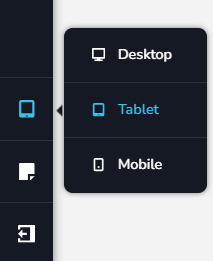
- Check each button/card and confirm that the appropriate hyperlink has been added in the tablet view.
- Then switch to the "Mobile" view and check the links for each button there as well.
If the links are correctly configured in all responsive views but the issue persists, we’d be happy to take a closer look from your WordPress Admin Dashboard. Please create a temporary administrator user for our support team and send the access details to communitysupport@brizy.io.
Please include the following information in your message:
- Support Forum reference: https://support.brizy.io/hc/en-us/community/posts/39106021021074
- WordPress Admin URL
- Temporary administrator username
- Temporary administrator password
Important: Please include the link to this support thread in your message so that we can quickly identify and locate your support request. Once you’ve sent the details, please let us know in this thread so we can proceed with the investigation.
0 -
There are no links in the settings controls. There is no available option to inspect this or include one. I assumed it was being inherited from the desktop view
0 -
Hello Steve,
If your page uses different designs for desktop and tablet/mobile, Brizy will automatically hide the desktop-specific design when you switch to the tablet/mobile view, and vice versa. To view all sections that are currently hidden for the selected device, click the “Show Hidden Elements” icon near the bottom-right corner in the Brizy Editor.

Hidden sections will appear blurred in the editor. If you identify a blurred section that contains the buttons you’re looking for, click its Settings icon and select “Show on Desktop” toggle switch to make the section visible in the desktop view. You can then verify whether the hyperlinks are configured correctly.
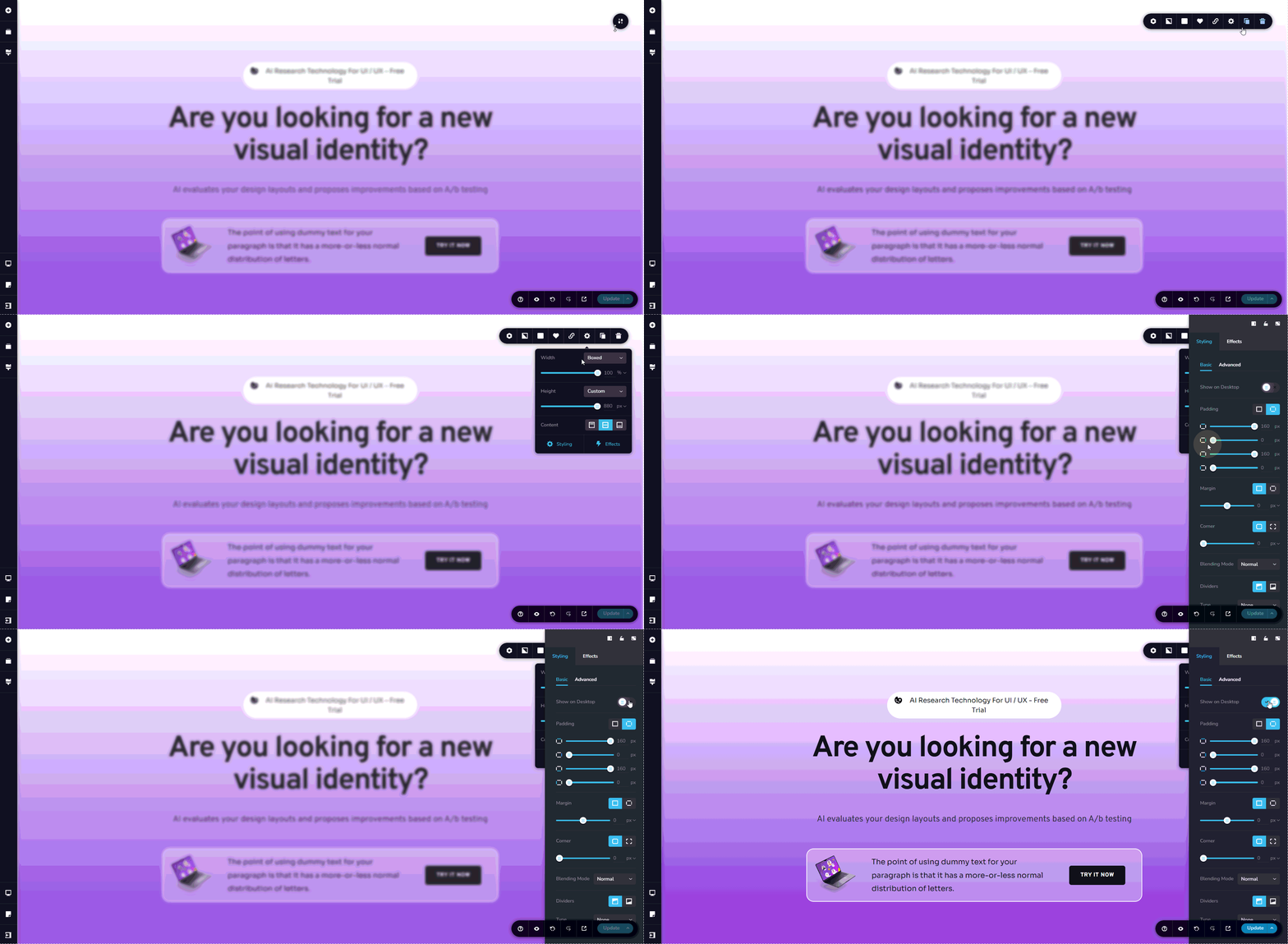
If this doesn’t match what you’re seeing or you’re unable to locate the relevant sections, please follow the instructions in my previous comment to grant us temporary access to your WordPress Dashboard. We’ll be happy to take a closer look and help you resolve the issue.0 -
you solved the problem. all is working fine
thanks
0
Please sign in to leave a comment.
Comments
4 comments