Updates have broken pages, menus

Hi,
I have updates to Brizy Version 2.8.12 and Brizy Pro Version 2.8.6 and now my home page is completely haywire. The menus on other pages are not displaying correctly.
I have tried switching themes to a default Wordpress one from Blocksy but it doesn't help.
View: https://proconsult.ie/
Thanks,
Órla
-

Hi Orla,
My apologies for the inconvenience.
To help us investigate this further, could you please provide temporary access to your WordPress admin dashboard? This will allow us to take a closer look at your setup and identify the cause of the issue.
Kindly send the following details to communitysupport@brizy.io:
Community Post: https://support.brizy.io/hc/en-us/community/posts/34979171686674
WordPress Admin URL:
Username:
Password:We’ll review it as soon as we receive the access.
Best regards,
Ariel H.0 -
Hi Orla,
I just wanted to follow up regarding the temporary WordPress Admin access we requested so we can check the issue mentioned in your community post. Please let us know once you’ve added us as an Admin user and sent the details to communitysupport@brizy.io.
Best regards,
Ariel H.0 -
Hi Ariel,Yes, I sent the email yesterday to communitysupport@brizy.ioThank you,Órla0
-
Hi Órla, please disregard the last message. We got the email. I will get back to you within the hour.
0 -
- no worries.Had just sent again!
Thanks
0 -
Hi Órla,
Thank you for your cooperation, we've now fixed the issue.
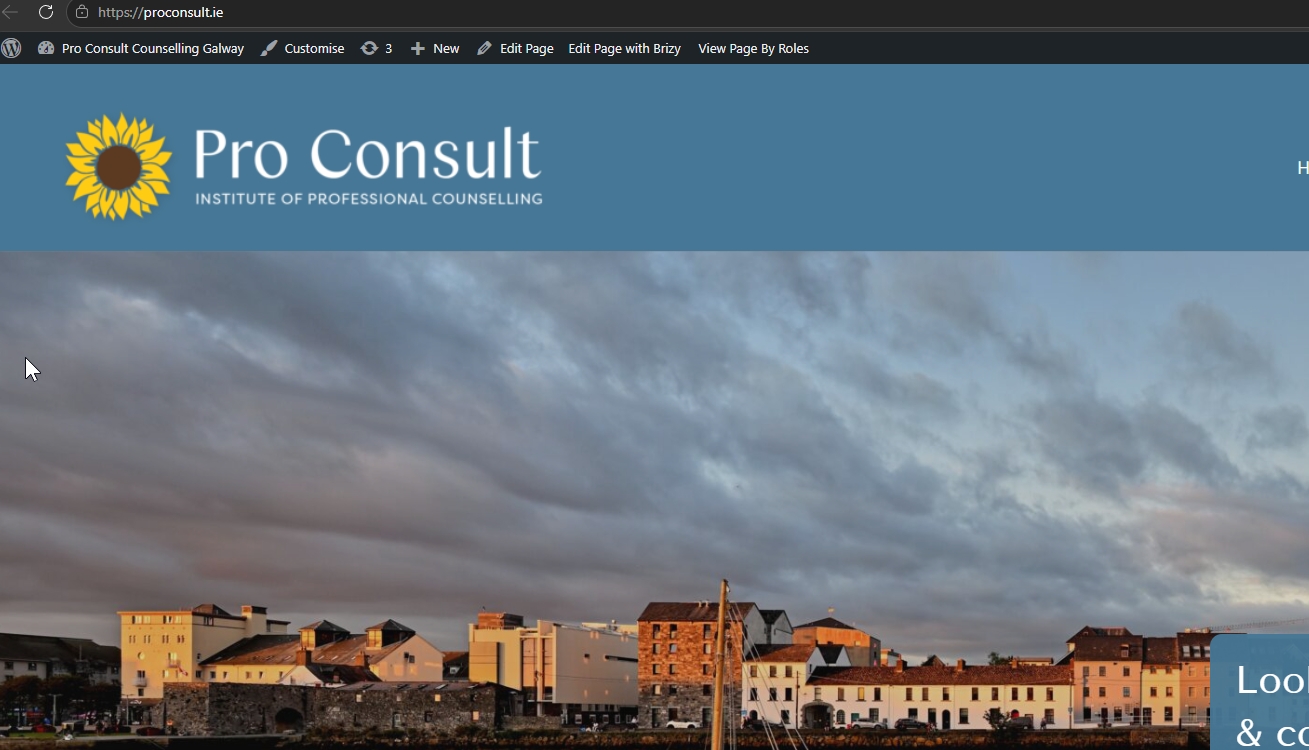
Could you please test it on your end and let us know if everything is working as expected? If you need any further assistance or have any questions, feel free to reach out.
Best regards,
Ariel H.0 -
Hi Ariel,
Thanks for fixing. It all looks good now.
Warm regards,
Órla
0 -

May we know what needed fixing so the rest of us can fix our own sites? Mine is also broken with the 2.8.12 update. Thank you.
0 -

Hello Adam,
Could you please follow the troubleshooting steps below? They’ll help us identify whether the issue is caused by incompatible Brizy versions or missing CSS files and guide us toward the appropriate solution.
Step 1: Verify Brizy and Brizy Pro compatibility
Ensure that you have compatible versions of Brizy and Brizy Pro installed. For example, Brizy 2.8.12 is compatible with Brizy Pro 2.8.6. The most recent versions Brizy 2.8.24 and Brizy Pro 2.8.12 are compatible.
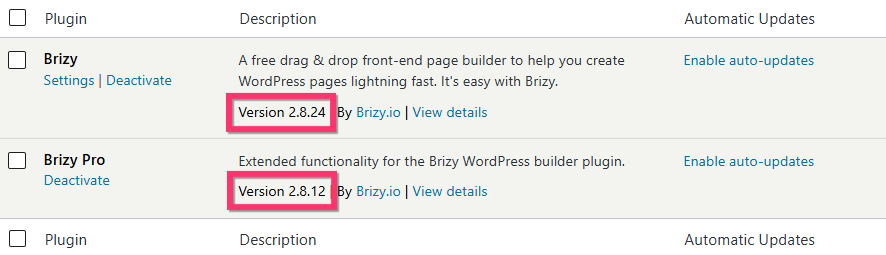
If both plugins are compatible and the issue persists, proceed to the next step.
Step 2: Check for CSS errors in your browser console
Open your website’s frontend in your browser and open the developer console using the appropriate keyboard shortcut:
-
Windows/Linux: Press
Ctrl + Shift + Jto open the Console directly, orCtrl + Shift + I(orF12) and select the Console tab. -
macOS: Press
Command + Option + Jto open the Console directly, orCommand + Option + I(orFn + F12) and select the Console tab.
Check whether you see any “404 File Not Found” errors related to Brizy CSS files, as shown in the screenshot below.
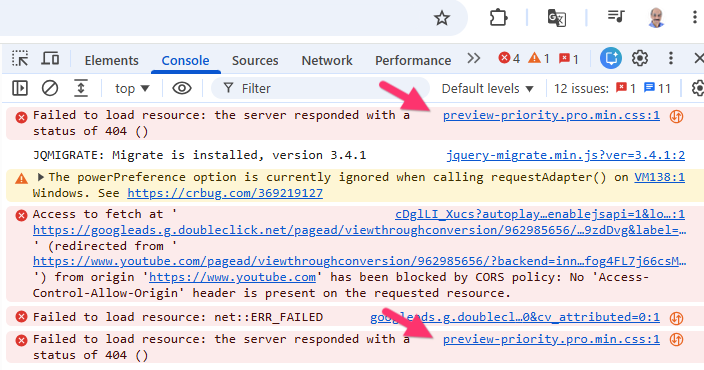
Step 3: Install the Layout Recompiler for Brizy plugin
If you find 404 errors for Brizy CSS files, install the Layout Recompiler for Brizy plugin. This tool can help recompile Brizy pages and regenerate the associated resources.

Step 4: Open the Layout Recompiler tool
In your WordPress Admin Dashboard, navigate to Tools → Layout Recompiler.
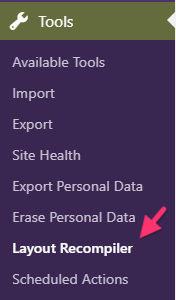
Step 5: Recompile your Brizy pages
Click the Start Recompilation button and wait for the process to finish.
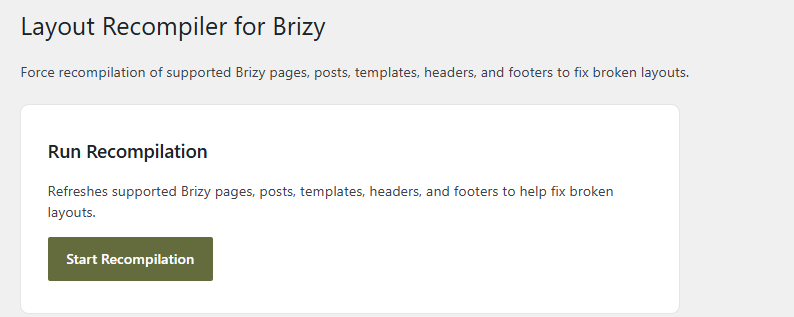
Once the process is complete, revisit your website and check whether the issue has been resolved.
If the issue persists after completing these steps, please let us know. We’ll be happy to investigate further by accessing your WordPress admin dashboard, to help identify the cause.
Thank you for your cooperation. We look forward to helping you get this resolved!
0 -
Please sign in to leave a comment.
Comments
9 comments