issue with images after connecting the domain

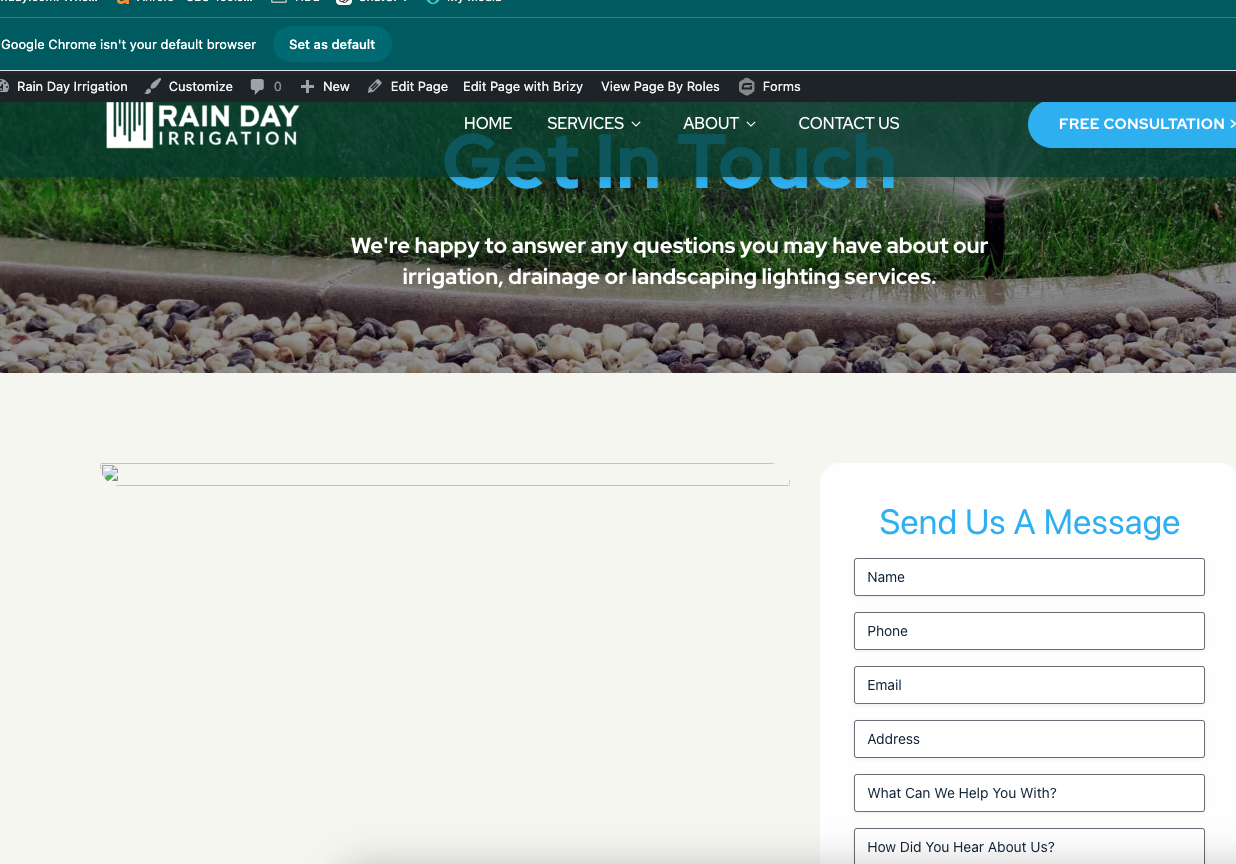
I am hosting my site on Cloudways. I built it there and then I connected the domain. and after that my site is live but all images (well either all of just some) are not showing. I saved the permalinks to see if it will fix it but it didnt work. I cleared all the cache and that didnt work. I removed brizy and brizy pro and then reinstalled it and it seamed to fix home page images. only on home page. not other pages. this happened in the past as well few times. other sites were small so I was able to go in and changed every single image to the same one and that worked. but I cannot be doing this for big site and all the time. I am not sure why this is happened. I asked the hosting provider and they said that the issue is with brizy. this is what they said "Upon checking in detail, i do not found any traces of the default URL, but it is appearing in the console log so you need to check with the brizy plugin."
-

Hi Tatsiana,
Thank you for contacting us.
We've noticed this issue with domains that use the 'www' subdomain. It seems like a glitch from the recent update. To fix this, try removing 'www' from your production site. Go to Settings > General and remove "www" from your Home and Site URL, then save your changes.
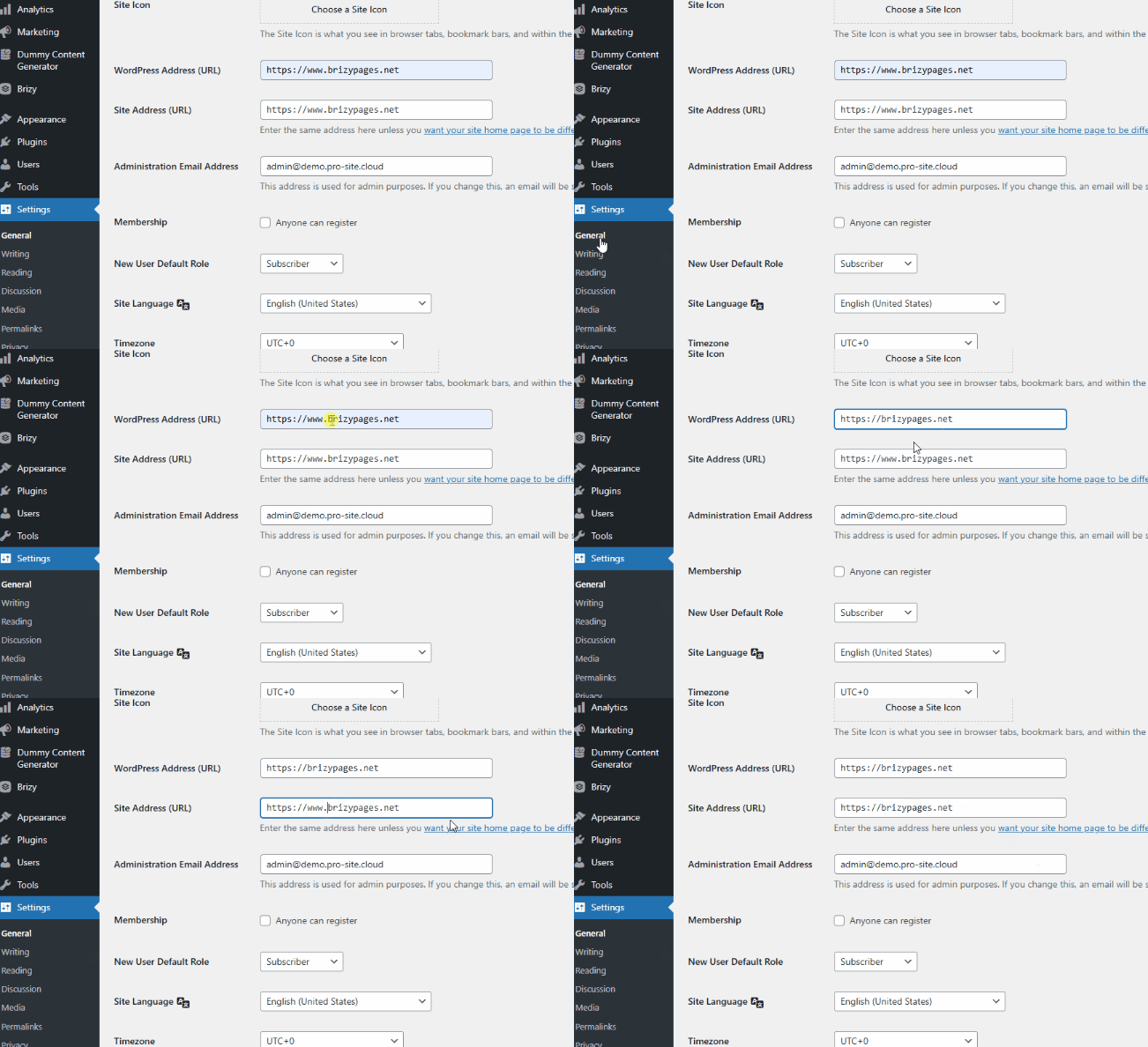
After this, you might need to flush the permalinks as an extra step. You can find instructions here: https://wpastra.com/docs/how-to-refresh-wordpress-permalinks.This should fix the links on your live site including the missing images in the editor.
Please give it a try and let me know if it works for you.
Best regards,
Ariel H.0 -
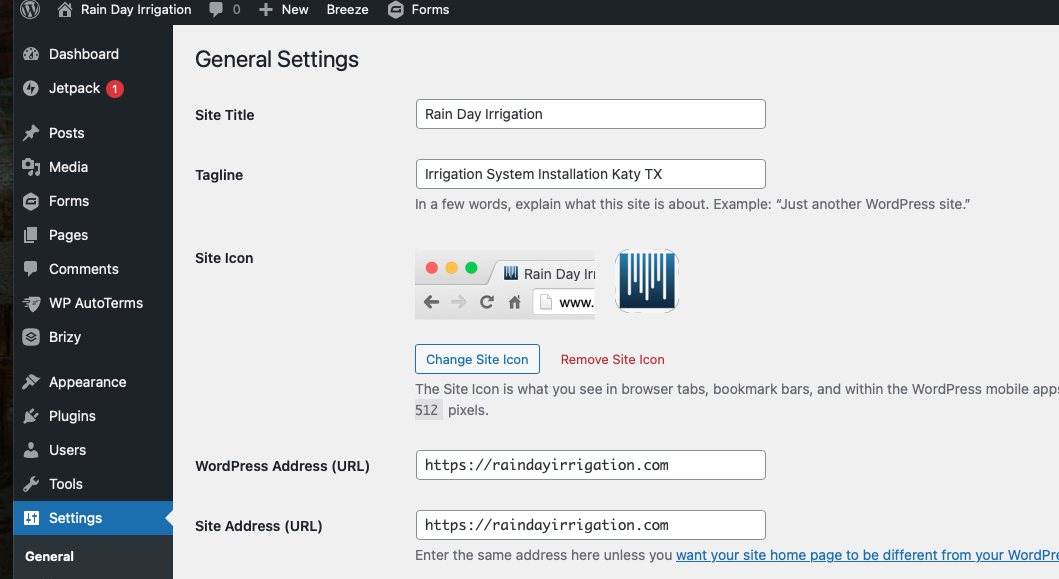
the thing is that I dont have www there at all.
and I flushed permalinks already and I just did it again as well.
 0
0 -
Hi Tatsiana,
Please provide us with temporary access to your WP Admin page so we can take a look. Please add us as an Admin user to your WordPress Dashboard and send the following details to communitysupport@brizy.io.
Community Post link: https://support.brizy.io/hc/en-us/community/posts/22411906555154
WordPress Admin URL:
Username:
Password:As a precaution, we recommend creating a full backup of your site.
Best regards,
Ariel H.0 -

Hello Tatsiana,
The missing images are in fact pointing to your temporary URL on cloudwaysapps.com. Few sample image URLs
- https://wordpress-1217376-4962315.cloudwaysapps.com/?brizy_media=wp-f1ed5f94f24f1b31f1c4992867fe37f9.jpeg&brizy_crop=iW%3D533%26iH%3D368%26oX%3D48%26oY%3D0%26cW%3D437%26cH%3D368
- https://wordpress-1217376-4962315.cloudwaysapps.com/?brizy_media=wp-cc64f3f528bea7efcf192f60e9e9c4fc.png&brizy_crop=iW%3D502%26iH%3D280%26oX%3D33%26oY%3D0%26cW%3D437%26cH%3D280
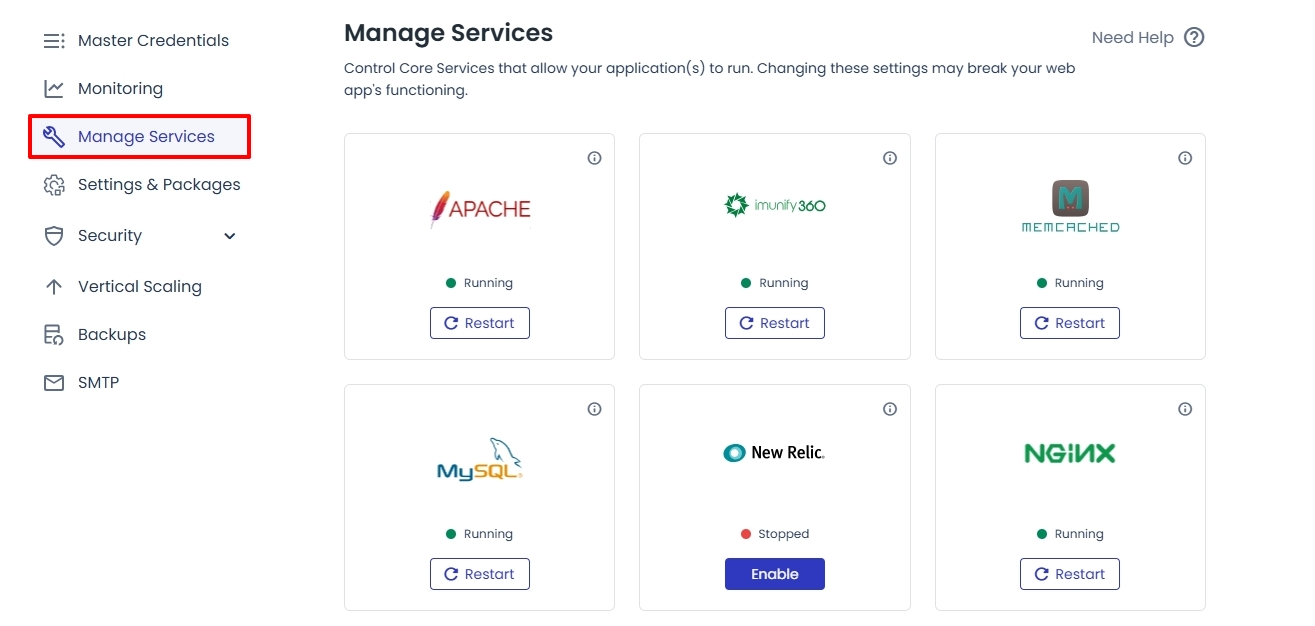
Kindly sign in to your Cloudways account, select your server and under "Manage Services" kindly purge the "Varnish" cache and restart "Memcached" and "Redis" services and check if the images display well.
 0
0 -
none of this helped. the other site is working now I am not sure why or what happened. but now I am working on https://poweruptampa.com/ and it is doing the same thing. I did every thing that was suggested. cloud ways says there is nothing on their end. we ran search and replace and cached everything and it is still not working. did this "sign in to your Cloudways account, select your server and under "Manage Services" kindly purge the "Varnish" cache and restart "Memcached" and "Redis" services and check if the images display well." and didnt work. this was the last thing they told me "Since the calls are going incorrectly, please do ask them to check once more. If they have any server-side recommendations, please feel free to reach out to us, and we will make the necessary modifications for you." please help becasue this is happening now every time I add a new domain
0 -
Hi Tatsiana,
Thank you for the update.
Could you try the following steps before moving your website from staging to live?
1. In your staging site, clear (or “purge”) all caching plugins. I noticed you’re currently using two or three caching and optimization plugins.
2. Once the cache is cleared, disable all caching plugins in your staging environment.
3. After that, connect your domain name.
4. When your site is live, go back to the plugins area and re-enable your caching and optimization plugins.
5. Besides purging WordPress caching plugins, you’ll need to clear Cloudways’ built-in caches (Varnish, Redis, and server cache) from the Cloudways dashboard. This ensures that all cache layers are cleared.
Please try this approach and let us know if it resolves the issue.
Best regards,
Ariel H.0 -
it has been cleared so many times! on the site and on the hosting side. I just did it again and nothing. Cloudways has done all the checks and stuff and they are saying there is nothing on their end. Please help me! this is happening with every site I am connecting. I went thought the way I am connecting the site with the hosting provider and they said that I am doing everything in the correct order.
I can give you the access to the site so you can look and see what you can do. I am building other sites and I will be in the same boat with those
0 -
Hello Tatsiana,
I have temporarily deactivated these plugins
- Breeze
- Jetpack
- Object Cache Pro
- WP Optimize
Can you please check if all the images display well on your website? If you find a page with a missing image, kindly share with us the URL of the page
0 -
still the same. I have cleared history and browser cache and tried in incognito window as well
do you see images on your side?
0 -
Hi Tatsiana,
Have a look at my test at https://jmp.sh/fvK9iCo0 All images are visible on my end
0 -
that site was somehow fixed yesterday. I am not talking about https://poweruptampa.com/
but I dont even know how it was fixed. and even after that there were few images I had to manually do in and replace with the same exact image from the library without uploading anythgin new
 0
0 -
Hi Tatsiana,
Thank you for the update.
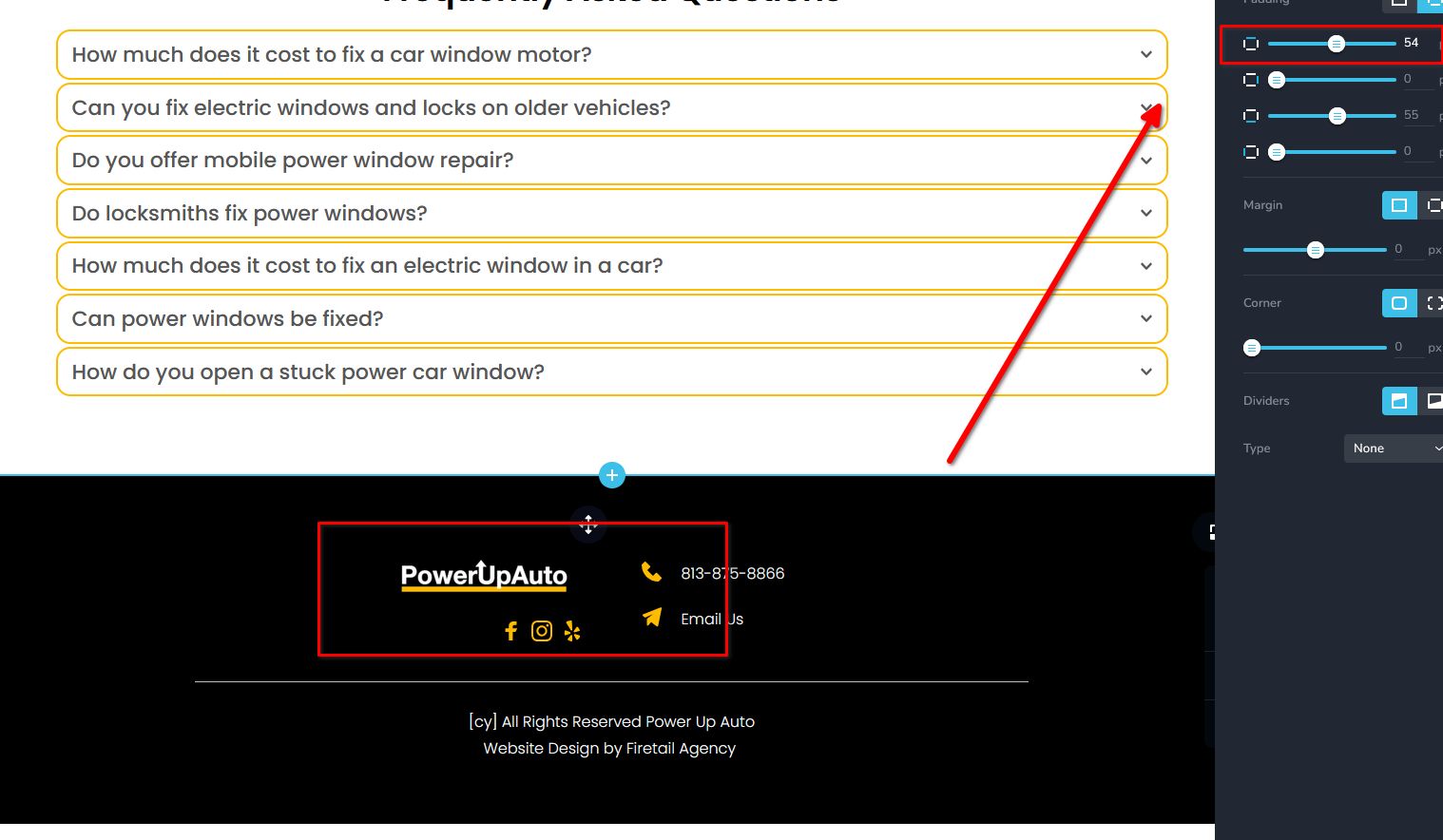
If this issue occurs again, please try updating the padding by 1px in each affected block and then click the Update button. Unfortunately, this needs to be done from top to bottom on the specific page, as it will force the links to refresh. You can then revert the padding as needed and save your changes again.
Best regards,
Ariel H.0 -
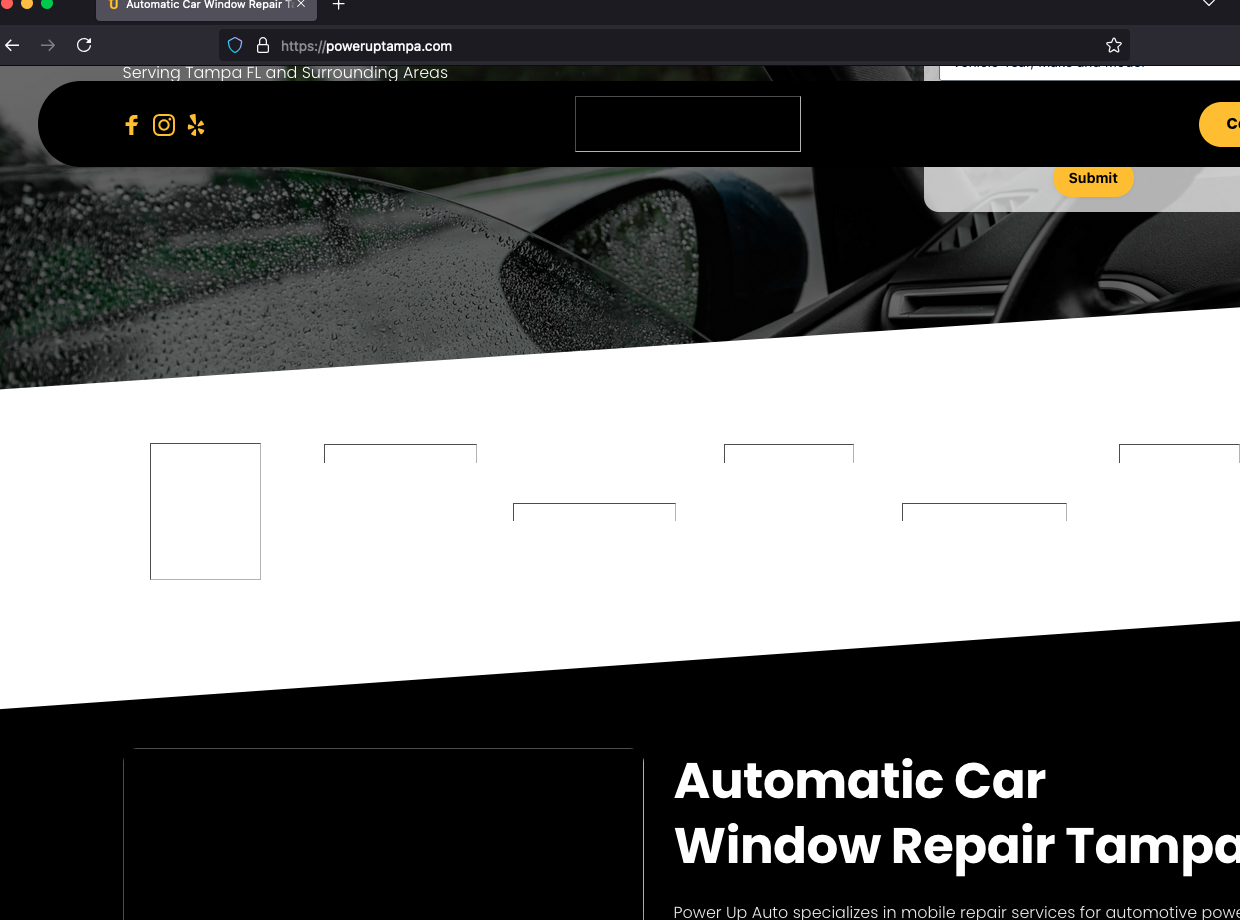
it is still not working! I have tried it in different browsers and cleared cache and in private windows. it it only worked in the same window when I was logged in into Wordpress. and the second I logged out it went back to not showing images
 0
0 -
Hi Tatsiana,
This appears to be a hard caching issue. Please take a look at this screencast: https://youtu.be/_fd9mB-dlSM
When loading the website, the front end initially shows missing images, but if you open it in incognito mode and add a random URL parameter (e.g., https://poweruptampa.com/?34234=23424234), the images appear correctly.
Could you please check with your hosting provider to see if they have any recommendations to resolve this?
Best regards,
Ariel H.0 -
Hello Tatsiana,
All images are visible to logged in users. I see the design at https://jmp.sh/arGA1Jml when signed into your WordPress Dashboard. Images are missing only for non logged in users.
Kindly sign in to your Cloudways account, select your server and under "Manage Services" kindly purge the "Varnish" cache and restart "Memcached" and "Redis" services and the images should display well.
0 -
I did that and this time it worked. can you please tell me what was done before I purge the "Varnish" cache and restart "Memcached" and "Redis" services? I would like to know how to fix this myself. I have another site that I will be connecting the domain today.
0 -
Hello Tatsiana,
After connecting a domain, save the permalink structure two times and make a minor change to all blocks with missing images (like adding a space at the end of a paragraph or increasing padding by 1 pixel) and click on the "Update" button at the bottom right corner. This will help recompile the pages using the new domain name. Check if all images are visible in website frontend when you are signed in to your WordPress Dashboard. If images are visible to logged in users and invisible to non logged in users, kindly clear all server caches in Cloudways.
0 -
So let me get this clear. On the site that may have over 20-25 pages, with many images per page you want to go in and adjust every single image??? This is absolutely terrible! The amount of time this will take!!!! There has to be a better way!
0 -
This is what we have done for your single page website. If you have multiple pages, you could also try doing it for a single page, update the project and check if resolves the issue for all pages. We have not implemented this process for a multi page website yet.
0
Please sign in to leave a comment.
Comments
19 comments