Brizy plugin is slowing down my website

The Server support team saying:
The website should be loading again now. It seems to have been caused by "brizy" which was making a lot of requests towards the website. With those two plugins disabled - The site then started to load again. The plugins have since been re-enabled and seems to be running fine again. But it may be something worth bringing up with the plugin developers on why its making so many requests towards the server IP address. Example: 77.72.2.88 - - [20/Aug/2024:12:25:42 +0100] "GET /?brizy_media=wp-34a2da2bc6a545820bb71cfcf3f28c55.png&brizy_crop=iW%3D150%26iH%3D150%26oX%3D0%26oY%3D20%26cW%3D150%26cH%3D110 HTTP/1.0" 301 0 "-" "-" 77.72.2.88 - - [20/Aug/2024:12:25:43 +0100] "GET /?brizy_media=wp-34a2da2bc6a545820bb71cfcf3f28c55.png&brizy_crop=iW%3D150%26iH%3D150%26oX%3D0%26oY%3D20%26cW%3D150%26cH%3D110 HTTP/1.0" 301 0 "-" "-" 77.72.2.88 - - [20/Aug/2024:12:25:45 +0100] "GET /?brizy_media=wp-34a2da2bc6a545820bb71cfcf3f28c55.png&brizy_crop=iW%3D150%26iH%3D150%26oX%3D0%26oY%3D20%26cW%3D150%26cH%3D110 HTTP/1.0" 301 0 "-" "-" 57.141.0.18 - - [20/Aug/2024:12:25:46 +0100] "GET /?brizy_media=wp-2d4d358e9240e03b0e7a26ef3d0f05bc.jpg&brizy_crop=iW%3D187%26iH%3D140%26oX%3D0%26oY%3D12%26cW%3D187%26cH%3D117 HTTP/2" 200 6374 "-" "facebookexternalhit/1.1 (+http://www.facebook.com/externalhit_uatext.php)" 77.72.2.88 - - [20/Aug/2024:12:25:47 +0100] "GET /?brizy_media=wp-34a2da2bc6a545820bb71cfcf3f28c55.png&brizy_crop=iW%3D150%26iH%3D150%26oX%3D0%26oY%3D20%26cW%3D150%26cH%3D110 HTTP/1.0" 301 0 "-" "-" 77.72.2.88 - - [20/Aug/2024:12:25:48 +0100] "GET /?brizy_media=wp-34a2da2bc6a545820bb71cfcf3f28c55.png&brizy_crop=iW%3D150%26iH%3D150%26oX%3D0%26oY%3D20%26cW%3D150%26cH%3D110 HTTP/1.0" 301 0 "-" "-" 77.72.2.88 - - [20/Aug/2024:12:25:50 +0100] "GET /?brizy_media=wp-34a2da2bc6a545820bb71cfcf3f28c55.png&brizy_crop=iW%3D150%26iH%3D150%26oX%3D0%26oY%3D20%26cW%3D150%26cH%3D110 HTTP/1.0" 301 0 "-" "-" 77.72.2.88 - - [20/Aug/2024:12:25:51 +0100] "GET /?brizy_media=wp-34a2da2bc6a545820bb71cfcf3f28c55.png&brizy_crop=iW%3D150%26iH%3D150%26oX%3D0%26oY%3D20%26cW%3D150%26cH%3D110 HTTP/1.0"
-

Hi Niki,
Thank you for contacting us.
The majority of the log entries show 301 status codes, indicating repeated redirects that could lead to infinite loops or resolution failures.
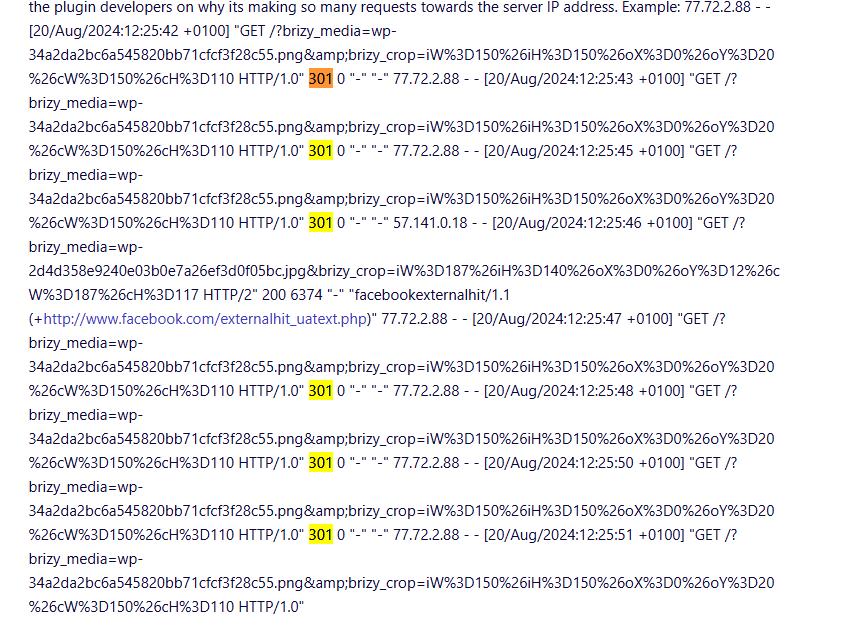
However, one request successfully returned a 200 status code, which means that particular image was found and served correctly. This suggests that the issue affects some image requests but not all.

To address this issue:
1. Please try resetting the Permalinks: https://wpastra.com/docs/how-to-refresh-wordpress-permalinks/
2. If you use a .htaccess file, ensure that redirect rules are correctly set up and not causing a loop or incorrect redirection.
3. Clear your WordPress cache, plugin cache, and any CDN cache to ensure that outdated content is not causing the issue.Please try this and let me know how it goes.
Best regards,
Ariel H.0 -
I have done all these but website is really too slow.
1. Please try resetting the Permalinks: https://wpastra.com/docs/how-to-refresh-wordpress-permalinks/
2. If you use a .htaccess file, ensure that redirect rules are correctly set up and not causing a loop or incorrect redirection.
3. Clear your WordPress cache, plugin cache, and any CDN cache to ensure that outdated content is not causing the issue.
is there a way to stop hitting the request to the website as it's slowing down the server0 -
Hi Niki,
Thank you for the update.
The issue may also be related to your server. Please try disabling all plugins except Brizy and Brizy Pro, and reset the Permalinks. Check for any speed variations while working in the backend or frontend with all other plugins disabled.
Ensure that your PHP Memory limit is a minimum of 256M, or set it to 512M or higher for best results. To check the current memory limit, navigate to Tools -> Site Health -> Info -> Server.
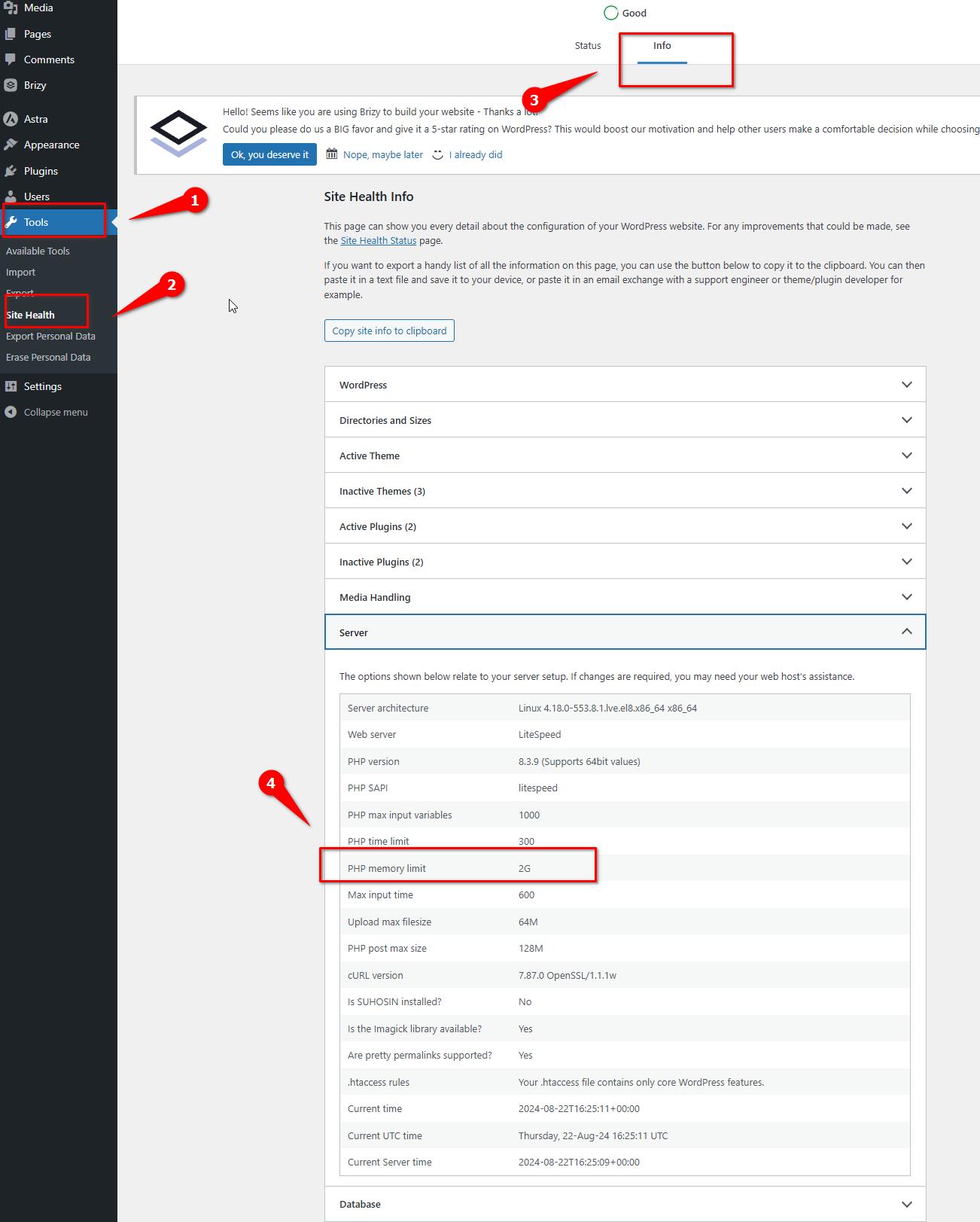
To increase the Memory Limit, refer to the steps in this link: https://kinsta.com/knowledgebase/php-memory-limit/. Alternatively, contact your hosting provider for guidance.
If adjusting the memory limit doesn't show improvement, we will need to investigate the issue from your WP Admin page. Kindly add us as an Admin user to your WordPress Dashboard and send the following details to: communitysupport@brizy.io
Community Post link: https://support.brizy.io/hc/en-us/community/posts/20909602464530
WordPress Admin URL:
Username:
Password:Additionally, we require access to FTP or cPanel for direct access to your WP files.
Please perform a full backup of your site as a precautionary measure.
Best regards,
Ariel H.0 -
Increased the memory limit on the server but nothing happened. sent the admin details, please resolve this as soon as possible
0 -
Hi Niki,
Thank you for your cooperation. We have received the credentials; however, it appears that your website is encountering a server issue, resulting in slow loading times and eventually displaying a "500 Internal Server Error." This issue typically arises from server-related problems.
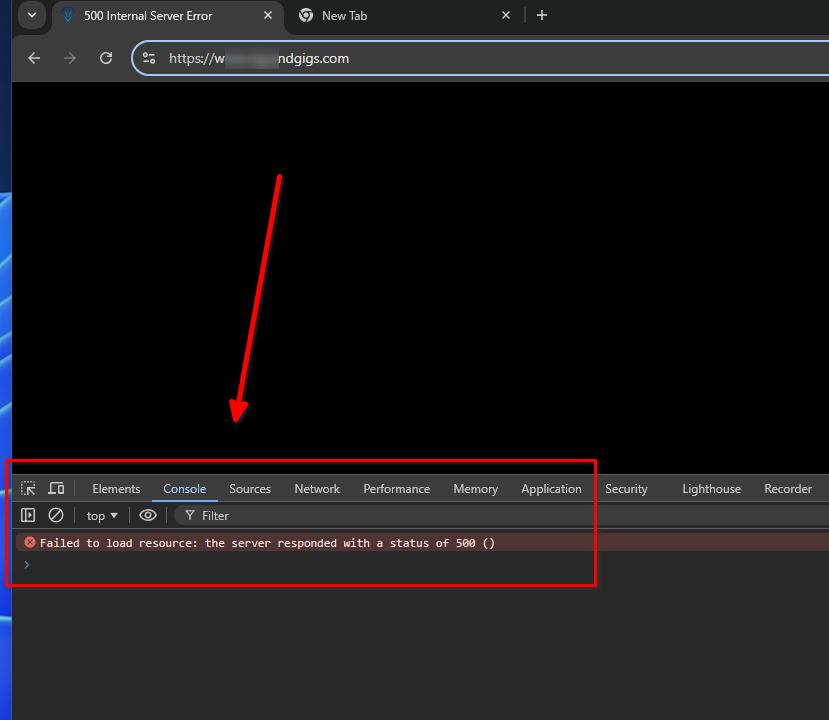
Kindly reach out to your hosting provider to address this issue promptly. You can also share your cPanel credentials with us, and we would be glad to investigate from our end as well. Please send your cPanel login details to communitysupport@brizy.io.
Best regards,
Ariel H.0
Please sign in to leave a comment.
Comments
5 comments