Header not showing - ccannot make changes

Hi,
a few months back I redesigned a website use brizy pro. Now, a few months later, the header is not showing anymore (all devices).
In brizy editor it is showing.
I also cannot change anything anymore. When I change something it gives an error: page cannot be published.
All plugins and themes are up to date (free 2.5.1 / pro 2.5.0) and I tried changing the theme with no success.
I can give admin access.
Thanks for the help, Daniel
Edit: the website is https://mainquest.org
-

Hello Daniel,
With the Version 2.5.1 and Brizy Pro 2.5.0, we have launched a new compiler. You can read more about it here https://www.brizy.io/new-compiler-200-loading-performance-boost To activate the new compiler, you must update to these versions.
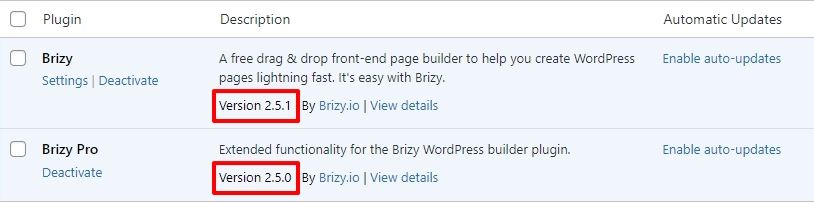
For new projects, the compiler's benefits are automatically applied, ensuring immediate performance boosts. However, to take advantage of these enhancements on existing projects, kindly follow these 3 steps
- Open Your Project: Open the project you wish to optimize in the Brizy Editor
- Make a Minor Change: Navigate to any page within your project, make a small edit (such as modifying the padding by one pixel), and then revert the change.
- Save the Project: Update the page to activate the compiler.
If you are using WordFence Security plugin please follow these steps and see if this will help resolve the issue with saving changes to your project.
- In your WordPress Dashboard under WordFence - All Option , navigate to "Firewall Options"
- Enable Learning Mode - https://jmp.sh/dXzpSFmk
- Return to your Brizy page, make some minor changes, and then update the page
- Once done, return to the WordFence settings and re-enable the "Enabled and Protecting" mode
1 -
Thanks for the quick answer.
WordFence. Not ever would I have looked to change the settings there for brizy to work. This fixed it. All back to normal now.
Thank you lots!
Have a good day!0 -

I have the same problem, after upgrading to the latest versions of wordpress, brizy and brizy pro all global elements are gone. I tried enabling the learning mode of the wordfence firewall, even deactivated wordfence completely. Made minor changes on the page and updated it - but the global elements are still gone... what else can I do?
0 -
Sorry, I mean global elements are gone in the frontend. In the brizy page builder I can see them ...
0 -
Ok, got it. I need to edit all the global elements and save them. Then update the page and then the global elements are also back in the frontend...
0 -
Aaaand I'm back. On another website of mine I cannot make any changes. The Wordfence trick doesn't work.
Again it says:Page cannot be published. This page needs to be refreshed. You probably refreshed this page (or another page) in a different tab or browser.
I have not been logged in to this website for a long time. Just need to change some information. It is open in one tab only.
Brizy free version is 2.5.3 and brizy pro is 2.5.1
0 -

Hi Daniel,
Thank you for contacting us.
Could you please confirm if you can replicate the issue if all other plugins besides Brizy and Brizy Pro are disabled? The likely cause of this issue is due to a conflict with any of the plugins installed on your site.
If the issue continues, this is something we need to inspect from your WP Admin page. Please add us as an Admin user to your WordPress Dashboard and send the following details to: communitysupport@brizy.io
Community Post link: https://support.brizy.io/hc/en-us/community/posts/20478081254546
WordPress Admin URL:
Username:
Password:Please make a full backup of your site as a precaution.
Best regards,
Ariel H.0 -
Hi Daniel,
Thank you for the update. We found this error in the console.
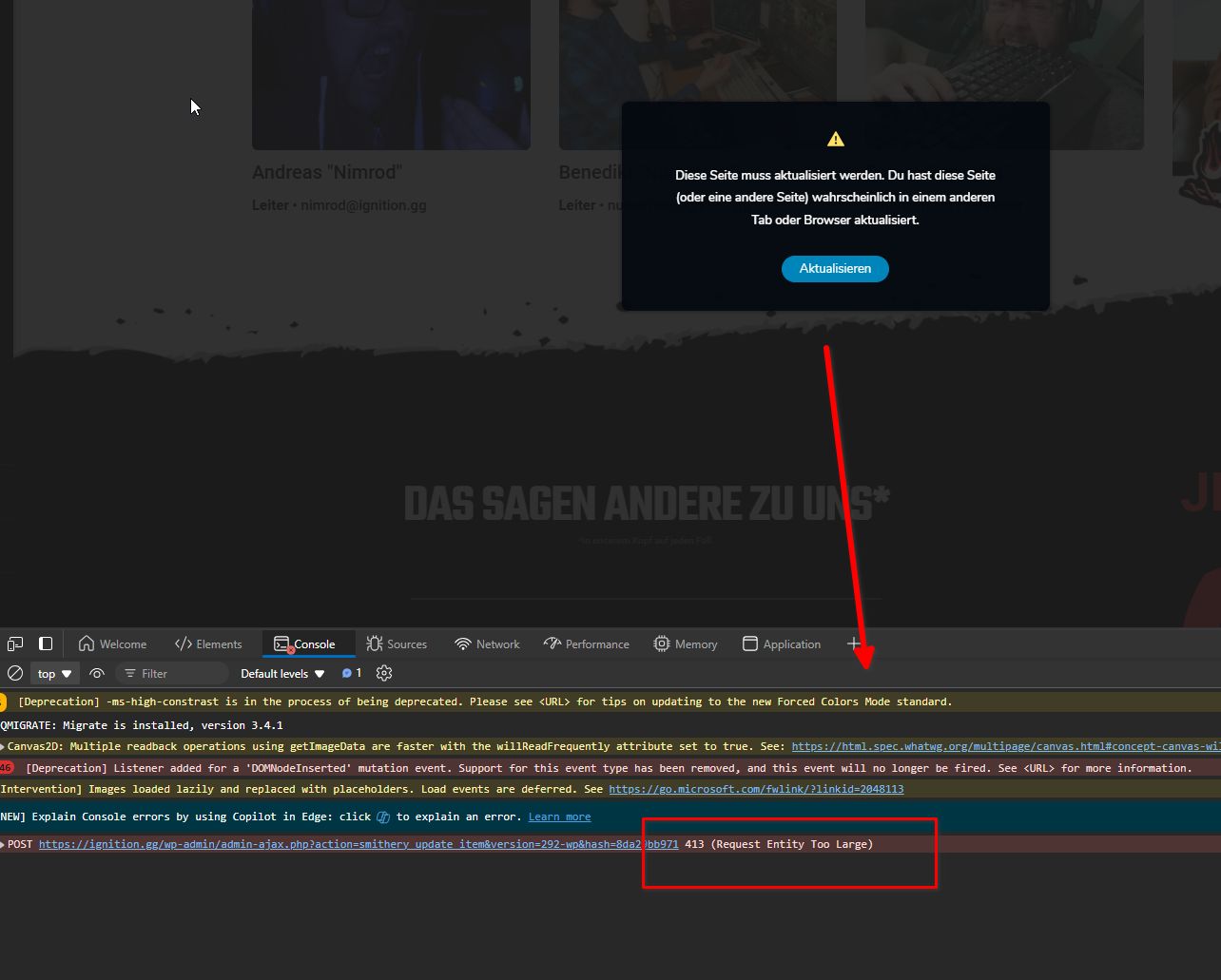
The '413 Request Entity Too Large' error indicates a server issue where the file being uploaded exceeds the maximum file upload limit set on your hosting account. You can find detailed information about this error in the following article:
https://www.wpbeginner.com/wp-tutorials/how-to-fix-the-413-request-entity-too-large-error-in-wordpress/To address this issue, please ask your hosting provider to update the following settings on your server:
max_execution_time: 300
max_input_vars: 300
memory_limit: 512M (or higher)
post_max_size: 128M
upload_max_filesize: 32MKindly explain the issue you are facing and share the article with them to assist in adjusting the necessary settings on your server.
You can also make these changes yourself if you have access to cPanel. Go to 'Select PHP Version' and then to 'Options.' There, you will find these settings and can modify them. After making the changes, please go back to your page and see if you can still replicate the issue.
I hope this helps.
Best regards,
Ariel H.1
Please sign in to leave a comment.
Comments
8 comments