Installing Google Analytics to HIDDEN header?

(I have Brizy Pro for WordPress.)
I understand I need to add Google's tracking code to the header section of my pages (it does specify "header" for me, not "footer"), however I don't have/need/want a header for every page. Is it possible to add a header, add the Embed element etc, and then HIDE this header element for the specific page on all devices (desktop/mobile/tablet)? Will this still reliably track visitors?
If not... are there any alternatives?! 😳
(Note: I do not want to install an external plugin for this; it shouldn't be needed for adding the simple Google code.).
Thanks in advance!
-

Hi Jenna,
When Google Analytics says
Copy and paste it in the code of every page of your website, immediately after the <head> element.
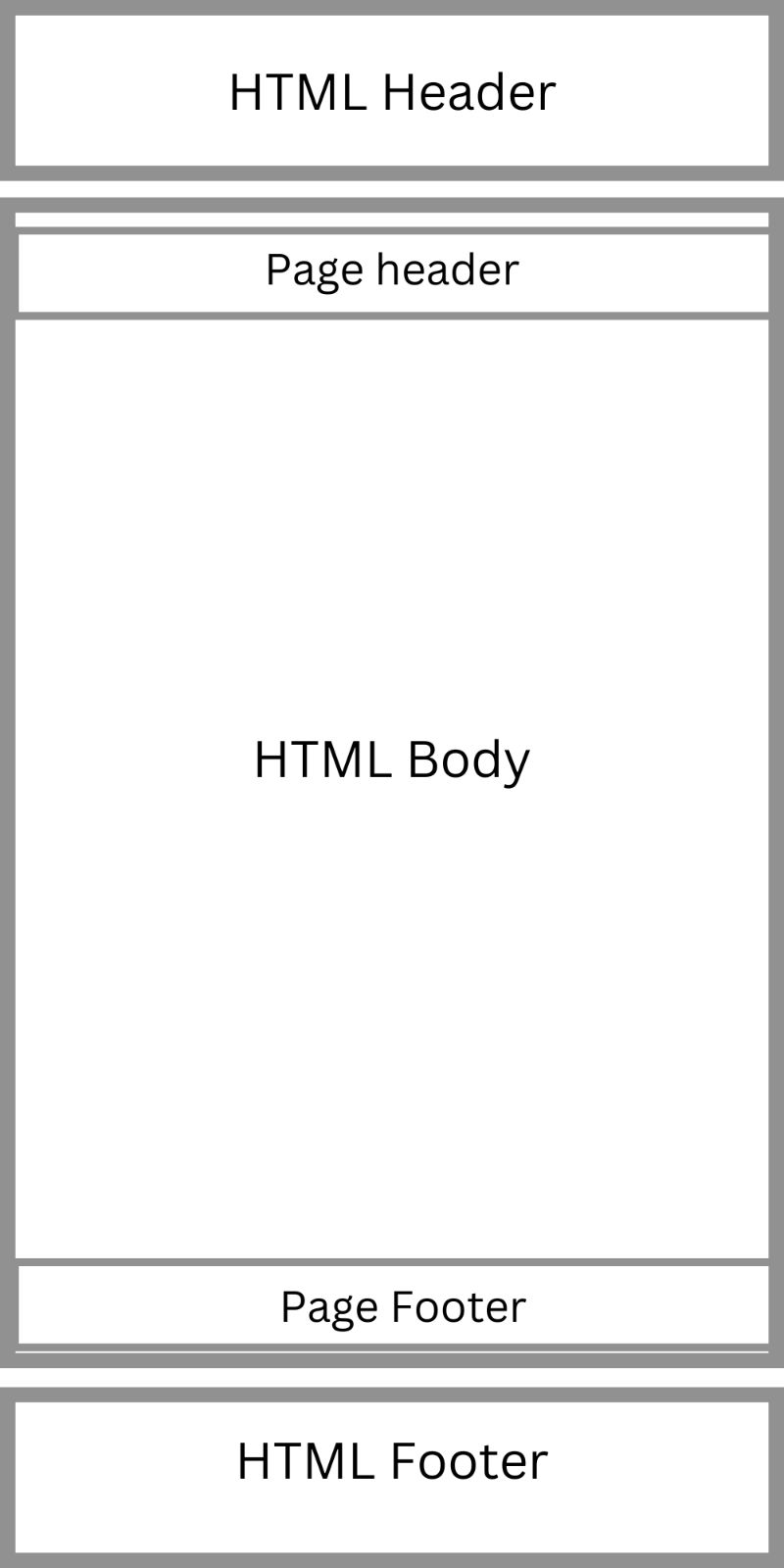
The <head> element refers to the HTML header of the page. Anything added within a Brizy page gets added to the HTML <body> element.
To insert code into the HTML header of your pages, you need a plugin. Please consider the Insert Headers And Footers plugin. After installing the plugin, in your WordPress Dashboard under Settings - WP Headers and Footers, please paste the code under "Scripts in Header' section. https://jmp.sh/j8hWNut
0 -
Thanks for the response, KC George!
Is there no other way to add this code than to install a plugin??? (That would be so disappointing; adding tons of plugins is NOT good practice, and this is a simple tracking code, we shouldn't need an entire plugin to add it to our site. 😦)
Also, for reference, I was following this article; it says there is no plugin needed: https://www.wppagebuilders.com/install-google-analytics-brizy/#:~:text=On%20the%20Brizy%20editor%2C%20add,That's%20it.
0 -
Hi Jenna,
You should use a plugin if you wish to add the Google Analytics code immediately after the <head> tag as advised by Google. You can use the method described in the above article to include the Analytics code inside the HTML body
You had mentioned that
I don't have/need/want a header for every page
If your website has a global header, you can drag and drop the Embed element into it and then paste the Google Analytics code into it. You will need to drag and drop an Embed element to any other block and copy and paste the GA code for pages without a header.
This method requires you to manually add the Google Analytics code to multiple pages and it is not centrally located. If you use this method, making modifications to the code or removing it afterwards can get more difficult.
0 -
Thank you for explaining in more detail, KC George – I much appreciate it!
Would it be possible to do both options you describe above? First, add the code manually to pages without a header (the only ones live for now). And THEN (once I'm ready to publish my entire site), add the centrally located code (with – sigh – a plugin I guess)? I suppose I could also remove the manually added codes then ...(shouldn't cause any issues right? It's just 2-4 pages for now).
One last question to help me better understand "header tags" (in the technical sense): in Brizy, are the headers in the screenshot below (the ones you add by searching for the "header" element) = considered "HTML <head> tags"? Is there another way to add a proper "HTML <head> tag"? Such as using a regular block with text/image/etc elements and then "turning" it into a proper "header" tag somehow? How would that work? (I'm asking, because my designer had created my global header (globally saved block) element not using this search/Brizy's header, so now I don't have the right menu settings etc.) >>> If this is a separate question, I can post a new topic; just trying to understand the "header" functions and element more properly!
EDIT: I understand these are not "HTML" headers right... so EVERYTHING in the Brizy editor are HTML <body> elements, correct? (And the actual "HTML <head> tags" are only visible/editable with a different tool or in the theme...). But are these the only proper "Brizy headers"?!
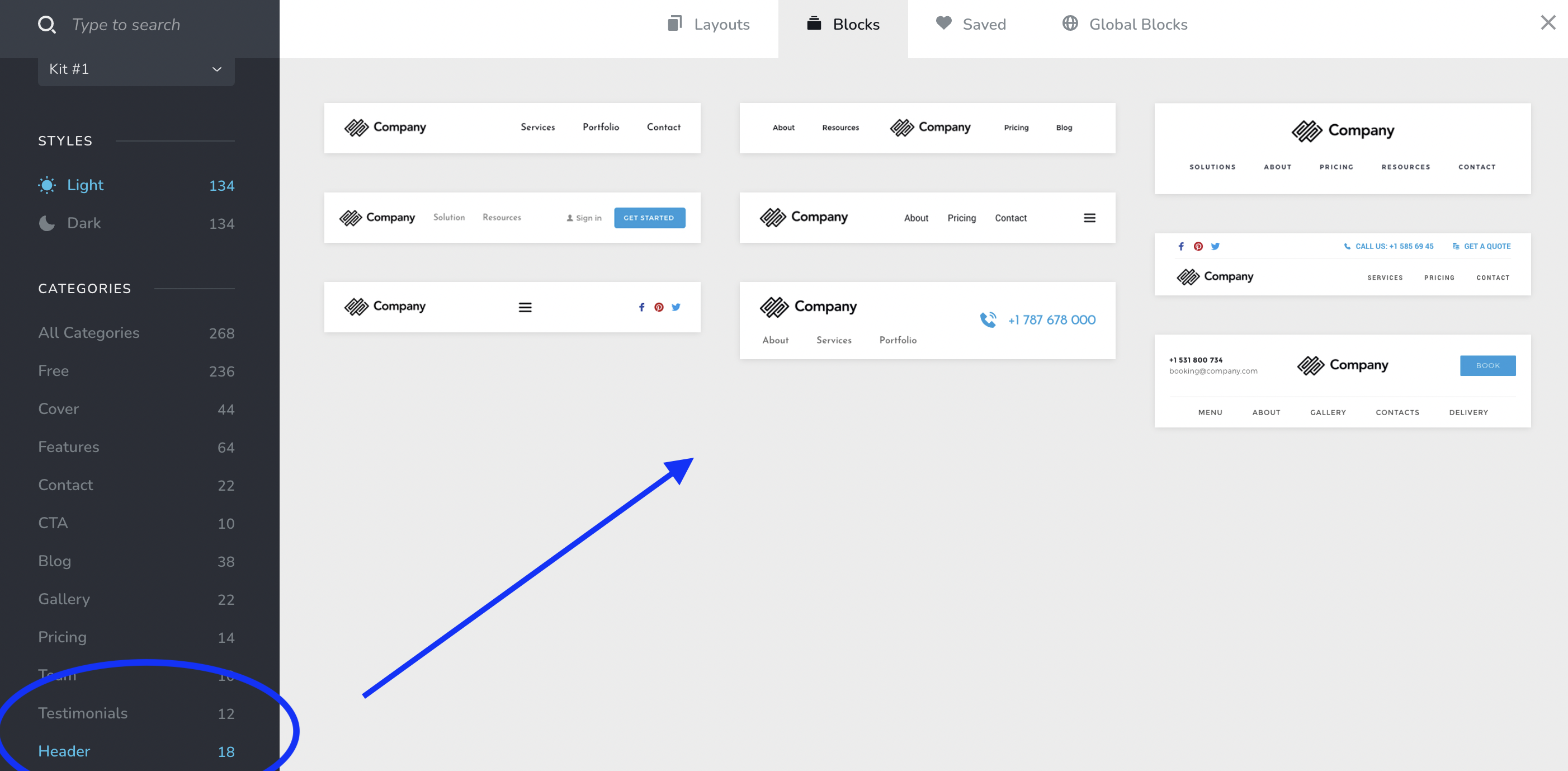
Thanks for your help!
0 -
Hi Jenna,
The HTML head of a page is not the same as the header that we use in a page. This diagram may be helpful in understanding the distinction
 0
0 -
Got it, thanks for clarifying, KC George!
So just to clarify my second question – for the Brizy "header" functionality (menu options/make it sticky/etc), we *NEED* to add a header from the search options? Or can we somehow turn any block (presumably the first on the page ha!) into a page header?
See my case below – first one is my original header that my designer created; no menu options, etc. :(
Second one I added via Brizy's search functions; it has menu etc, but... it doesn't look as aligned as my designer had set up my original header so I'd have to do further modifications... that's why I'd prefer to turn the first block somehow into a proper "Brizy page header". (Note: my 1. block DOES include the proper menu – editable in WordPress's settings!)
1.:

2.:

Thanks again!
0 -
Hi Jenna,
You are right; the regular Brizy blocks do not have the fixed, static and sticky header options. A regular block cannot be turned into a header block. If you would like to use the header block in place of the a regular block, you can transfer content from one to the other. Please see this video. https://jmp.sh/pn9wCKe
0 -
Thanks for this video explanation, KC George! Unfortunately however, I don't have this little gray arrow in my "to transfer content FROM" block that you use to "drag"(?) the content down. I only have it for ONE element in this block, not the ENTIRE block as you seem to have it in the video. I only have the blue little arrow for all elements.
See screenshot. Only one gray arrow for the MIDDLE element, NOT the entire block. How can I transfer/copy the entire block's content?
 0
0 -
SECOND PROBLEM (I sorta worked around the above scenario for now). I copied my content in the header function block. see screenshot (this is the LIVE page, not the Editor):

I selected the menu to be "Sticky". When I scroll down it STILL shows the "default" header image from Brizy!! 😱 screenshot when scrolling:

I 100% removed it and replaced it with my logo in the Brizy editor. What's going on here?!?
Also, the menu is actually NOT STICKY -- as the actual menu and button = the entire menu block is not displayed; only the (incorrect) logo. How can the ENTIRE menu block be shown as it should for a sticky menu bar?
TIA.
0 -
Hi Jenna,
Sticky header is not automatically generated when you use a header block to design your regular header. Your sticky header needs to be designed independently.
Please scroll down the page when using the Brizy editor to view the sticky header design. To transfer the design more quickly, you could copy and paste columns from your regular header into the sticky header.
If you give me access, I can do this for you and record a video so that you can learn the procedure. Please add me as a user to your WordPress Dashboard if you need assistance with this. My email: kc.george@brizy.io. As shown in this screenshot: https://jmp.sh/sOSGGR3, please turn on the option "Send the new user an email about their account"
Please let me know here when you send me an invitation
0 -
Hi KC George, thank you for the offer, but I'd like to do this myself.
Can you please let me know WHERE we implement/copy into the "Sticky Header"? This is very confusing (and not intuitive), since the menu setting implies this chosen block (the "header" block I found by searching Brizy) could simply be made sticky when selected in the options ("sticky" is a function, and usually not a separate design).
"Please scroll down the page when using the Brizy editor to view the sticky header design." -- Yes, this works as described, I can see how I've designed it.
"To transfer the design more quickly, you could copy and paste columns from your regular header into the sticky header." --- where is "into the sticky header"?!
Thank you.
0 -
Hi Jenna,
Please watch this video for the procedure to copy the design from the normal header to the sticky header. https://jmp.sh/IbrpWgvv
0 -
Hi KC George – thank you for the video, however, this "sticky header" isn't even showing up for me in Brizy *Editor* (presumably since I deleted it/all the content in it, the logo etc.). Yet, it IS still showing up on the "live" page, as I explained and showed above.
I don't see this default black & white "Company" header/logo in the Editor; it's not there (only on live page 😧). What's wrong there!?
0 -
Hi Jenna,
I need to take a look at your project to offer further help. Please add me as a user to your WordPress Dashboard if you need assistance with this. I have sent you instructions on inviting me to your project in this thread https://support.brizy.io/hc/en-us/community/posts/10528190047121
0 -
As mentioned, I don't want that right now. My website backend is a mess that I need to clean up before I can allow another editor in there. This is disappointing. :/ I'll have to disable/live without a sticky header for now then. Please see if you can provide other possibilities on how to fix this (seems to be a problem baked into the Brizy header formatting). Thanks!
0 -
Hi Jenna,
In the video, I have provided generic instructions to copy the design from the normal header to the sticky header. On your specific project, you may see some deviations from what I have described in the video. I can't create instructions for your specific project unless I see your project.
You have mentioned that "My website backend is a mess". This could be part of the problem too. You don't need to cleanup everything before we can take a look. We are quite experienced in navigating through such projects.
0 -
Thanks for explaining, KC George. I'm just not comfortable with it because I need to organize the backend first (it will mess up different pages). The "Brizy company branded header" showing up after adding the header, and even still after I change the image, feels like it's a Brizy coding issue.
0 -
Hi Jenna,
Unless I see the issue you are facing, I cannot offer anymore help. If you agree for a Zoom call, I can take a look at this issue as well during the call.
0
Please sign in to leave a comment.
Comments
18 comments