Translation element short form

Hi,
On the translate element e.g. English to Spanish. (attached image)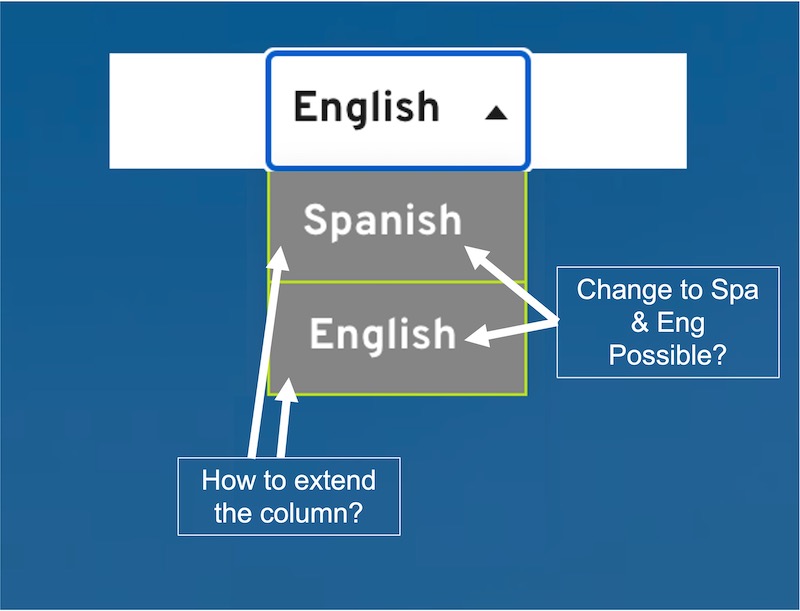
1). Can I change it to an abbreviations e.g. Eng and Spa instead? how please?
2). How to extend the two column below? please?
TIA
-

Hi,
Thank you for contacting us.
After you will add the Translation element in Brizy Cloud, see here, you can customize it.
1. You can change the abbreviations, for this, please click on the Translation element - Languages - Display - Country code. Please see this video.
2. You can extend the dimension for the column too, for this please click on the Translation element - Settings -Height. Also, please see this video.
Please let me know if you have any other questions.
Best regards, Nelea.
0 -
Yes. I can now. Thanks Nelea.
One thing though, I still couldn't adjust the row length - not the top row (white background) but the bottom ones where other languages appears (i.e. Spanish). attached image. How to adjust the bottom row length/width please?
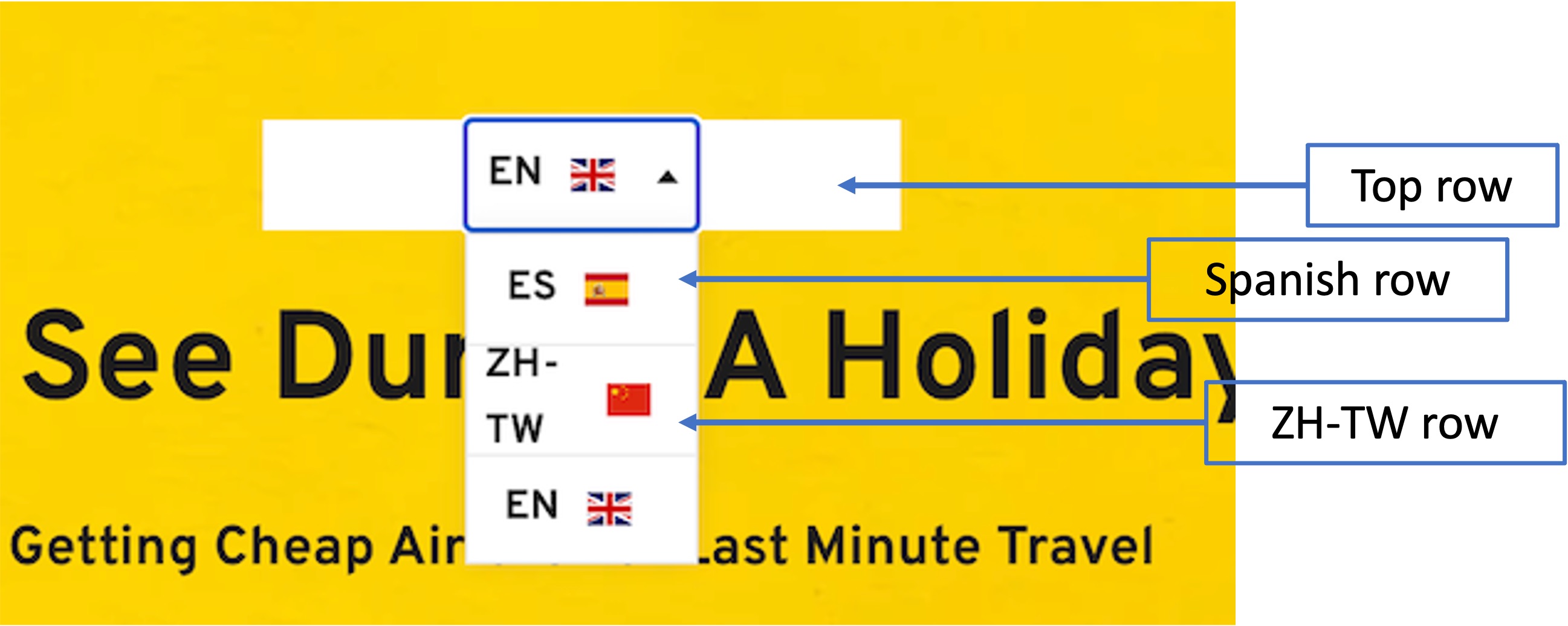
Thanks.0 -

Hi John,
Click on the Translation element, then on the Gear icon and you can change the width by adjusting the width slider.
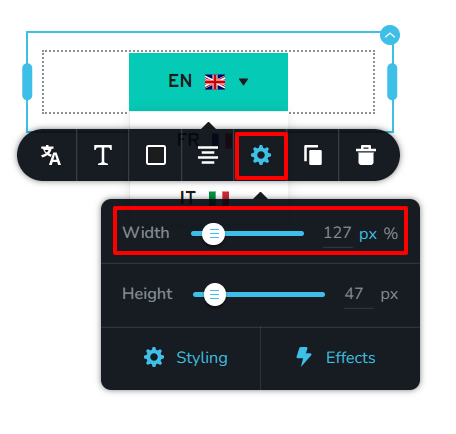 0
0 -
Thanks KC George. I can change the width of the top row as per my previous reply (attached image) but I cannot make changes to the bottom rows though. Hope I explained well.
0 -
Hi John,
Please watch this video https://jmp.sh/F6pEqg2 After watching the video, if you have further questions, please let me know.
0 -
You are right. Thank you so much for taking the time to explain on the video. Really appreciate that. Now I get it.
Saying that, so now can I adjust the width of the translation element row? or adjust the font so it fits in one line rather automatically change to two lines depending on the length of the language.
See screenshot image below. Image1, when English is chosen ZH-TW language auto adjusted to 2 lines but in image2 when ZH-TW is chosen now everything is auto adjusted to 1 line.
How to set so that whichever language is chosen other languages will only display one line only.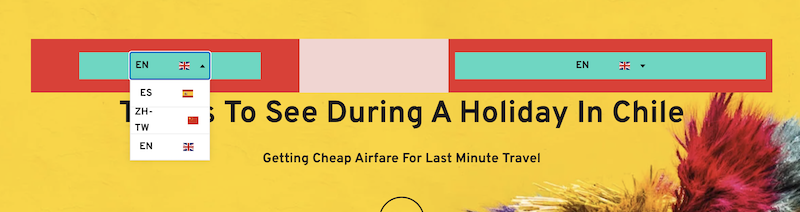
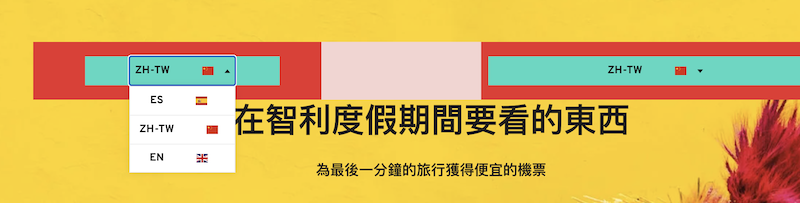
Thanks in advance.0 -
Hi John,
We do not have an automated way to ensure that the languages will always display in one line. You need to manually adjust the width of the translation element to fit the longest language name.
0 -
Thanks KC George. I tried but it can't be done for some reason. Only one translation element row adjustment and it automatically adjust the rest of the other language rows. Even though I adjust the row longer than normal to cover for the longest language but it still auto adjust. :(.
0 -
Hi John,
Sorry; only now I understood what you are asking for. While all the language rows look equal width in the editor, in preview, the top row looks wider compared to the other rows. The translation element should look the same in the editor and in the front-end. This could be a bug. I will report this issue. Thanks for pointing it out
0
Please sign in to leave a comment.
Comments
9 comments