To avoid borders on block background image?

I don't recall I've noticed this before, and it may be caused by user (me) error...
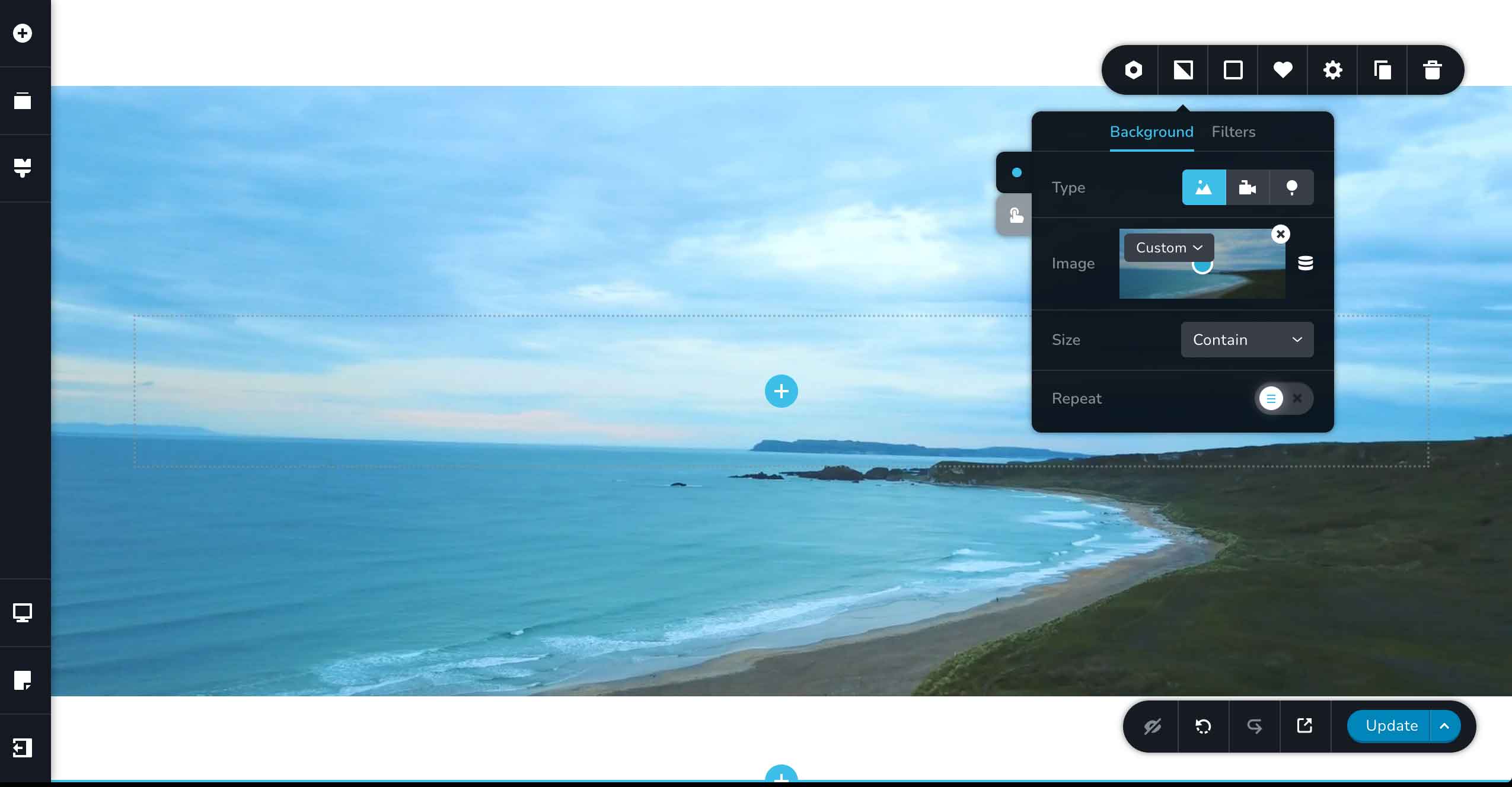
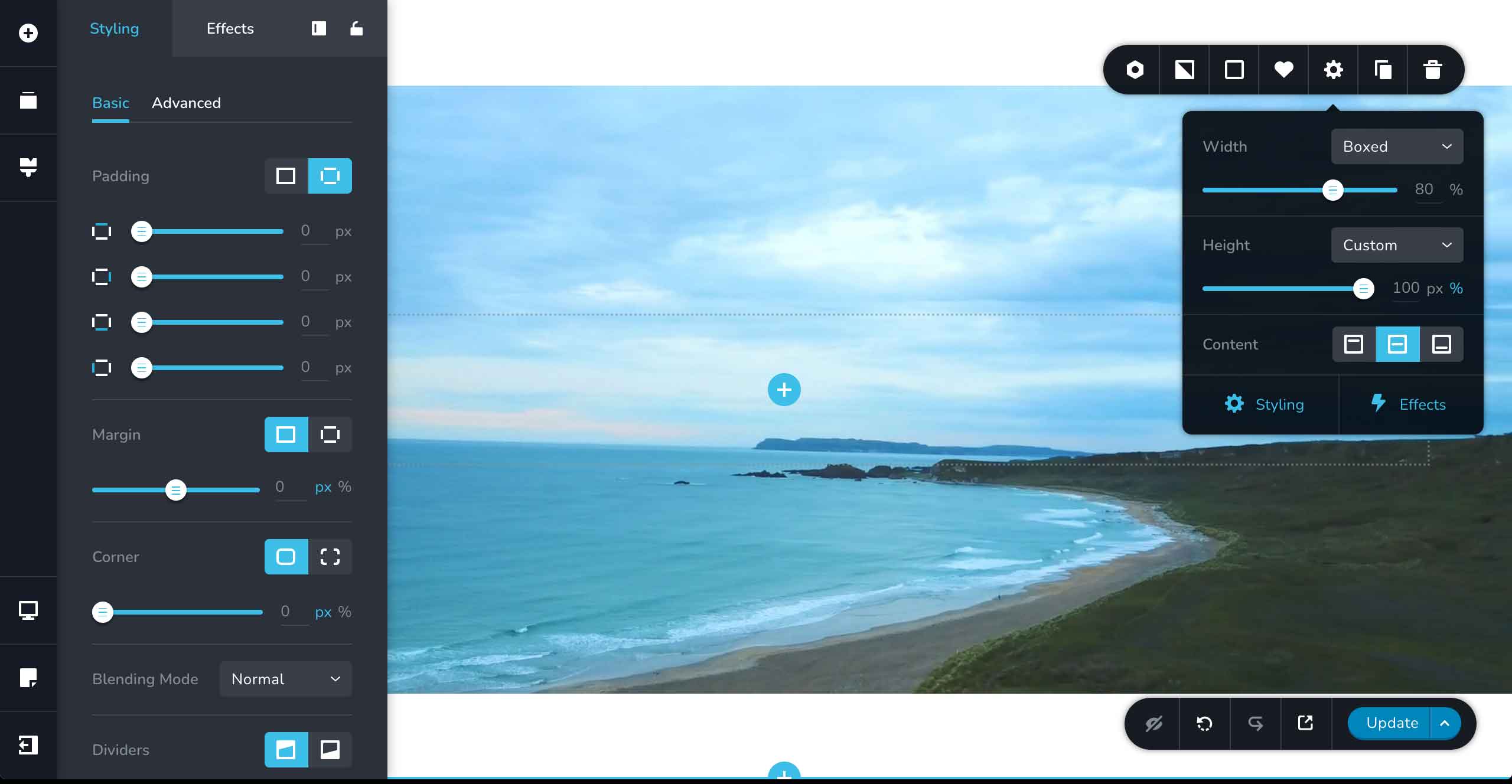
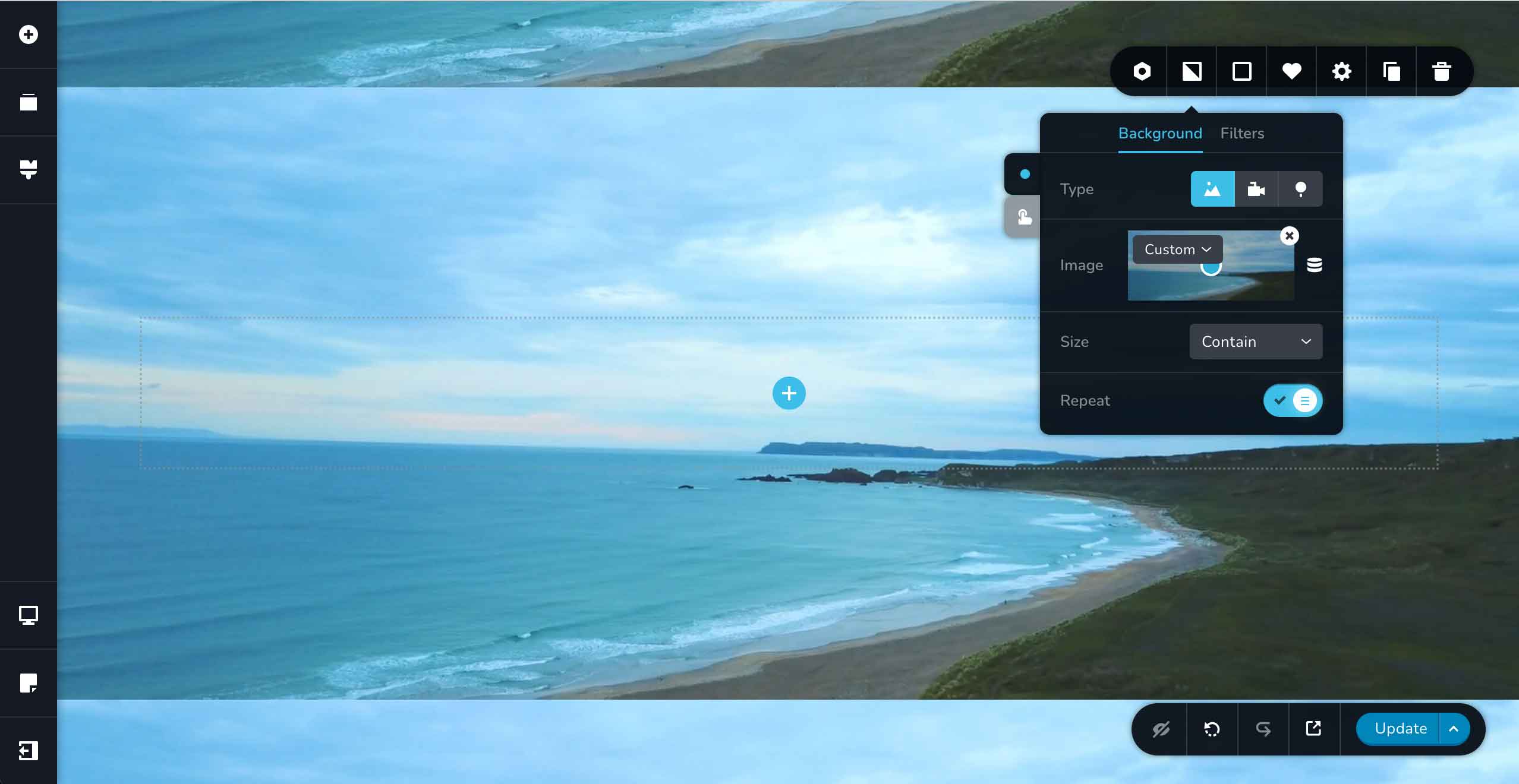
I just can't remove those white borders in top and bottom of block background image, i.e. I can't control block height if I at the same time want to keep full width in every screen resolution. The enabled repeat effect clearly shows issue is related to actual block.
What am I doing wrong?
-

Hi Mikael,
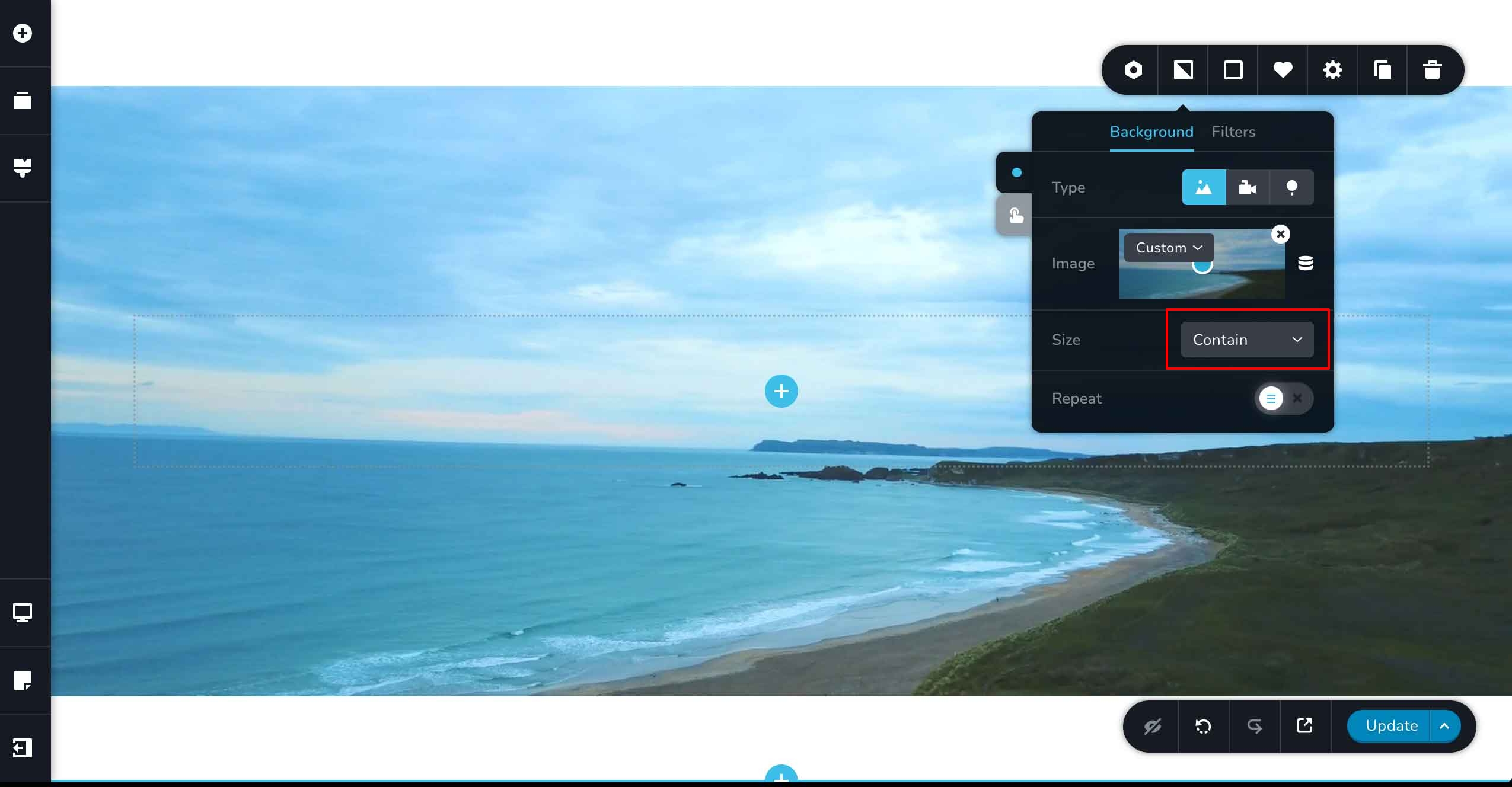
In this image, instead of "Contain" please select 'Cover" option. (The Contain option will show the full height and width of the image. Cover option will fill the entire height and width of the block)
 0
0 -
Thx, it seems to work but you need to adjust the height parameter accordingly, i.e. to step by step make sure entire images is seen...
What's the purpose of "Contain" since it adds top and bottom borders impossible to adjust?
0 -
Hi Mikael,
The purpose of the Contain option is to show the image in its totality. Lt's say you are showcasing a painting. You would want the user to see the entire height and width of the painting and part of the image should not get cut off.
0 -
That's exactly what I want, but I don't want any borders/empty space. How to achieve that?
0 -
Hi Mikael,
If you choose the 'Contain' option for your background image, making it fit the full height and width of your block is possible if the block height and width are somewhat equal to the image height and width.
For example, on an HD laptop, if you upload a background image with 2080 X 1080 size, the image size may match your display size and you may not have any gap on the top and at the bottom. However on a different size screen, it may not fit exactly. Hence 'Contain' may not be a good option.
0 -
Is the "Contain" option related to screen size to look good??
Wouldn't this function be far better off without those top and bottom gaps? Then it would work as you explained above; "to show the image in its totality".
0 -
Hi Mikael,
If the purpose is to fit the image into the full height and width of the container block, then 'Cover' option is the right choice. If your image size is almost equal to the block size, 'Auto' option would also work.
0 -
Thx, but I still don't understand the actual purpose of "Contain". Maybe you can explain it just for the sake of increasing the value of this post?
0 -
Hi Mikael,
Take a look at the hero section of this page where viewing the image in its full height and width is important. https://royalimagedetailing.czvn.net/ The purpose of the Contain option is to show the image in full width and height.
0
Please sign in to leave a comment.
Comments
9 comments