DON'T USE THE AI FEATURE

An AI feature to bold a simple draft blog post, not a published blog post. It didn't do a good job, but eventually we got it right. Kudos to the AI agent.
Then I visited my website, the one that's published, and it's completely changed. It looks like rubbish: all the colours are off, all the fonts are off, and everything is gone. The content is still there, and the layout is there, but I have to rebuild bloody everything from the start. There is no way I can find to revert.
I chatted to the AI, and he said, "I don't know anything. There's nothing wrong on my side. All is okay." Please don't use the AI feature.
-

Hi Willem,
I understand your frustration, and I'm sorry this happened.
Regarding the changes to your published website, we can explore the possibility of restoring it to how it looked before the unexpected changes. Could you also let us know when your website was last working properly?
We also understand your concern about not being able to revert AI-generated changes, especially after spending hours fine-tuning your design. Your feedback is valuable, and we'll make sure this concern is passed along to our team.
0 -
Hi Ariel,
Thank you for your prompt response. I appreciate it. Luckily, my website does not have a lot of pages at the moment, and I fixed them. It took me about an hour, and then everything was fine again. Luckily, my website does not have a lot of pages at the moment, and I fixed them. It took me about an hour, and then everything was fine again.
I am experimenting with the AI tool because we need to upload 78 blog posts, and for one person to format all of the text is nearly impossible. I tried building the blog post from the prompt, but that's when everything changed. We eventually got the blog post right. I am experimenting with the AI tool because we need to upload 78 blog posts, and it's nearly impossible for one person to format all the text. At first, I built the blog post using the AI prompt, but it did not follow my style or the global settings in the project settings.At first, I built the blog post using the AI prompt, but it did not follow my style or the global settings in the project settings. We eventually got the blog post right.
However, I believe everything on the website changed after that. I now have a blog post template. I just want a simple way to paste text into a text section and then ask the prompt to edit only that text. I'm afraid of doing that. Would you suggest that I make a copy of my website and experiment in the copy?0 -
Hi Willem,
I would recommend duplicating your current project and using the duplicate as a staging site. The new project will have a randomly generated Brizy Cloud URL, which you can use to experiment with the AI tool and create or edit pages without affecting your live website.
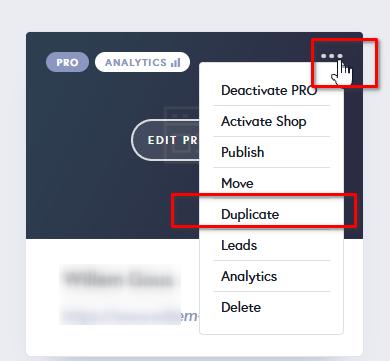
Once you're happy with the results and have finished working on the staging site, you can disconnect the domain from your current live project and connect it to the staging project instead.
This way, you can safely test the AI features without risking changes to your existing website.
Kind regards,
Ariel H.0 -
Hi, thank you. I did make a copy of the site, and I tested further with the AI they Hi, thank you. I did make a copy of the site, and I tested further with the AI there.
First, I copied and pasted the text into a blog post and then asked the AI to format it. That didn't work. I then added a short piece of dummy text where the blog post text needs to go, and I gave the AI everything plus formatting instructions. That didn't work either. It just pasted a block of unformatted text, although it said it formatted everything.
I then got Claude to create actual HTML for me with a style sheet and everything, and I just copied and pasted it into an embedded piece of code on the blog post.
I only have one question: does that embedded HTML now form part of the page, or do you need to process JavaScript before it gets displayed? All of these blog posts will be used for AEO and GEO purposes. Please advise about the JavaScript, because the crawlers from your AIs just read the page. They don't wait for JavaScript to execute.
0 -
Hi Willem,
That approach will work too. You can use Claude to generate the HTML and CSS, then embed the code directly into your blog post.
Just keep in mind that if you need to make changes to the text later, you may need to update it in Claude, regenerate the HTML, and replace the existing code in your blog post.
About JavaScript, if the generated HTML doesn't include any JavaScript, then you don't have to worry about it. The content will be part of the page's HTML and can be read by search engine crawlers without waiting for JavaScript to execute.
For future blog posts, I would still recommend creating and building the pages individually. At the moment, AI has some limitations when it comes to generating blog pages, so building them individually will give you more control over the content and layout.
Kind regards,
Ariel H.0 -
If I wanted to create each blog post individually, having someone sit and create close to 80 blog posts is too much and too labour-intensive. It will take months. If I wanted to create each blog post individually using AI as a shortcut.
If you are interested, I can share with you via email the prompts I tried within your AI.
0 -

Hello Willem,
May I suggest an alternative approach to creating your blog posts using Claude and Brizy AI? This workflow could help you retain the formatting of your blog content while making it consistent with your website's existing typography and overall design.
Here are the steps I recommend:
- Prepare your blog post in Claude: Ask Claude to format your blog post as an HTML file and save the result as an artifact.
- Download the HTML file: Once Claude has generated the HTML artifact, download it to your computer.
-
Upload the HTML file to Brizy AI: Open the relevant blog post in the Brizy Cloud editor. In the AI chatbot, click the + icon and upload the HTML file you downloaded in the previous step.
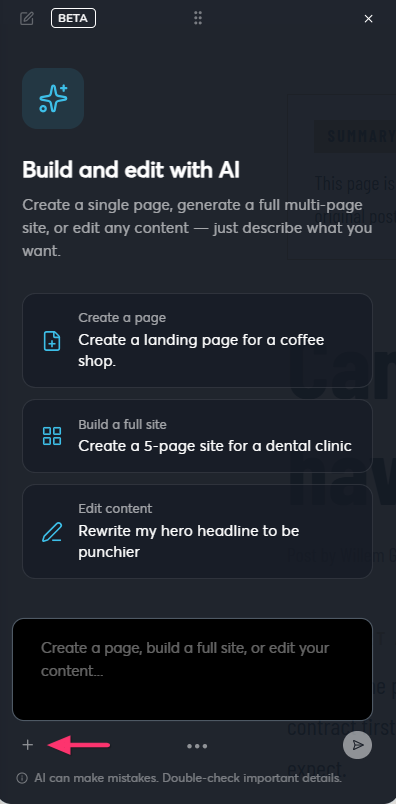
- Import and recreate the content using Brizy AI: Ask Brizy AI to import the content from the uploaded HTML file into the section immediately below the hero section. You can use the following prompt to guide the process: Feel free to tweak the prompt to make it more relevant for your needs.
Import the content from the provided HTML file into the section immediately below the hero section.
Design Recreation
-
Recreate the imported content's visual design as closely as possible to the original HTML, preserving its layout, structure, section hierarchy, spacing, alignment, proportions, and overall visual appearance.
-
Retain all existing content, including headings, paragraphs, lists, images, icons, buttons, links, and other UI elements.
-
Match the original styling, including background colors, borders, card designs, spacing, and other visual details.
Typography
-
Use the project's existing global typography settings for all headings and paragraph text.
-
Do not replicate the font families, font sizes, font weights, or line heights defined in the HTML file if they differ from the project's global typography.
-
Preserve the original text hierarchy and visual emphasis while adapting typography to the project's global styles.
Integration
-
Ensure the imported content blends seamlessly with the existing page design.
-
Maintain consistent spacing and visual balance between the hero section and the newly added content.
-
Do not modify the hero section or any other existing page sections.
-
Ensure the recreated section is fully responsive across desktop, tablet, and mobile devices.
Objective
Faithfully reproduce the original HTML content and design while ensuring that its typography aligns with the project's global typography.
0 -
Hi,
Thank you very much for the suggestion. I did make a copy of the website. It's called Project 6 in my dashboard, and I followed the instructions as is, but it did not work.
It just took the text from the HTML file and displayed it as raw text. There's no formatting, and there's nothing to it. I will attach the HTML file for you as well.
Hi,
Thank you very much for the suggestion. I did make a copy of the website. It's called Project 6 in my dashboard, and I followed the instructions as is, but it did not work.
It just took the text from the HTML file and displayed it as raw text. There's no formatting, and there's nothing to it. I wanted to attach the HTML file so you can look at it on your side and comment on it, but this is what the edited page looks like: https://admin.brizy.io/projects/24183062/editor/single/10219408
0 -
Hello Willem,
I tested the above approach myself before recommending it to you, and I was able to successfully import the formatting from a Claude-generated HTML artifact into my blog post content. To help you see the process and the expected result, I've recorded a short demonstration. You can watch it here: Watch the screen recordingI'm not yet sure why the same approach isn't working as expected in your project. We'd like to investigate this further to understand what's causing the difference and identify a solution. Please bear with us while we look into this. We'll get back to you as soon as we have an update. Thank you for your patience and cooperation.
0 -
Hello Willem,
I noticed that the HTML content currently embedded in your Layout Post Copy Copy page appears to be interfering with the AI page generation process. To avoid this conflict, could you please remove the embedded HTML content from that page? Open Layout Post Copy Copy
Once you've removed the embedded content, please follow the steps I shared earlier to import the HTML content using the Brizy AI chatbot. This should allow you to recreate the page successfully, just as I was able to do with your other page: View the successfully recreated Layout Post Copy page
I believe removing the existing HTML embed before attempting the import should help eliminate the interference and allow the AI builder to generate the content as expected. Please give this approach a try and let us know how it goes. We'll be happy to help if you encounter any difficulties along the way.
For convenience, I've included the prompt you can use when uploading your HTML file to the Brizy AI chatbot again.
Prompt:
Import all text and content from the attached HTML file into the section immediately below the hero section.
1. Design Recreation
-
Recreate the original HTML design as closely as possible, preserving its layout, structure, section hierarchy, spacing, alignment, proportions, and overall visual appearance.
-
Retain all original content, including headings, paragraphs, lists, images, icons, buttons, links, and other UI elements.
-
Match the original styling, including background colors, borders, card designs, spacing, and other visual details.
2. Typography
-
Use the project's existing global typography settings for all headings and paragraph text.
-
Do not use the font families, font sizes, font weights, or line heights specified in the HTML if they differ from the project's global typography settings.
-
Preserve the original text hierarchy and visual emphasis while adapting the typography to the project's global styles.
3. Integration
-
Ensure the imported content blends seamlessly with the existing page design.
-
Maintain consistent spacing and visual balance between the hero section and the newly added content.
-
Do not modify the hero section or any other existing page sections.
-
Ensure the recreated section is fully responsive across desktop, tablet, and mobile devices.
4. Objective
Faithfully reproduce the original HTML content and design while ensuring that its typography aligns with the project's global design system.
0 -
-
Thank you for all the effort and time you put in. This really means a lot to me. I tested what you suggested, and it worked perfectly. Thank you very much.
Two things, though: the prompt specifies that it needs to go underneath the hero section. It's not very clear what the hero section is on my page. I have the headline, the date and time stamps, and then the next post and previous post. Underneath that is the block where it needs to go.
It pushed everything down and put the "Created post" just underneath the navigation menu, and pushed the rest down. Now, that is a simple fix: you can just reorder it, and I'm fine with that.
What do I need to change in the prompt in order for that not to happen? Should I name the block where the HTML should go? I see I can go into the settings and give a block a name, or should I give the block above the HTML content a name?
The second part is: how many AI credits do I have left? I'm trying to determine how many credits a single page generation will use.
Thank you again for your help.
1 -
You can view the post here: https://admin.brizy.io/projects/24183062/editor/single/10230921
0 -
Hello Willem,
A hero section is generally understood as the prominent section at the top of a webpage, usually visible before visitors scroll. Its purpose is to introduce the page, communicate what it offers and why it matters, and guide visitors on what to do next. In your blog post, you've placed the H1 heading in this section, making it easy to identify as the hero section.
To help the AI builder identify it more clearly, I'd suggest giving this section the name "Hero" and making a small adjustment to your prompt.
Instead of:
Import all text and content from the attached HTML file into the section immediately below the hero section.Use:
Import all text and content from the attached HTML file into the section immediately below the section named "Hero".How to name the section:
-
Click the Block Settings icon (the black circular icon).
-
Click Settings (the cog icon).
-
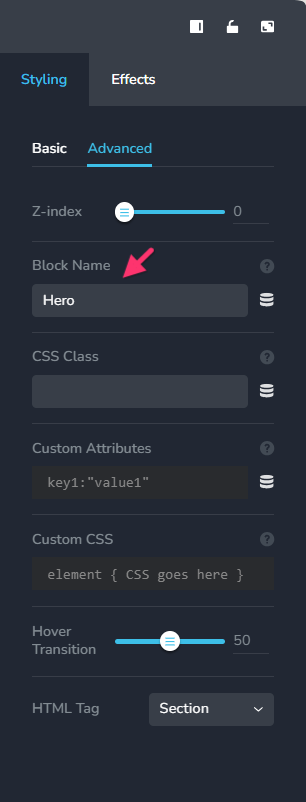
Navigate to Styling > Advanced.
-
Set the section name to Hero.
Regarding AI credit usage: We don't currently have a dedicated page where you can track your AI credit consumption or view how many credits you've used so far. For now, as you continue creating blog posts using the AI builder, you'll gradually get an idea of how many posts you can generate before your available AI credits run out. This is currently the only practical way to gauge your credit consumption. Thank you for your patience and understanding, as we continue working on making this feature available.0 -
Please sign in to leave a comment.
Comments
13 comments