Install Multiple Templates

I am looking for a way to install multiple templates on a site so I can use this to demo layouts for clients as a reseller.
I found I can install a starter template, then diplicate the page and name it as the template, then install the next starter template. However it appears the colors, the fonts and the navigation gets a bit jumbled or changes to whichever is the most recen template installed.
Is there a better way you would recommend going at this or another approach you can recommend? Is there a way I can install the homepages to each of the starter templates on a single site as demos to show my prospective clients
-

Hello JL,
To share the starter template designs preview with your prospective clients, you do not need to install each design. You can follow the steps below.
- Open your WordPress Admin dashboard
- Navigate to Brizy > Starter Templates
- Hover over any template design and click "Live Preview". You will see the design preview in a new browser tab.
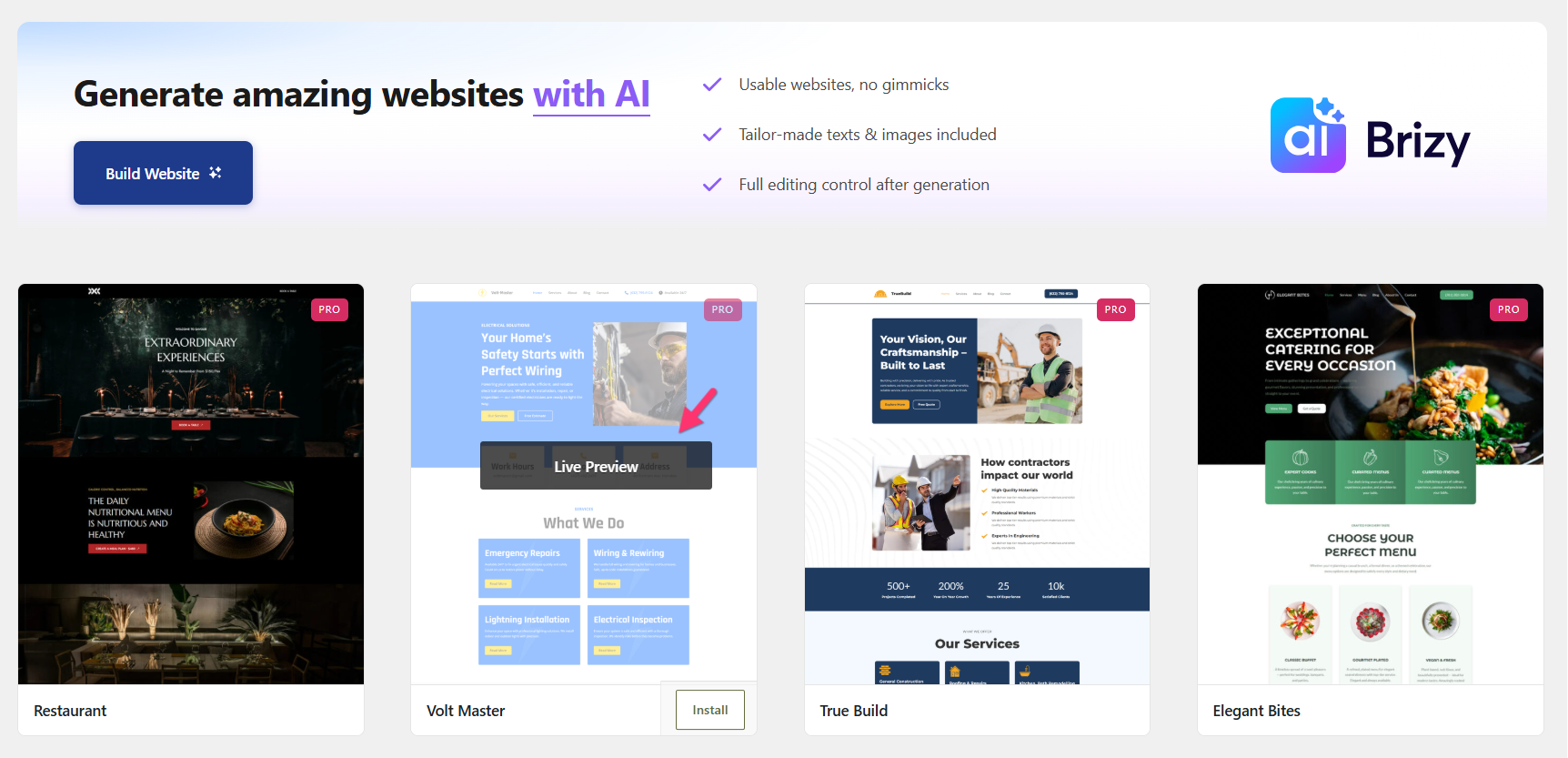
0 -
I guess I didnt properly explain the expected result. 1) The goal is to be able to have a page on the site that shows a gallery of site designs the user can view and choose from. 2) Once the site pages are all installed, we intended on adding a configuration parameter that allowed our users to see the design that passes their logo to be displayed on the preview.
So the question goes to, is there an approach to installing multiple templates as a page on a site without impacting their color or fonts. Thanks.
0 -
Hello JL,
Since each design template comes with its own global colors and typography settings, installing multiple templates within a single website project isn't possible. However, you can achieve a similar result with an alternative approach that gives your clients the flexibility to browse and choose from multiple designs.
One option is to create a Design Library page on your website, similar to the template library on Brizy's website. Here's how you could set it up:
-
Capture screenshots of your design templates: Generate a screenshot of each template to use as its visual preview.
-
Create a Design Library page: Add a dedicated page to your website where you can showcase all the available designs. Use the screenshots from Step 1 to represent each template.
-
Link each design to its live preview: Make each screenshot or design preview clickable, directing visitors to the corresponding Starter Template demo. For example:
-
Let clients choose their preferred design: Invite your clients to browse the Design Library, explore the live previews, and select the template that best suits their needs.
-
Install the selected template manually: Once a client makes a choice, you install the corresponding template directly from the Starter Templates library in their WordPress admin dashboard.
This approach allows you to showcase multiple design options on a single website without needing to install multiple templates in the same project. It also gives your clients a convenient way to explore the available designs and choose the one they prefer.
0 -
Please sign in to leave a comment.
Comments
3 comments