Website is broken after updates, reinstallation, php upgrade, etc.

Need help in fixing my broken website. It was working fine on php7.4 so I proceeded with the updates of the brizy free and brizy pro.
After the updates, the website is unable to load the proper layout and text content like the elements cannot be processed and loaded properly.
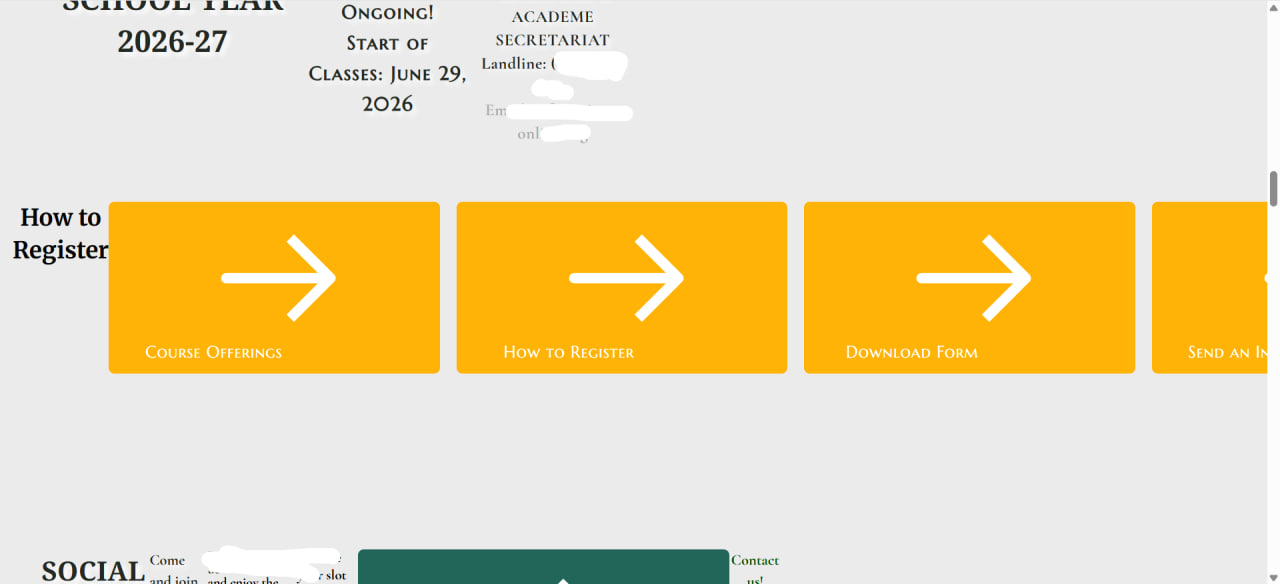
Upgraded to php8.3, Restored a backup, deleted brizy pro and reinstalled a manually downloaded file. But to no avail. The page is now blank.
Need urgent help please.
Thanks in advance.
TM
-

Hello Tiffany,
To help resolve the above issue, we recommend trying the steps below. The Layout Recompiler for Brizy plugin can recompile your existing layouts and may help resolve the issue.
-
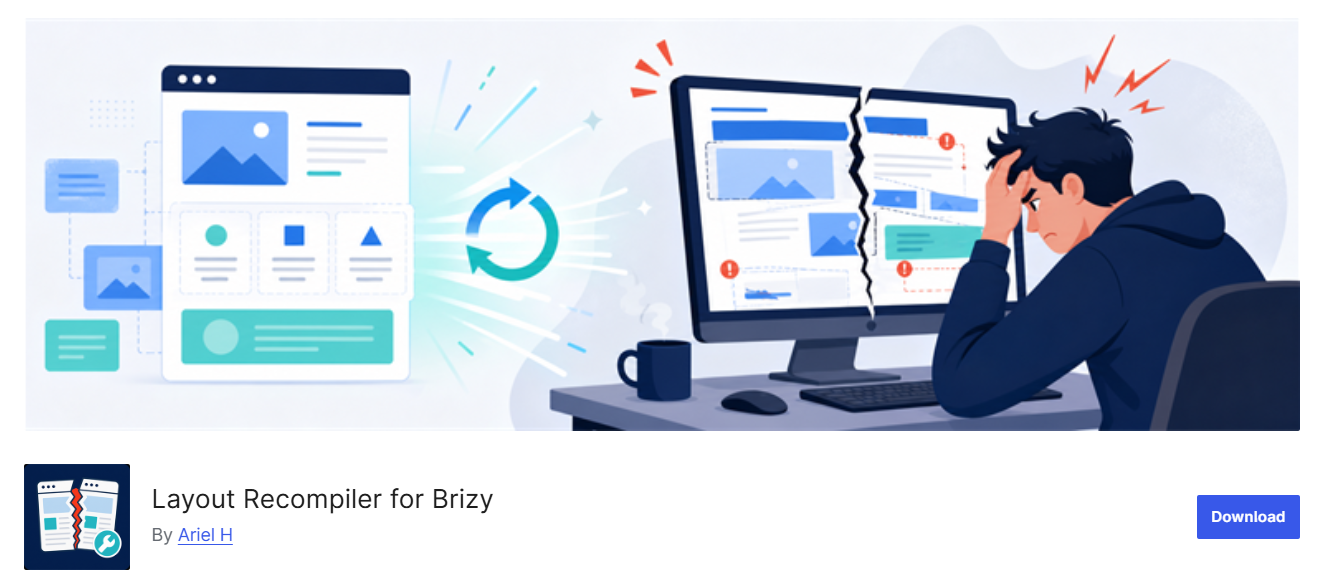
Install the plugin: Install the Layout Recompiler for Brizy plugin from the WordPress Plugin Repository:
-
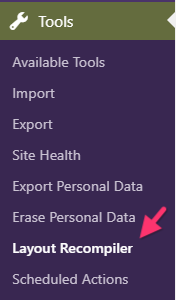
Open the Layout Recompiler: In your WordPress Admin Dashboard, go to: Tools → Layout Recompiler
-
Start the recompilation: Click the “Start Recompilation” button and wait for the process to complete.
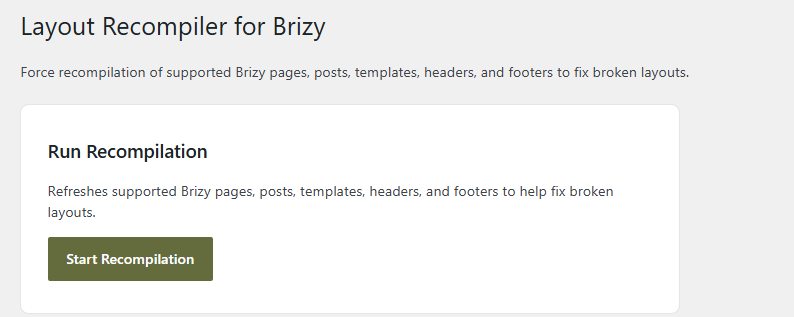
Once the recompilation is complete, please revisit your website and check whether the header and footer are displaying correctly.
If the issue persists, let us know, and we’ll be happy to investigate further. If needed, we can review your WordPress Admin dashboard to help identify the underlying cause and determine the next steps. Thank you for your cooperation. We look forward to helping you get this resolved.
0 -
Install the plugin: Install the Layout Recompiler for Brizy plugin from the WordPress Plugin Repository:
-
Hi, KC,
Thanks much for the advice. Before I apply the Recompiler solution, I'd like to note that the layout looks fine if viewed within WP and when logged in. But when viewed outside of WP and not logged in, that's where the layout is not displayed properly.
Should I still apply the Recompiler fix?
-Tiffany-
0 -
Hello Tiffany,
If your website’s layout looks correct when viewed in the WordPress editor or while you’re logged in, but appears incorrectly when viewed as a logged-out visitor, the issue may be related to caching. To help confirm this, please try bypassing the cache by adding
?nocache=1to the end of your website’s URL.For example, if your website is
brizy.digital, visit: https://brizy.digital/?nocache=1. Please check whether the layout displays correctly when you visit this URL.If the layout looks correct with the cache-bypass parameter, it’s a good indication that cached content may be causing the issue. In that case, we recommend clearing the cache at both the WordPress and server levels:
-
Clear your WordPress cache: Log in to your WordPress Admin dashboard and check whether you have any caching or optimization plugins installed. If so, use the relevant plugin’s options to purge all cached content.
-
Clear your server cache: Log in to your hosting provider’s control panel and check whether server-side caching is enabled. If it is, purge the cache using the options provided by your host.
Once you’ve cleared both caches, please revisit your website in a logged-out or private browsing window to see whether the layout is displaying correctly. If the issue persists, please let us know. We’ll be happy to help you investigate further!
0 -
-
Thanks so much, KC!
You were right, it was a cache problem and clearing it fixed the layout issue. Bypassing the cache showed the website layout to be fine. Purged all cache within WP and that fixed the problem.
And then I realized the header and footer were not showing some elements so I ran the recompiler plugin. So the website is displayed properly now.
Thanks again sooo much!
-Tiffany-
0
Please sign in to leave a comment.
Comments
4 comments