Giving access to a client problems

Hi, I've been using Brizy for over a year now and have my first client that requests a login. I must admit I have been dreading this day as I've heard it's not a great process.
Before I dare send my client an invite I am testing it on myself first so I can see the process and understand it.
So far I am encountering problems (and confusion).
In my first test: I was trying to invite my personal gmail account and I've tried this twice. Each time the "Account Verification" (screenshot below) to verify my email address fails as shown below:
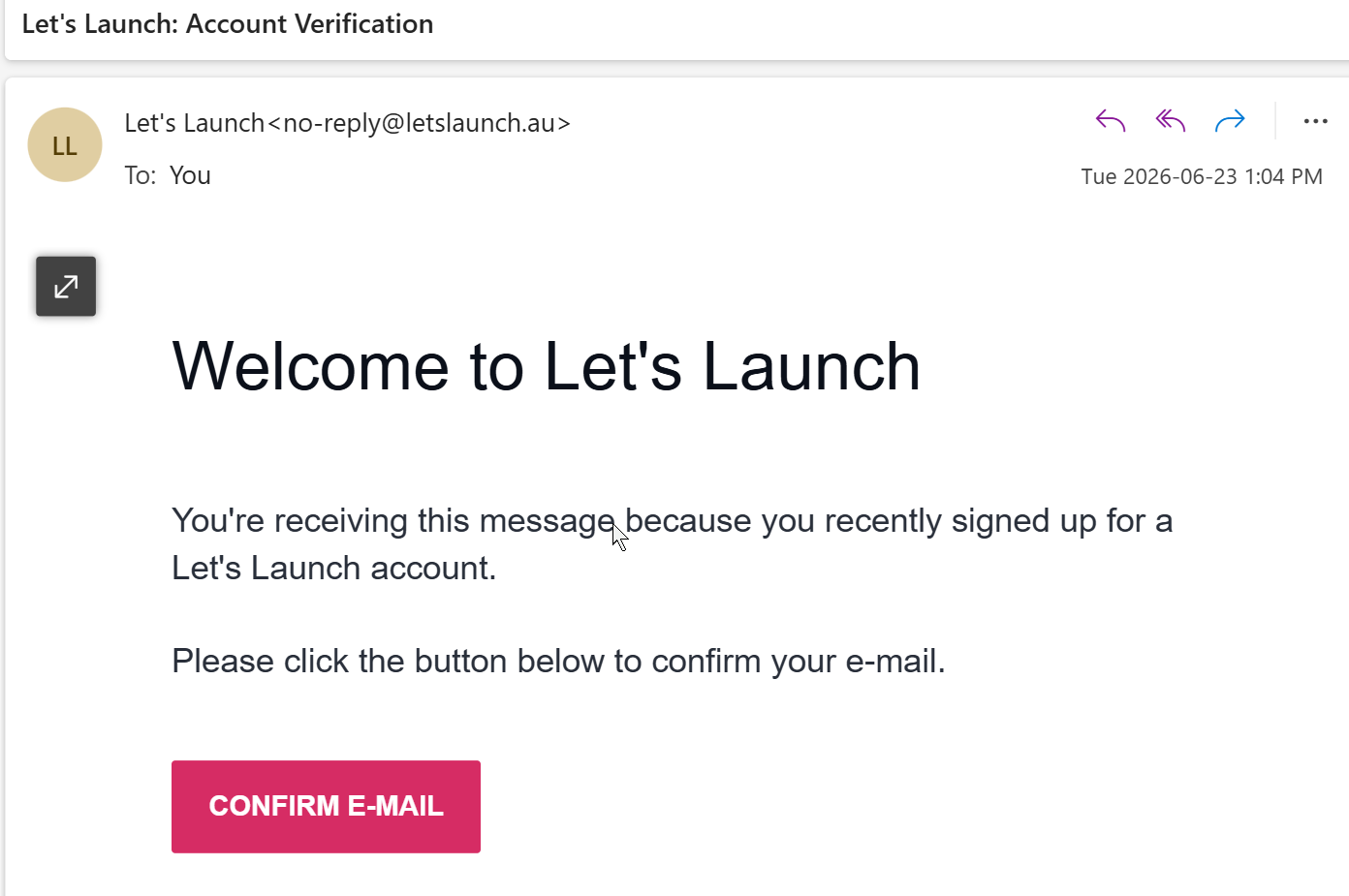
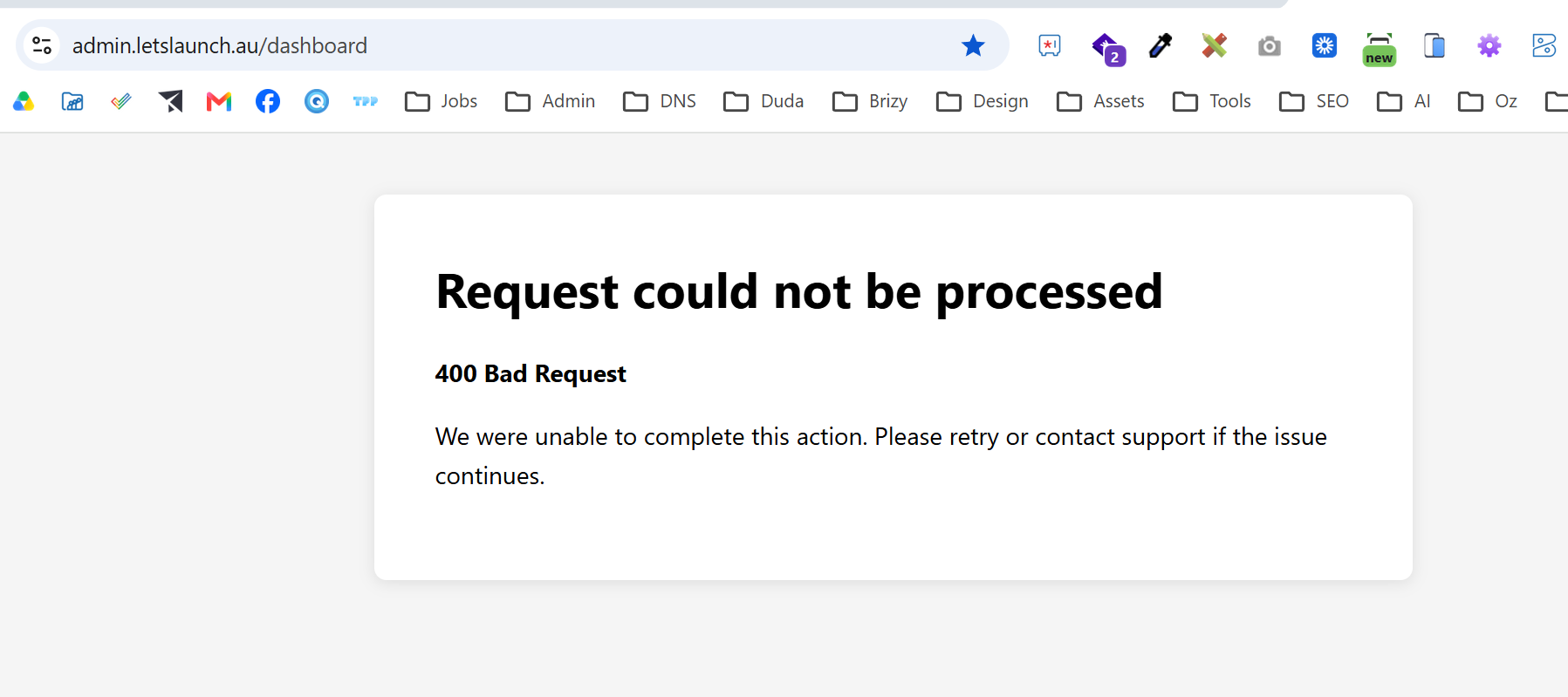
As mentioned, this happened twice upon testing, inviting my gmail account. Although when i click the link to collaborate on the site, it lets me into the editor and that all seems to be working fine and the workspace looks normal.
On the second test, I invited one of my domain email address (not gmail). And it took AGES to get the verification and collaboration email, over 10 minutes which seems very long.
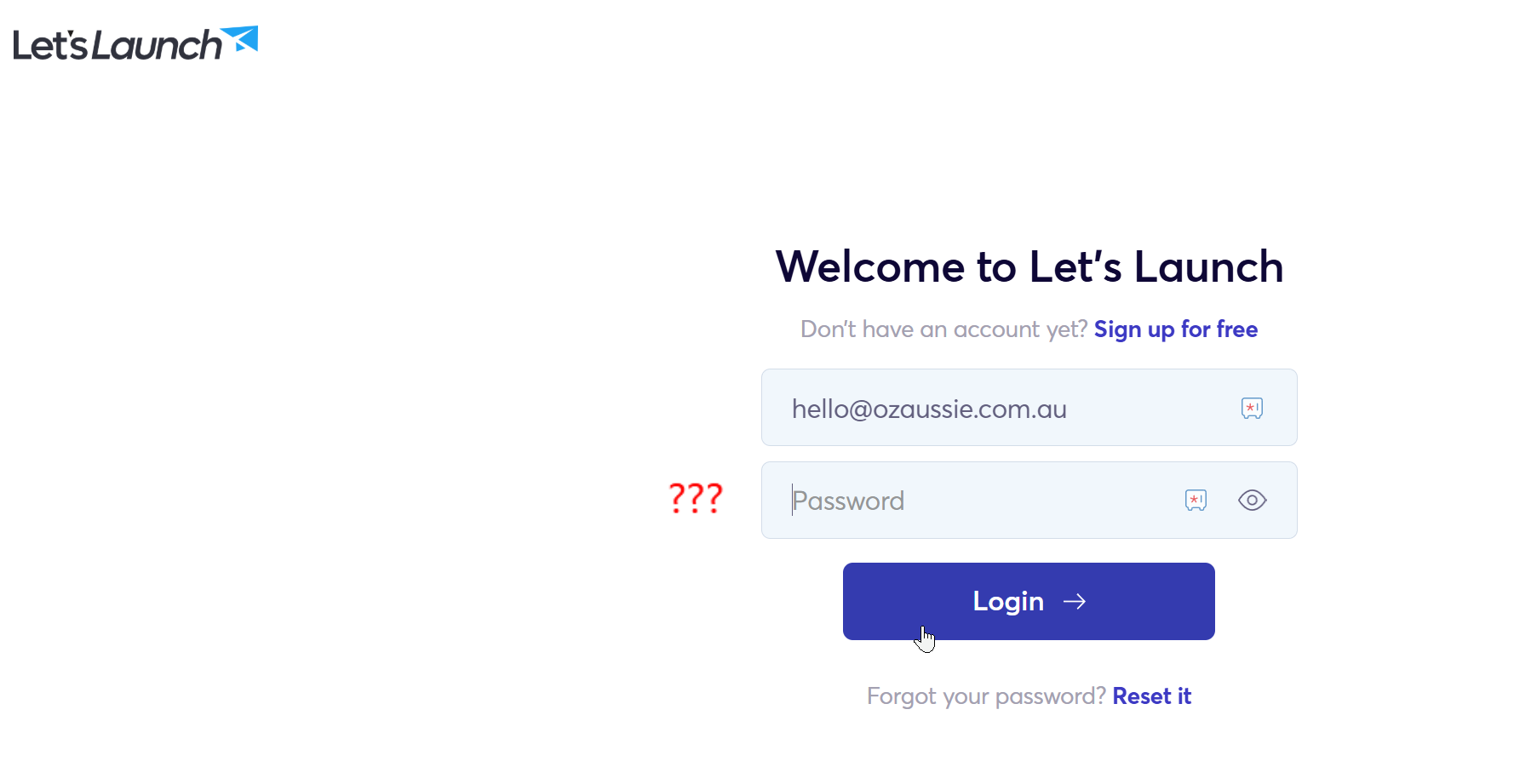
When I click the verify email address on this one, it takes me to my white label login page, which seems fine except what is the password meant to be? What does a client do on this screen???
So I then went to the Collaborate email and clicked the "Get Started" link and it just takes me to an empty workspace, like it's a fresh new Brizy account, no website there at all. It is definitely not the workspace I shared (which has 3 websites in it).
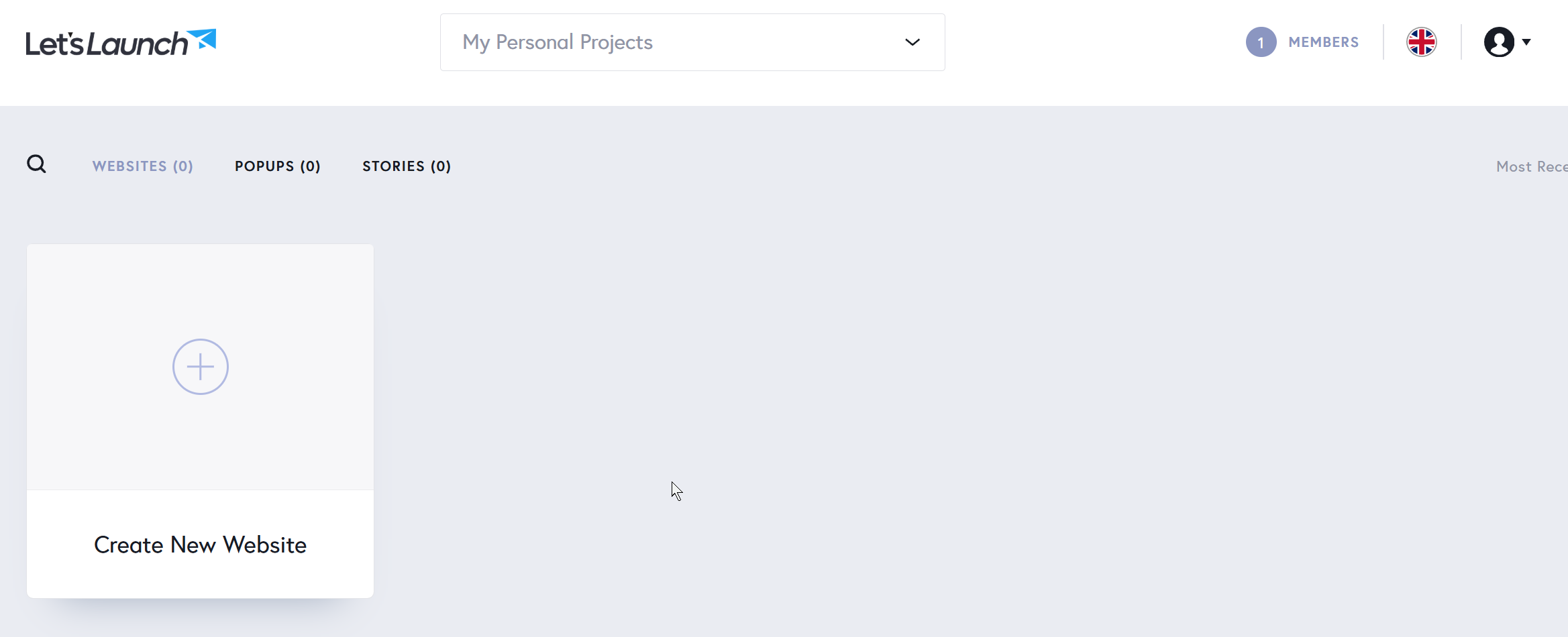
So I'm at a loss, my test account is lost in the system somewhere? and I'm just glad I did not send this to my client yet as I'd have no idea how to help them.
Please help! Could I have a fail safe step by step process please. Have I done something silly? Surely this must be easier??
Thanks.
-

Hello Eva.
I tested the Team Member invitation from your "In Progress" workspace and I could not reproduce the "Request could not be processed" error. Have a look at https://jmp.sh/share/u0HUsoQ692jTq3wuDsZD for my test.
When clicking the "Confirm Email" link, it should ideally take your client to their own workspace. Clicking on the "Get Started" link should add your client to your workspace. The user hello@.....ssie.com.au has access to your "In Progress" workspace. You were seeing an empty workspace becaue you were looking at the "My Personal Projects" workspace.
I suggest you carry out more tests and check if you continue to experience the above errors/issues. Do you want us to delete the two accounts you added for testing?
0 -
Hi KC George
Thank you very much for doing the demo video for me.
OK - so taking the client to an empty workspace first, is a strange step, so I'll have to explain to clients to ignore that.
Can you confirm that your steps above, is all that is needed to invite a client?
In your video above, I didn't see you create a password ...? The Brizy video tutorial "Team Members and Roles" also does not cover this. How would a client login in future? I saw somewhere in the forums that Step 1 is you have to invite them to Brizy cloud to sign up for an account first. Is that the correct process?
I have tested with another email address and I get the "Request could not be processed" page again. Also it takes me over 10 minutes to get the verify email and the email invites.
Yes please delete my test emails for that workspace (I added another one this morning as another test).
Thanks.
0 -
Hello Eva,
If you send an invitation to a client who does not have an account yet, they will follow the steps I have demonstated in the screen recording. In this approach, your client will have to click on the Get Started link in the email everytime he wants to access your workspace.
You can propose that your client first sign up with your builder before you send them the Team Member invitation. This will make it easier for your client to access your workspace in the future and is the recommended approach.
The 10 minutes delay is a matter of concern during the testing process. Your client may not mind receiving the email notification 10 minutes after you send it.
The "404 Bad Request" HTTP status code indicates a client-side problem that prevents the web server from processing the request submitted by the browser. This problem could be specific to your testing setup, as you used different accounts from the same browser. This issue is unlikely to occur for a user who is following the process for the first time. To confirm this, you could test the Team Invitation process from a different browser and check if you encounter the same error.
I have deleted the 3 Brizy accounts you created for testing purpose.
0 -
Hi KC George
OK thanks. I will get them to sign up first. I don't think clicking the Get Started link is a good way to login for them each time. It's a pity the Brizy training videos don't outline this better.
I haven't got time to test this any more as the client was requesting their login today and I couldn't put it off any longer. I have sent them a link to my white label sign up form, so hopefully it will be OK. I'll take your word for it that they won't get the 404 Bad Request scenario.
Thanks for deleting the test accounts. It would be good if we could delete them ourselves though.
0 -
Hello Eva,
The option to invite Team Members who do not have an account was added recently. Hence, previous tutorials, documentation and support threads do not address this option.
If the client reports a problem that you are unable to fix, please contact us. We will assist you.
0
Please sign in to leave a comment.
Comments
5 comments