How to make one background for Entire Page

Hi Brizy, how can I make one background for the entire page and no block by block because it will not look like a seamless background image, please look at this page to see what I mean:
https://havanaenclave.com/gallery/
I placed the background image in two blocks and they do not look seamless, any guidance on how to make the entire page one background image will be appreciated.
Thank you,
James B
-

Hello James,
Have a look at https://brizy.digital/test/ where the background image runs through the entire page. This design was created by keeping all content except the header in a single block, while the spacer element added space between logical sections within the page. To extend the background image to the header, a negative top margin was added to the block with the background. Feel free to download the above design at https://jmp.sh/AgPSrhnF and import it as a design layout to a blank page and check how it is implemented.
0 -
Hi KC, I looked at the sample but I still do not understand how to do that negative top margin and to which block is it applied to? Is is applied to the block under the header with the menu? Is there a video you can share on how to do this, it would be much appreciated. Thank you. James B.
0 -
Hello James,
Please add the negtive top margin to the section with the background image. This will extend the background to the top of the page.
 0
0 -
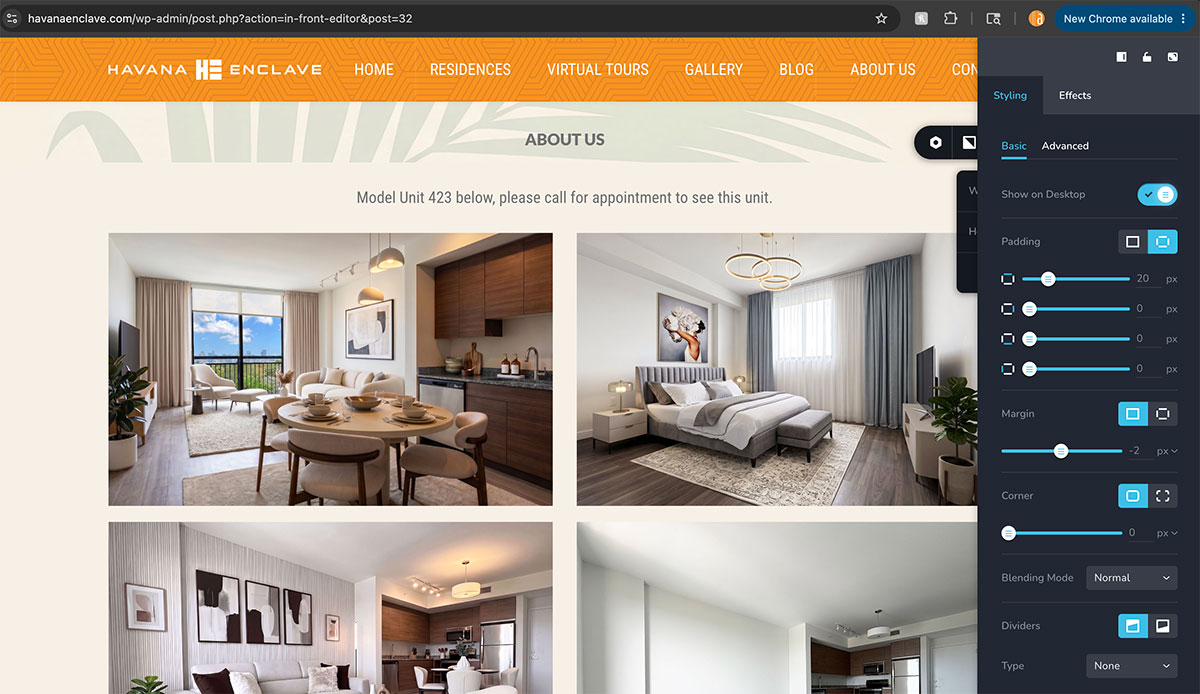
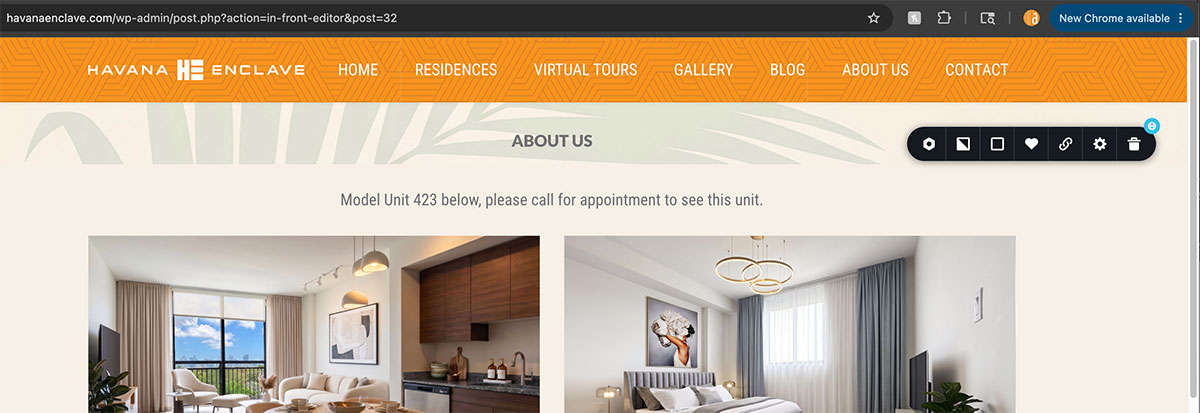
Hi KC, I am sorry but I do not see those margin options that you show in the clip, attached is what I see.
 0
0 -
Okay I finally got margin, I had to select the second icon, I placed the negative margin as you suggested but it makes the title disappear, it pushes it upwards. Which block should I be doing this with? I am doing it with the block with the title under the header menu block.
0 -

Hi James,
Thank you for your message.
It is possible to use a single background image for an entire page. In addition to KC's approach, this can also be configured at the theme level using CSS rather than within individual Brizy blocks. Applying the background at the theme level can help reduce the need for negative margins and other spacing adjustments within the Brizy editor.
However, we're a bit confused by your description. You mentioned that you would like to use a single background image for the entire page, but you also mentioned that you placed the background image in two separate blocks and that they do not appear seamless. Could you provide a bit more detail about the layout you're trying to achieve?
Specifically:
- Should the background image apply only to this specific page or to the entire website?
- Are you trying to have content sections appear on top of one continuous background image?Once we better understand what you're trying to accomplish, we may also be able to provide a CSS-based solution or recommend a more suitable approach.
Kind regards,
Ariel H.0 -
Hi Ariel, I was just trying out different ways to do this, I need the background to appear in the entire page and in the entire website. Yes, a CSS would be very helpful, a lot better than going through each block. Thank you.
0 -
Hi James,
Thank you for the clarification.
Since you'd like the background image to appear across the entire website, you can achieve this using the CSS below, this will apply a single background image to your website.
body {
    background: url('https://yoursite.com/wp/wp-content/uploads/2026/06/pexels-nogman-13058718-scaled.jpg') center center / cover no-repeat fixed;
}

.brz-section,
.brz-container,
.brz-block,
.site-content {
    background-color: transparent !important;
}
To help demonstrate the setup, I created a short screencast that you can follow: https://youtu.be/THA4xNiEWug
Please let me know if you have any questions or need further assistance.
Kind regards,
Ariel H.0 -
Hi Ariel, I followed the instructions carefully but it still did not work, I tested many blocks by selecting none for the background color, but still did not work, anything else I can try? Thank you.
0 -
Hi James,
I've made a small adjustment to the CSS on your website by adding !important to the background image rule:
body {
    background: url('https://havanaenclave.com/wp-content/uploads/2026/06/PalmsWallpaper.jpg') center center / cover no-repeat fixed !important;
}

.brz-section,
.brz-container,
.brz-block {
    background: transparent !important;
}
The !important directive gives this rule higher priority, helping ensure that the background image is displayed.After applying this change, the background image is now displaying correctly on the page. I've recorded a short screencast showing the result here: https://youtu.be/9OTYcjuoOhg
Kind regards,
Ariel H.0 -
It worked Ariel, thank thnk you you guys are the best! James B
0
Please sign in to leave a comment.
Comments
11 comments