how to decrease row height?

Hi Brizy support,
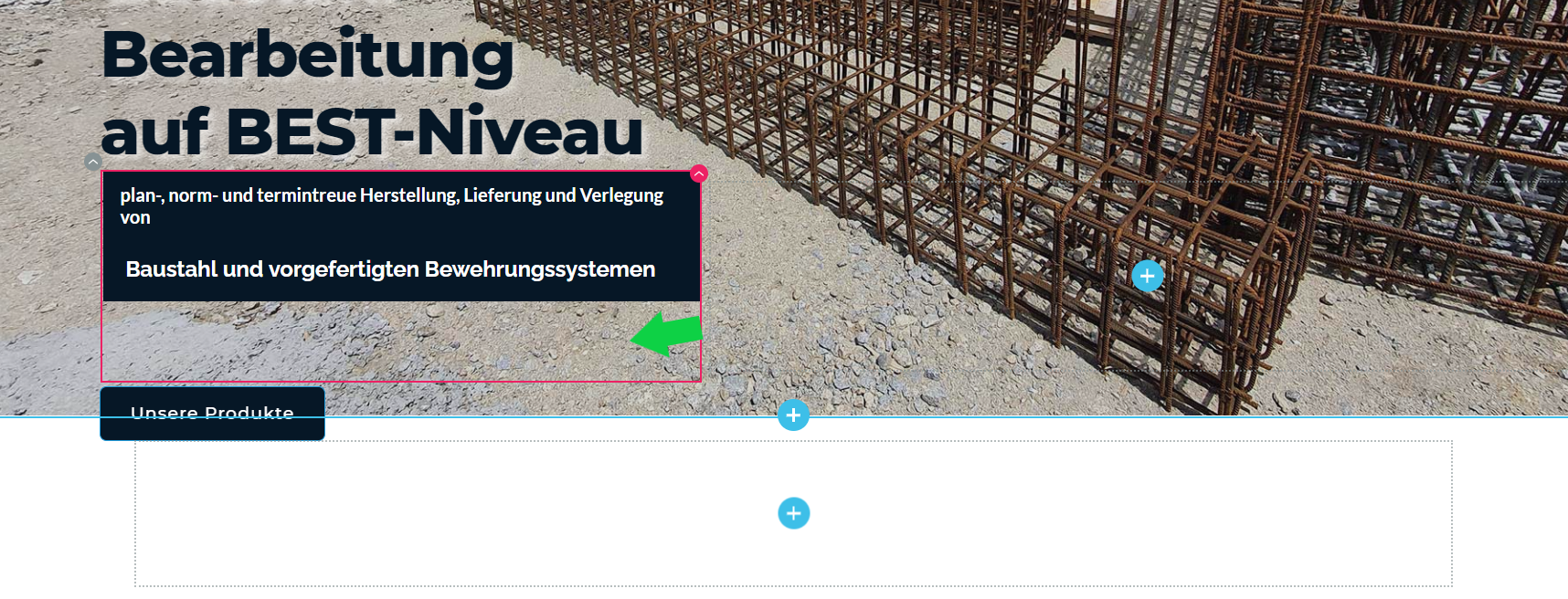
I have a row and a column element within. The column element has a color overlay background and is hosting a text element containing some white text.
So far so good but the rows height is to high to look good in the page composition. I am struggling to decrease the row height.
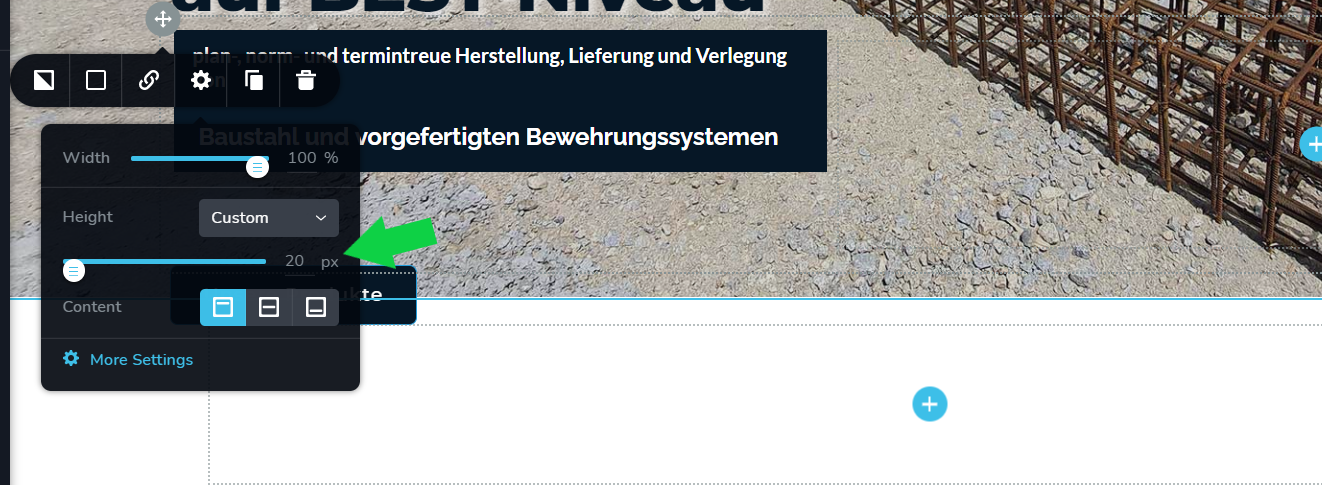
As you can see in my screenshots I did set the height of the row to 20px but the space below the text and column element is definitely more than that. Also there is enough space below the column and text element to decrease the row further.
Do you know where to decrease the heigt of the row?
Best reagards,
Max
-
 0
0 -

Hi Max,
Thank you for this question. I can say that this happened and is displaying only in the editor mode. Here, in the editor mode, as you said, you have a row where you have 2 columns. The column/row heigh is set based on the longer column. In the first column, you have added some content but in the second column it doesn't have some content, therefore in the editor mode (only here), it will show you with some default length set by default by Brizy. In such a way it creates a visual effect that the row is longer. To fix this inconvenience, I can suggest adding a Spacer element in the second element and set it with 10px. In such a way, you will not see this inconvenience in the editor mode. Could you try this?
Thanks!Best regards,
Sandra0 -
Hi Sandra,
thank you for your response. So if I understood you right you would like me to add a 10px spacer element into the right column. I did that but it did not solve the issue.
Just to clarify we are talking about the same thing. I have a row, that has two columns, in the right column there currently only the 10 px spacer, before there was no content. In the left column there is the text element I am trying to decrease in height and a button with a call to action below. I am not trying to decrease the height of the hole column but only of the text element, including the two lines of text and the dark blue background color.
0 -
 0
0 -
Hi Max,
Thank you for these details. I'm afraid to say but this will not be possible to do using the column height. As I said in the previous reply, the column height is set by the sum of all element's height. For example, if you have a text element that holds 20px height and a button element with 25px height, therefore the column will have 45px+padding for column and elements. In such a way you can't force the column to have 20 px because in such a way it has to crop some elements from the column.
To fix this inconvenience, I can suggest some tips:
1 - Make the column a bit larger (modify the width);
2 - Use a smaller font-size for text and button;
3 - Add the button in the right column.Thanks!
Best regards,
Sandra0 -
Hi Sandra,
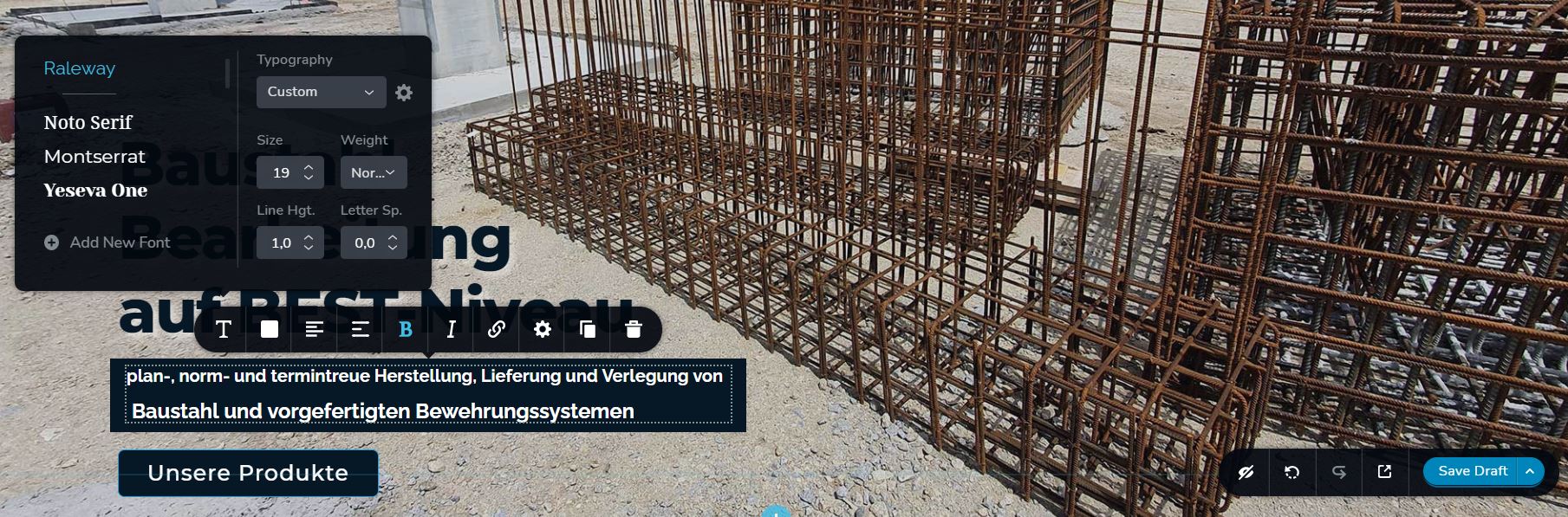
I just realized, that I tried to tackle the toppic from the completely wrong angle. Since I do acutually want to decrease the height of the text element, not the height of the entire column, I actually should be able to adjust this in the settings of the text element, proably best with line height in the text settings.
When setting the line height to 1 the space between row 1 and 2 is still too high. I guess there is no other setting to make line 1&2 get closer together right?
best regards,
Max
0 -
Hi,
I notice that in the text element the first line has a different size than the second line. Therefore, you have 2 lines of custom text. Could you please click on the second text line and modify there the line height too?
Thanks!
Best regards,
Sandra0
Please sign in to leave a comment.
Comments
7 comments