Adjusting block height on mobile

Hi there,
I have a block with a slider and I’m wondering how I can set the block height on mobile view. The settings button is missing a few options when switching to mobile …
Best regards
Tilman
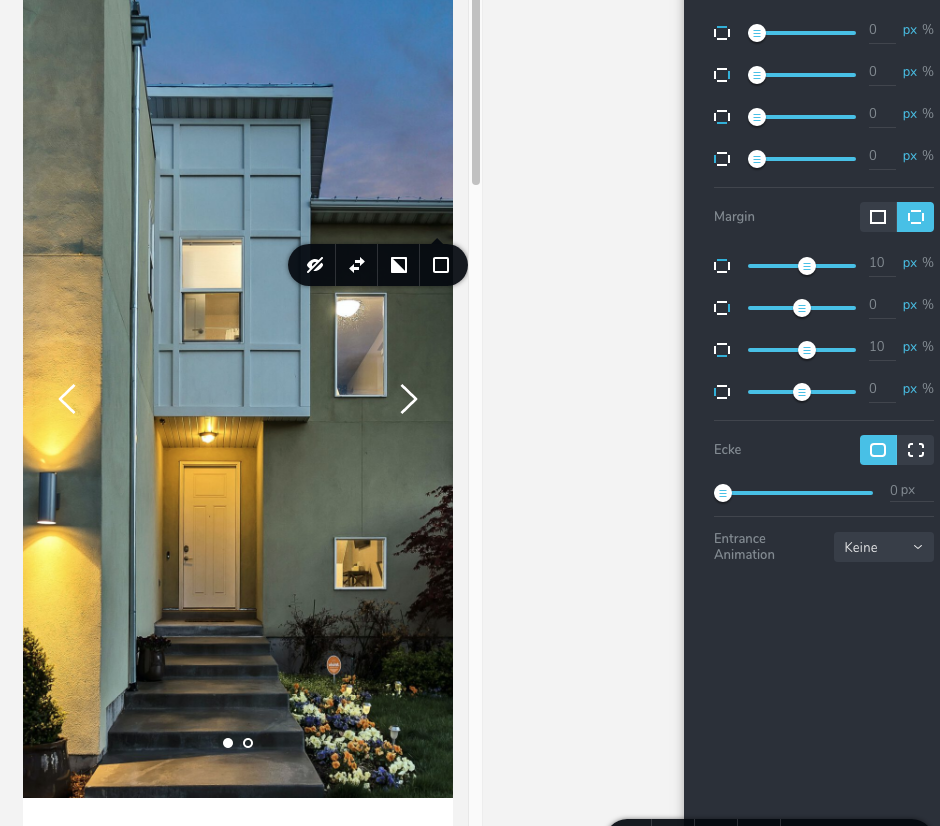
-

Hi, Tilman,
Yes, at the moment, isn't possible to set the custom height for the slide in the mobile or tablet mode. This option is only available in the desktop mode. If you want to make the slide bigger, you can add some Space element in the desktop mode and hide them in the desktop mode and then make them visible in the mobile/tablet mode.
Best regards,
Sandra0 -
Hi Sandra,
thank you for your answer!
I do not want the slider to be bigger but it should be smaller and it only cover the top half of the mobile screen …
Wouldn’t it be normal that the image shrinks automatically when changing to tablet or mobile view?
Best regards
Tilman0 -
Hi, Tilman,
In the mobile and tablet mode, the height of the block/slide from the slider depends on the elements' height that is in the block/slide. Also, if in the desktop mode, the height was added custom therefore this will be applied in the tablet and mobile mode too. If you want to change this, you can try to add some custom CSS.
Thanks!
Best regards,
Sandra0 -
Hi Sandra,
thank you for your reply. Could you please tell me the CSS-class which only affects the slider — and not the box with text on it? I tried to give the block a CSS-class but when trying to add “height” or “max-height” the wp-customizer nothing happened …
It would be great if in future versions the possibilities of adjusting content would be the same as in desktop mode …
Best regards
Tilman0 -
Hi,
I would like to help you with this Custom CSS but unfortunately, on the Support Community, we don't offer the Custom CSS codes. But I can offer another solution for this inconvenience. I notice that for the slider you added a custom height for the desktop mode. You can try to set the block height with the "Auto" option and inside the block and "Space" elements to the slide. After this, you can go to the mobile/tablet mode and adjust them to fit as you want in these modes.
Thanks!
Best regards,
Sandra0 -
Hi Sandra,
what do you mean with “space elements”? Unfortunately I can’t get your workaround working. When having a blank page, adding a new block, setting a background image and setting the height to full I have a full image in desktop view as well as in mobile view. But when changing the block to “Slider” the block looks ok in mobile view but is really thin on real mobile phone …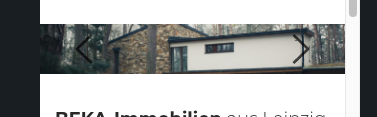
When setting the block’s height to “Auto” it becomes really thin even on desktop view.
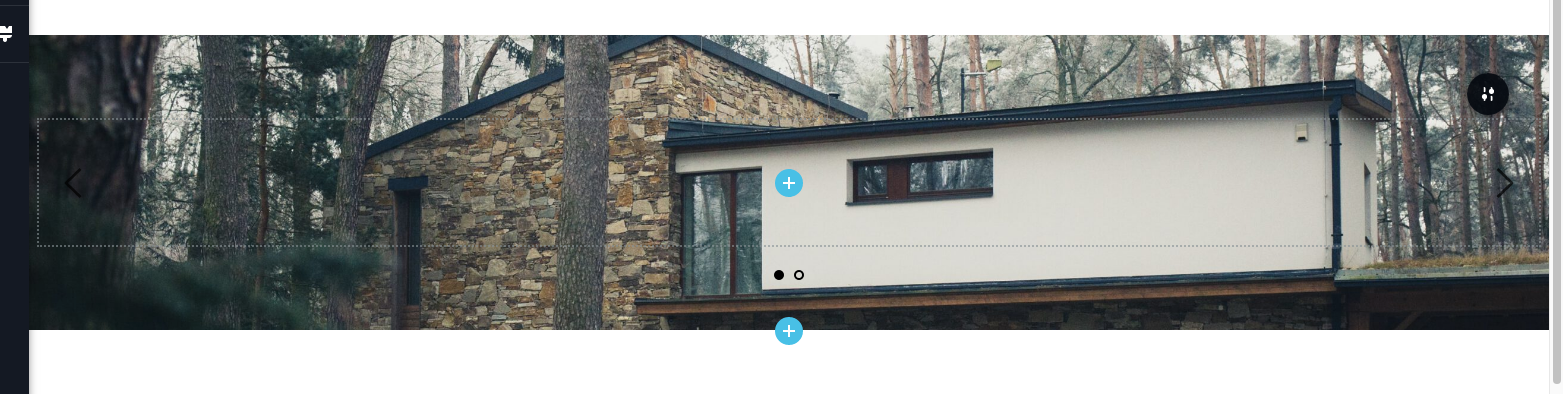
Best regards
Tilman0 -
Hi,
Yes, for this reason, I suggested adding Spacer element. This is an element that adds space in your block. This element, you can find here.
Best regards,
Sandra0 -
Thank you!
0 -
You are welcome!
Best regards,
Sandra0 -

Hey Sandra,
This is really annoying why don't you guys just add an ability for us to use all the tools for Mobile and Tablet way however we want to use it just like every other page/theme editors. to make our life much easy.
Kindest Regards
Jay Vijay @UD
0 -
Hi,
Thank you for your message and feedback. For us, it is important the user opinion and interaction.
We restricted the builder for tablet and mobile mode to optimize the builder and not allow users add some extra details that aren't in the desktop mode and in such a way slowly load the mobile and/or tablet mode.
Best regards,
Sandra0 -
Hey,
There are lots of functions that are not even related to load speed though for example this I am not able to adjust the bg banner size on mobile even though I have hidden the spacers.
0 -
Hi,
Yes, on the mobile mode isn't possible to set up the custom height for the block but you can set custom margin or padding and also you can set-up the width of the block. The block height will be set-up in relation to the content you have in the block and if you want addition top or bottom space you can add margin or padding.
Hope this can help you!Best regards,
Sandra0
Please sign in to leave a comment.
Comments
13 comments