Image Issue with Woocommerce Product Element

-
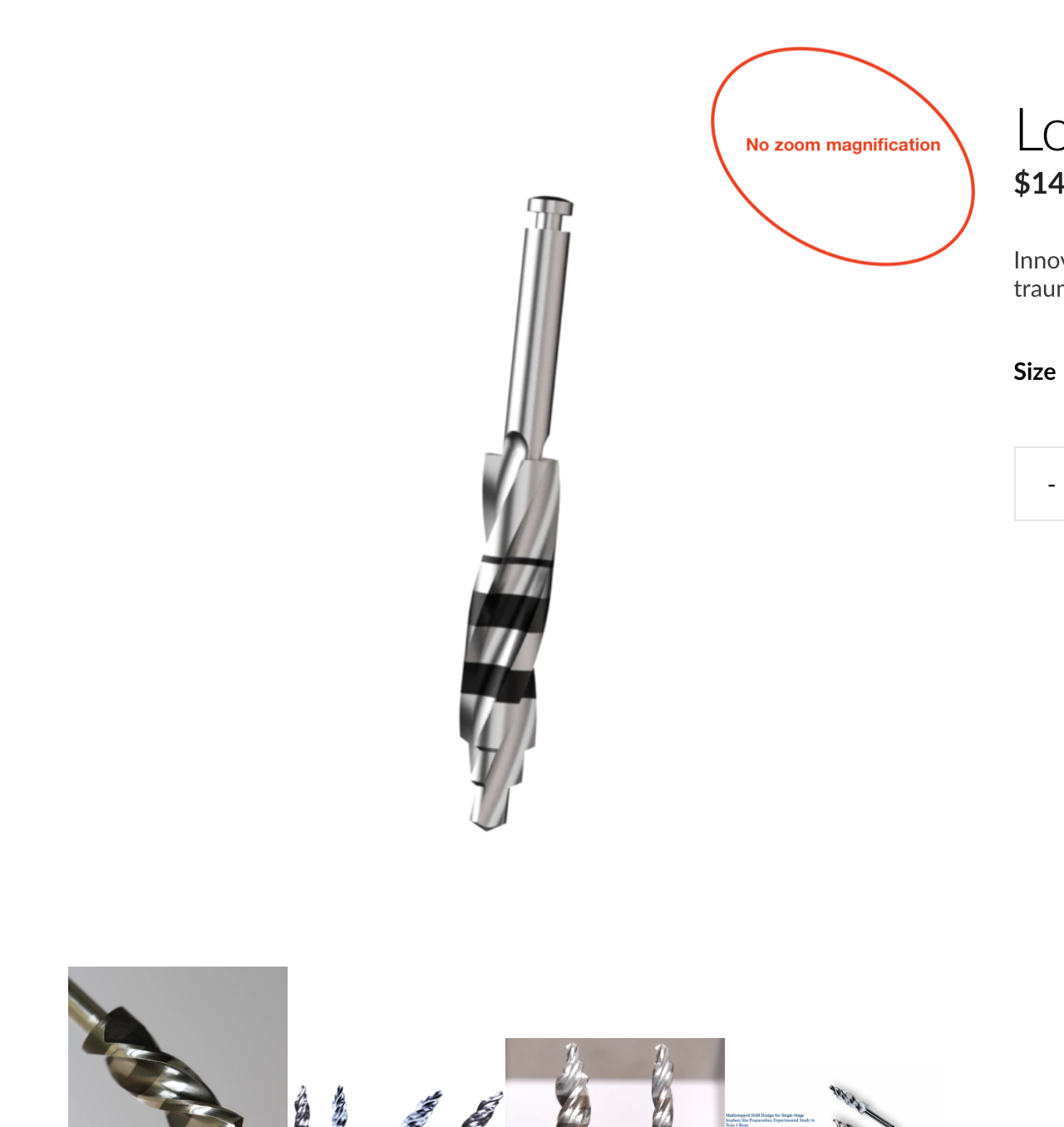
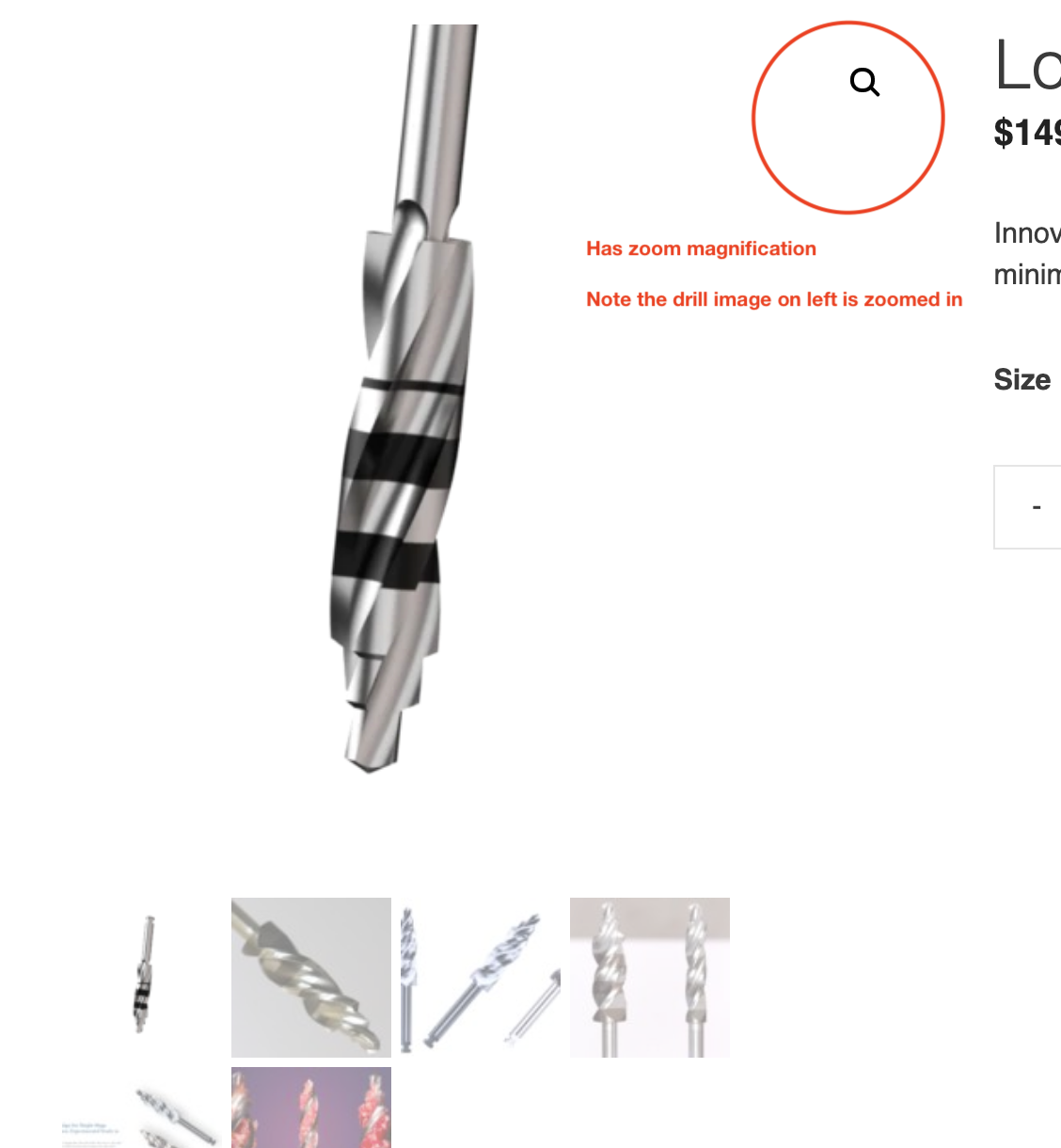
Product Image's Zoom doesn't work. (see attached images and annotations)
-
When I click on secondary pictures, it goes to the Product's direct URL (domain.com/....product1.jpg) instead of replacing the featured image with the secondary one
-

Hi,
Yes, in such a way is working the shortcode of WooCommerce product. This the functionality that is available at the moment. When we will release the Dynamic Content for WooCommerce the functional of WooCommerce elements will work in another way and will be available these options too.
Best regards,
Sandra0 -
Thanks for reply and yes, I’m trying to make it work until dynamic content is working.
But the YouTube video from Brizy explaining how to embed a WooCommerce shows a different result.
The video shows that the image zoom works. Please reference that or update it if that’s no longer the case and image zoom is broken now.
Edit: Here's the YouTube video. After the person shows how to include the "Woocommerce Product" Element, he updates the page and goes to the front end to show it live at the 1:41 minute mark.
https://youtu.be/hlvhA1R6x0c?t=101
0 -
Yes, but since then WooCommerce and Brizy made some updates and made some changes. Anyway, I created an issue for our developers and they will investigate this problem a bit deeper.
Thank you for reporting this!Best regards,
Sandra0 -
Ah ok, I didn't know that the Woocommerce Product elements won't work like the videos anymore. I purchased the Lifetime Pro license because I like what Brizy can do. So I still relied on the information out there before purchasing. Thanks for the info.
0 -
I already send a request to our developers to check this element and its options. Here can be an issue and in this case, we will fix it. I'm sorry for this inconvenience. I will inform you here when I receive some details from the team.
Thanks!
Best regards,
Sandra0 -
Appreciate it. Hope it's a quick fix before I start trying to implement other workarounds haha. I know I can't use the standard theme's header across the brizy pages, so I need to use the Product element.
The only other option is to have 2 different headers. 1 header for brizy pages. 1 header for woocommerce product pages :(
0 -
Hi,
Yes, at the moment this is the solution. At the moment we are working on the Dynamic Content for WooCommerce and this feature will allow you to customize WooCommerce pages, products and categories with Brizy. Then, you will not need to create 2 headers for each case. Unfortunately, I can't say when we will release it because it is a very complex and complicated feature, but we will strive to release it as soon as possible.
Best regards,
Sandra0 -
Hi Sandra,
Thanks, guess I'll need to create 2 headers. I could live with that for the most part except for a couple things, 1 of which I know I have to wait because it's dynamic.
1. "Down Arrow" - Is there a way for Brizy's "Down Arrow" icon to go on the Right of the words? Or vice versa.
I could not find any settings or CSS code to change to the location of the down arrow.
2. Cart's Number of Items - I searched the forums in the past and know this needs to wait for WooCommerce dynamic content compatibility. It's just inconsistent when Wordpress's menu shows the number of items and the Brizy menu doesn't. I did include the shopping cart icon as was suggested in another post.
The Down Arrow icon location consistency is the only question I have now. Might you have the answer?
Thanks!
 0
0 -
Hi,
1 - I'm sorry but at the moment you can add icons only in the left part of the menu item. It isn't possible to change it in the right place. You can try adding some Custom CSS.
2 - Yes, at the moment isn't possible to display the Cart with the number of products the visitor has in. The WooCommerce has already created all the functional to run fine in the WordPress pages and default theme but for Brizy they didn't :) (joke). We will add this functionality in Brizy pages but please let us a bit more time for it. It is enough complicated feature and we want to make sure that all will work fine.
Thanks!
Best regards,
Sandra0 -
Hi,
1 - That makes sense why I couldn't find a way to change the down arrow icon. I tried to find some Custom CSS to change the Wordpress Menu's Down Arrow Icon, but I couldn't find any Custom CSS that worked. I searched through forums, FB, and Google.
Thanks for the help.
0 -
Hi,
I would like to help you with this but this is something like a Custom work and for the Support team, it is extra time-consuming. Maybe you can find a CSS expert that could help you with this?
Thanks!Best regards,
Sandra0 -
Hi,
I had found this CSS code in preview.css that refers to the arrow icon and menu item.
.brz .brz-icon-svg {
display: inline-block;
width: 1em;
height: 1em;
stroke: none;
max-width: none;
position: relative;
fill: currentColor;
color: currentColor;
}*, *:before, *:after {
-webkit-box-sizing: border-box;
box-sizing: border-box;
}<svg id="nc_icon" version="1.1" xmlns="http://www.w3.org/2000/svg" xmlns:xlink="http://www.w3.org/1999/xlink" x="0px" y="0px" viewBox="0 0 24 24" xml:space="preserve" class="brz-icon-svg brz-menu__item__icon" data-type="outline" data-name="small-down"><g transform="translate(0, 0)" class="nc-icon-wrapper" fill="none"><polyline fill="none" stroke="currentColor" vector-effect="non-scaling-stroke" stroke-linecap="square" stroke-miterlimit="10" points="16,10 12,14 8,10 " transform="translate(0, 0)" stroke-linejoin="miter"></polyline></g></svg>
The best CSS experts for Brizy would be the Brizy team wouldn't it? ;)
It's ok, guess I'll keep looking and playing around.
0 -
Hi,
Could you please try adding this code, for the menu item https://jmp.sh/fDZA6SM?
element li a svg {
position: absolute !important;
right: -30px;
}Best regards,
Sandra0 -
That worked! Thank you so much!
Thanks Sandra!
0 -
Thank you too! Have a great day!
Best regards,
Sandra0
Please sign in to leave a comment.
Comments
15 comments