Woocommerce add to cart item weird display

Hi,
I'm experiencing a problem with the add to cart item. When I have it on a product that has variation, it works as I expect, showing the stock and below it the button to add the product to the cart. On a product without a variation though, it displays on the same line the stock and the button, which is pretty cumbersome. I don't find a parameter in the item to put the button below the stock sentence.
Could you please help me solve this issue?
Thank you!
Best regards,
JP.
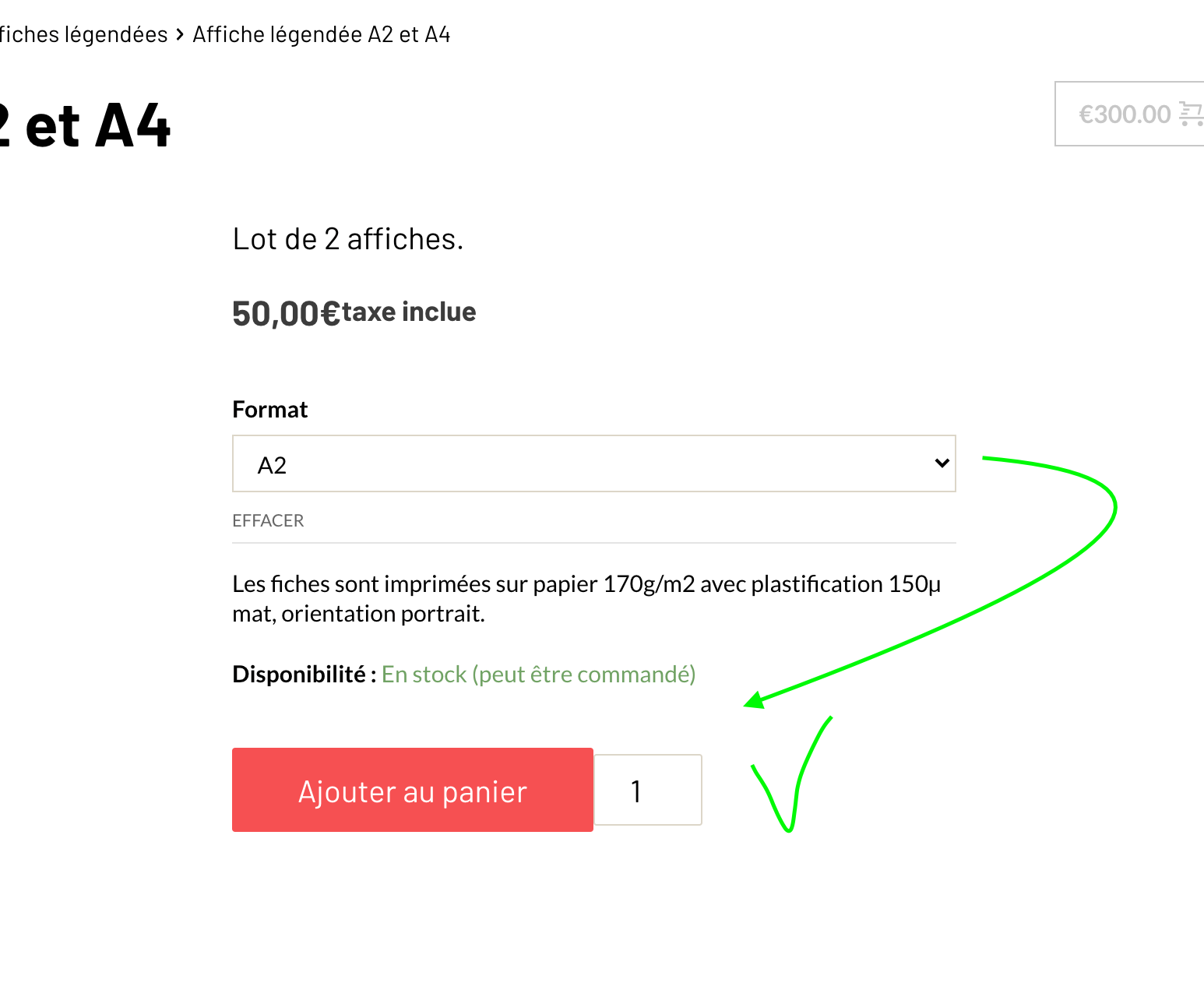
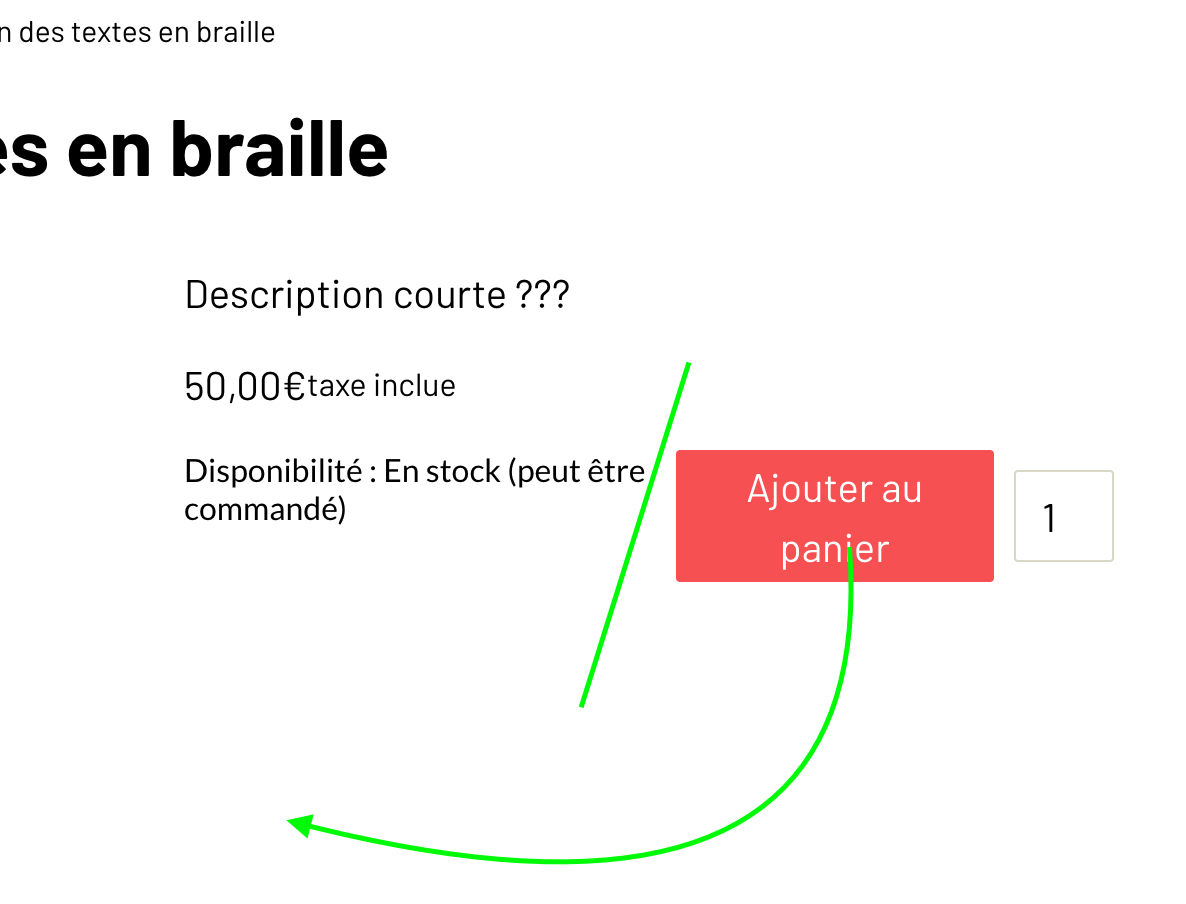
-

Hi Jp,
At the moment the "Add to cart" element is displaying in this format for simple products but I will inform our team about this aspect and they will improve it.
Regards,
Nelea
0 -
Hi,
Thank you for your quick answer!
Have a nice day!
JP.
0 -
Have a nice day too !
Nelea
0 -
Hi again!
I'm afraid there is an extension to this problem with the display of the product image gallery to its side. When the product is simple, the availability is not green and there is no carriage return that put the button "add to cart" below, but the image gallery to the left is displayed correctly.
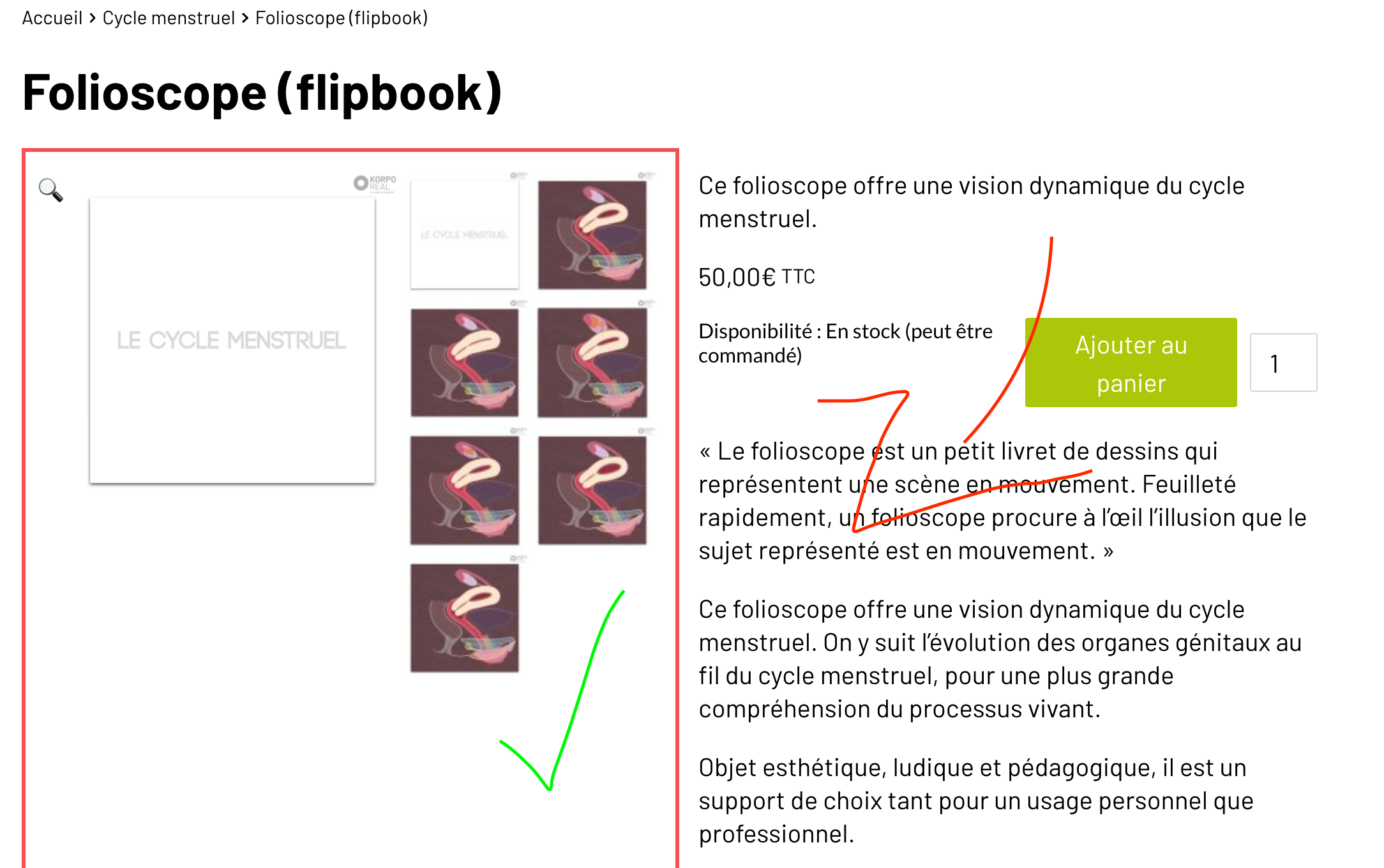
Inversely, when a product is variable, the availability is properly displayed in green and the "add to cart" button is below, but the image gallery to the left displays tiny pictures!
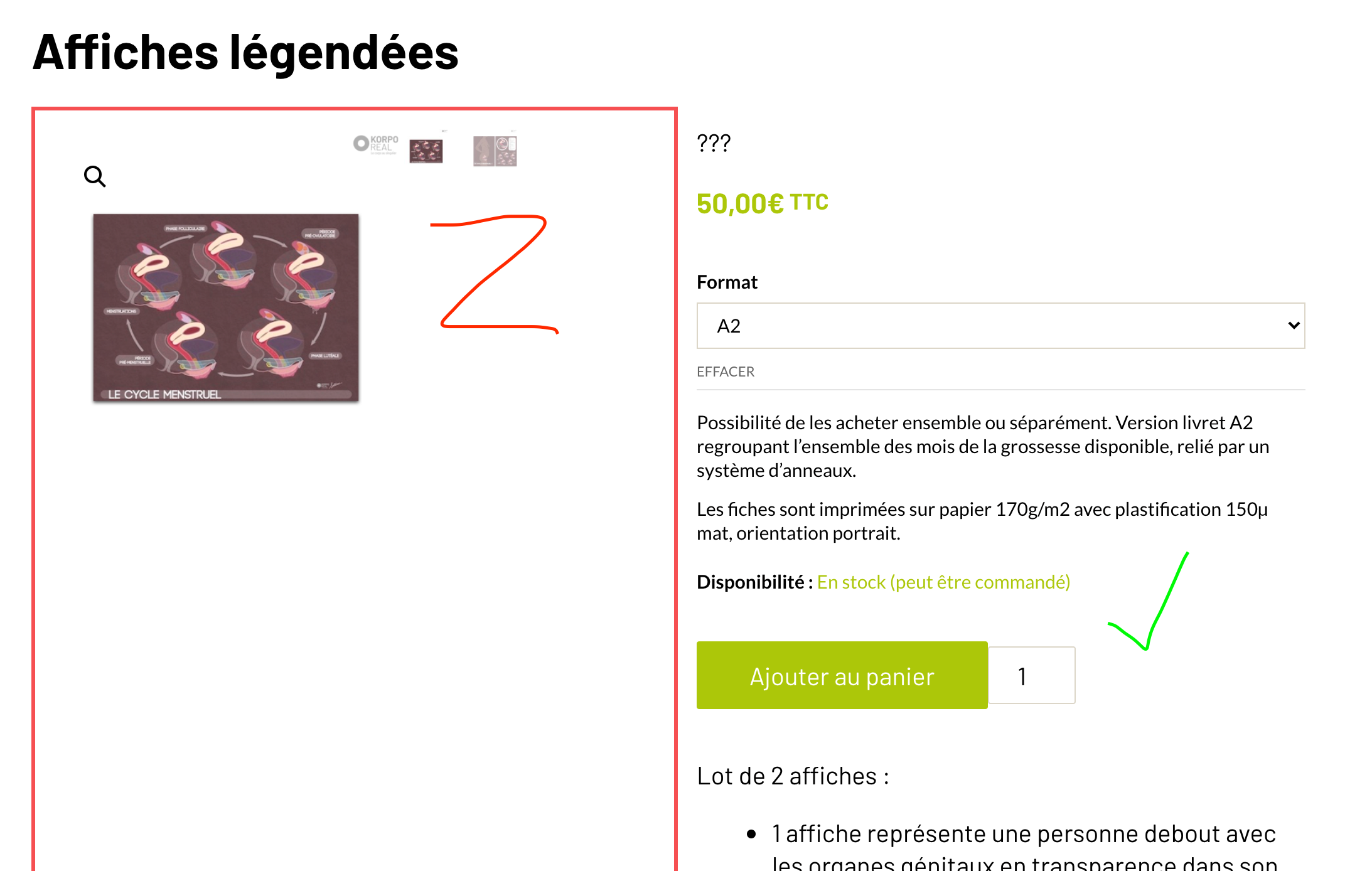
Could you help me find out what I could have made wrong here?
For your information, all the images are from the same size, and I've got all the latest Brizy free and pro installed.
Thank you very much!
JP.
0 -

Hi JP,
About the inconvenience with the Stock and disponibility, we already informed our team and they will find a solution to improve this aspect.
About the Image Gallery, unfortunately, I can't reproduce it. See here. Could you please re-check it? How did you add the Gallery? Did you use this element https://jmp.sh/FJ5xVxG? Could you please temporary deactivate all external plugins (except Brizy Free, Brizy Pro and WooCommerce) and activate a WP default theme?
Best regards,
Sandra0 -
Hi Sandra!
For the image gallery, it's trickier than what you tried :). You have to choose to put the image gallery to the left or the right of the main picture. Otherwise, it works fine, as your example shows :).
Let me know!
JP.
0 -
At the moment, the Brizy Gallery element doesn't have the option to display the gallery image on the left or right of the main image. They will display at the bottom of the main image.
Unfortunately, it isn't recommended to add the Image element and beside it the Gallery element because the Gallery images will not be displayed in the Image element.
Best regards,
Sandra0 -
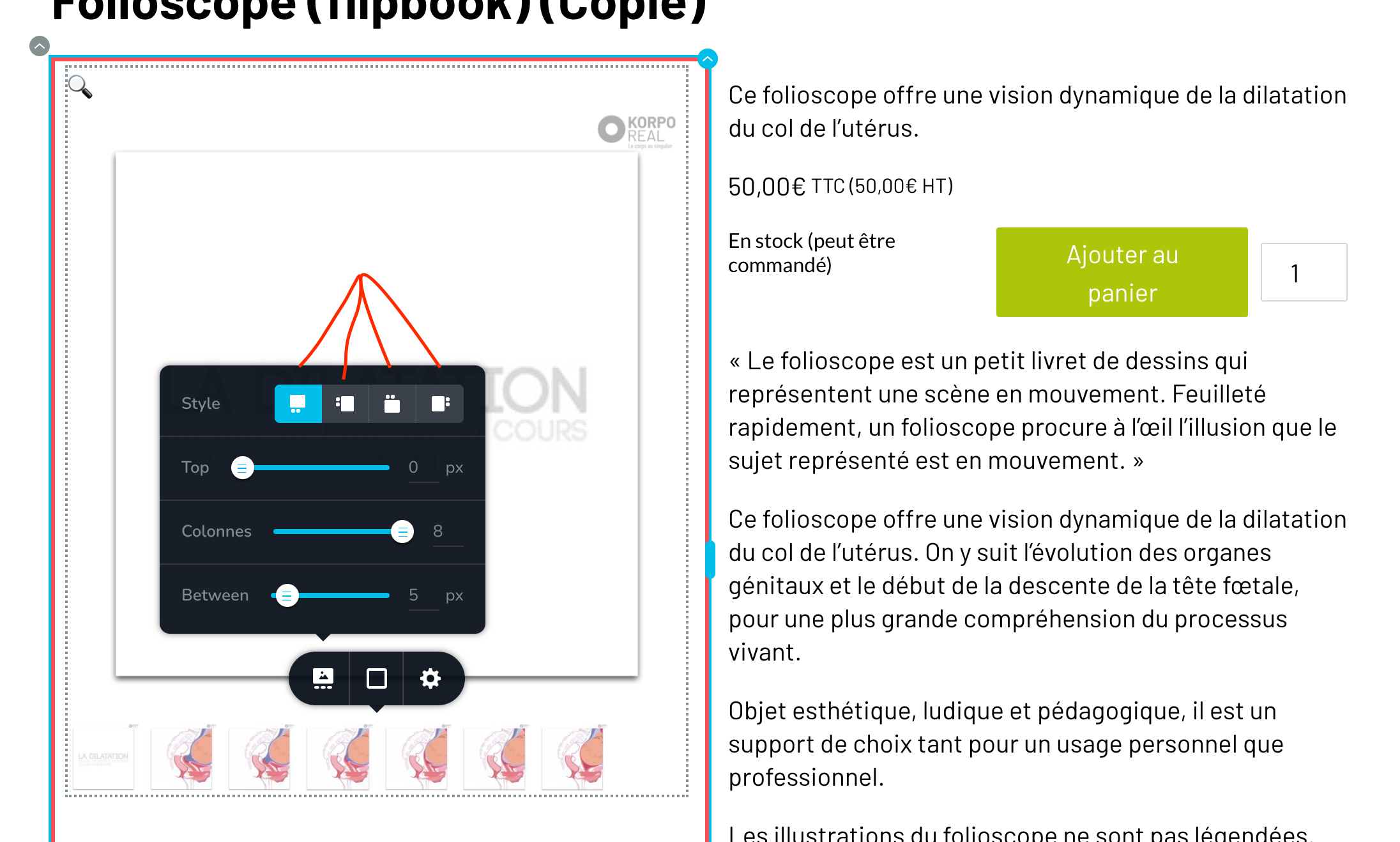
You are right, I didn't use the gallery item but the product gallery and product gallery thumbnail, I assume by selecting the page element with the product type. And then, I have the choice to put the gallery images around the product image! Is there a way to have the page use the images from the product by using another gallery than the one provided bay the woocommerce page element?
Thanks!
 0
0 -
Ok, I did a test to recreate the situation and if I'm on a template page set to include products when I drop a gallery into the page, it creates a gallery as I'm showing you! And in the advanced properties, it is named product gallery and product thumbnails, depending on what part I click.
I hope this helps!
JP.
0 -
Hi,
Thank you for all details. We could reproduce this inconvenience and create an issue on this topic. Our team will investigate this problem and will strive to solve it as soon as possible. It seems to happen to the Gallery element when it is set on the left and right side. For the top and bottom side, all is working fine. Therefore, you can use this as a workaround.
I want to recommend, if you create a Brizy template for all products, not to add the "Pages" element and select the "Product" option inside the template. For the Product page element, you have to add the "Product ID" and all products will open with the same product details. For this reason, I suggest using the Gallery element to display the product's images.
Best regards,
Sandra0 -
Hi Sandra,
Thank you for your answer! But I'm afraid, I'm not understanding what you recommend me to do for a template for all products :(. If I don't use the "Page" element for the product, the template is "fixed" and I don't understand how you advise me to use the Gallery element to display dynamically the product nor where ti add the product ID!
Yes, I know, Friday, I assume my brain is already thinking about the weekend :).
Thank you for your help!
JP.
0 -
If you have the same design for all products, you can create a Brizy template for all Products. This will help you from the repetitive work. Here I attach a guide that will help you with this.
1 - Make sure you created the Products in the WooCommerce and they aren't edited with Brizy;
2 - Go to Brizy - Templates -> Create new or select from Brizy -> Templates the template you already prepare for the Single Products;
3 - Give it a suggestive name (if you recently created a new template) and add this Display Condition:
3.1. Template type: Product;
3.2. Display condition: Include - Products - All
Don't forget to click on "Add" to add the display condition and after this to publish or update the template. See here https://jmp.sh/FeciVKq.
4 - Inside the template, you have not selected the Products or Archive element (the Archive element are available only in the template types Archive). You have to select the WooCommerce elements you want to add and see on the Single Product Page, such as WooCommerce Title, Content, Price, Add to cart, Reviews and other elements you need to display https://jmp.sh/qYtmnxm. Al details will be added in a dynamic way on the live products pages based on the Products details. Don't forget to update the template to save all the modification you make on the page.After this, when you will configure the Single Product page template and when you will click on Preview or will click on "View" from a Product, you will see the template you created but with the individual details from each Product. See here https://jmp.sh/3e1baQC.
Let us know if we can help you with something else.
Best regards,
Sandra0 -
Ok! That's what I already did! All the screenshots I gave you was from a product page treated by a template that manages all the products.
By the way, I noticed that on the template page for all products, while designing it, it uses the last created product. Therefore, it's useful to have this last created product covering a lot of case that other products can present! It could be nice to be able to specify in the template Brizy editor what product we want to be used as a guide while designing.
Thanks a lot for all your help!
Have a nice day!
JP.
0 -
Hi,
Thank you for the reply and the suggestion. Yes, at the moment, when designing a template for all products, it is displayed the data from the last products. I will inform our team about your suggestion and they will make a decision about this.
Best regards,
Sandra0 -
Hi,
My pleasure! Thank you for passing the suggestion to your awesome team!
Best regards,
JP.
0
Please sign in to leave a comment.
Comments
15 comments