The remote server response code is 403.

this one for my secont website. when i used new Licence key get Error like The remote server response code is 403.
-

Hi Sankar,
Thank you for contacting us.
It looks like your server may be getting blocked by our license server, which is why you’re seeing the 403 error. A quick way around this is to activate the license from a local environment instead. You can install WordPress locally using tools like Local by Flywheel or XAMPP, enter your license key there, and it should activate without issues.
From there, you can either continue working locally until your project is ready to go live, or use a migration plugin, such as WPVivid or All-in-One Migration—to move your site (with Brizy already activated) back to your production server. This approach usually resolves the activation issue right away.
Please try this and let me know if you have any further questions.
Best regards,
Ariel H.0 -
Already Installed Brizy Pro. This One for My New Website Not a exisitng one.
I think Pro Version 50 Site Limit right.0 -
Hi Sankar,
The 403 error indicates the exact issue, it means the request is being blocked before it even reaches the license server. A failed license activation normally triggers a different error message.
When you can, please try the steps I shared earlier to work around the block. If the issue persists, feel free to send us your site’s credentials along with your license key, and we’ll activate it for you on our end.
Best regards,
Ariel H.0 -
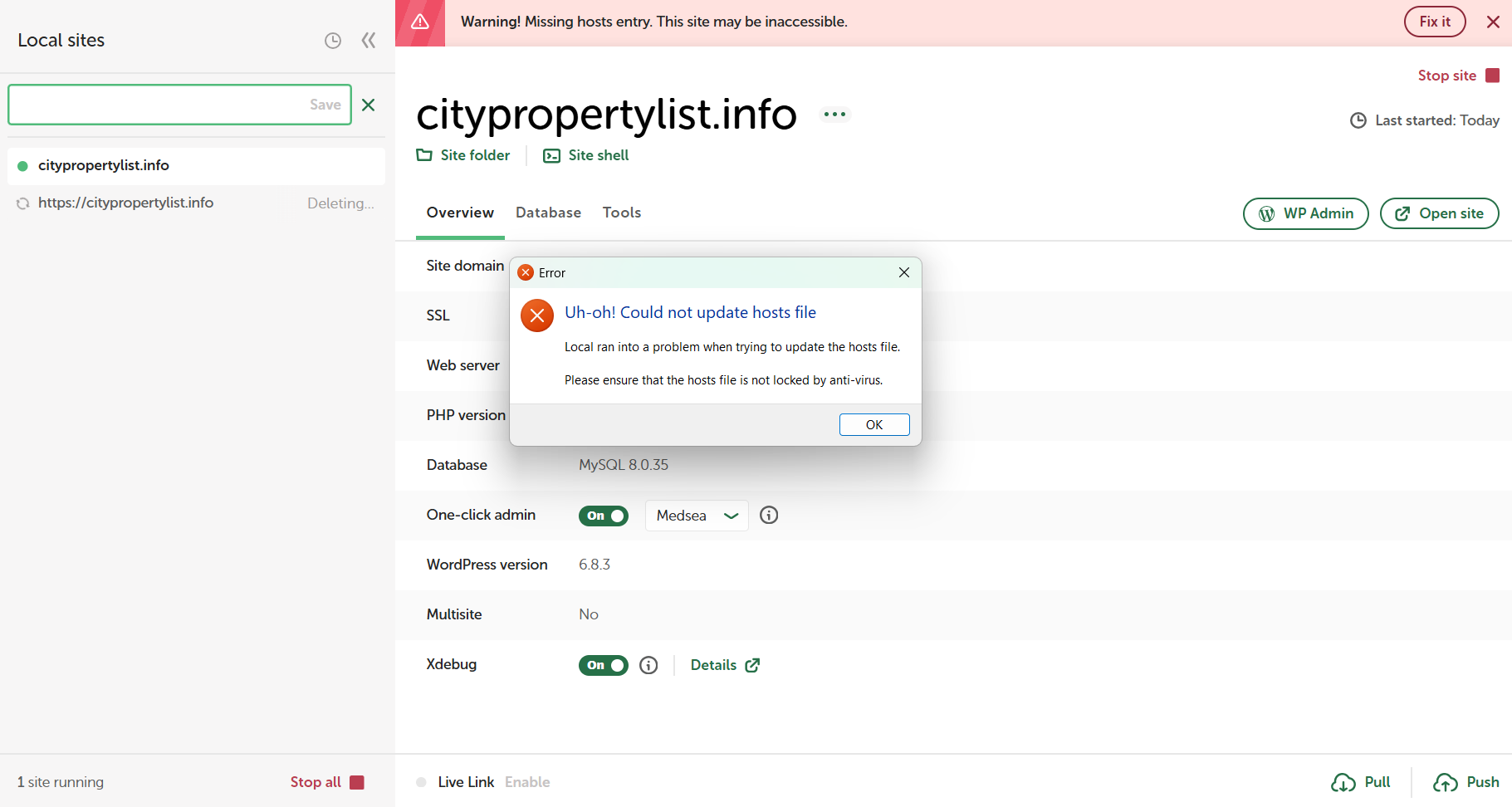
I tried Localy That One also Getting error. PFA
 0
0 -
Hi Sankar,
It looks like Local wasn’t able to update your hosts file. Please try running Local by Flywheel as an administrator, as this usually resolves the issue.
Here are the steps:
1. Close Local completely.
2. Right-click the Local icon on your desktop or Start menu.
3. Click Run as administrator.
4. Once Local opens, try starting your site again.If this fixes the issue, you can set Local to always run with admin permissions by right-clicking the Local icon → Properties → Compatibility → enable Run this program as an administrator, then click Apply.
Otherwise, you can manually add your local domain following the steps on this link - https://www.youtube.com/watch?v=tWVFaP5roEQ
You can also try this - https://www.youtube.com/watch?v=XYPh2XpEFsoIf you have any further questions, please let me know.
Best regards,
Ariel H.0
Please sign in to leave a comment.
Comments
5 comments