Clarification on Brizy Cloud, WordPress, and Shop Plan Features

Hi, I need some clarity regarding Brizy, as I’m still a bit unclear about how the plans work. I currently have Brizy Cloud licenses purchased through Appsumo, but I’d like to know: if I switch to Brizy WordPress, would I still need my Brizy Cloud license along with Brizy Shop? From what I see, the WordPress subscription includes Brizy Cloud + Shop features, but each plan has a limited number of websites. Is it possible to integrate my Brizy Cloud license with Brizy WordPress? For example, my license covers more than 10 hosted domains, but the Brizy WordPress Personal plan only supports 1 website. Do they work independently?
Also, regarding my Brizy Cloud subscription, I am aware it doesn’t include Brizy Shop features such as multiple payment gateway integrations (Cloud only supports PayPal). How do I set that up (PayPal) if I want to use Brizy Cloud alone? Lastly, could you share a link that clearly outlines the exclusive features of Brizy Cloud licenses purchased via AppSumo versus Brizy Shop (which runs on a continuous subscription)? Thanks.
-

Hello Abi,
Brizy Cloud and Brizy WordPress are separate products and must be bought separately. With the AppSumo Brizy Cloud lifetime plan that you have purchased, you have access only to Brizy Cloud. Brizy Shop plans are available for an additional fee on top of the cost of Brizy Cloud.
Brizy WordPress plans featured at https://www.brizy.io/pricing-wordpress do not include Brizy Cloud or Shop features. When you purchase a plan listed here, you get access to Brizy Pro plugin that can be used along with Brizy Page Builder plugin to design WordPress pages.
AppSumo licenses you have purchased can be used only for publishing websites on Brizy Cloud. For developing websites with Brizy WordPress, you must purchase a Brizy Pro plan listed at https://www.brizy.io/pricing-wordpress. Have a look at https://appsumo.com/products/brizy/ for the features included with your AppSumo purchase.
To setup Paypal payments on a Brizy Cloud project, kindly follow these steps
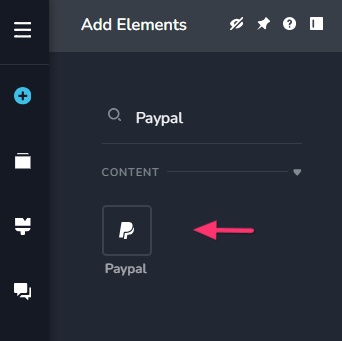
- Drag the PayPal element to a page
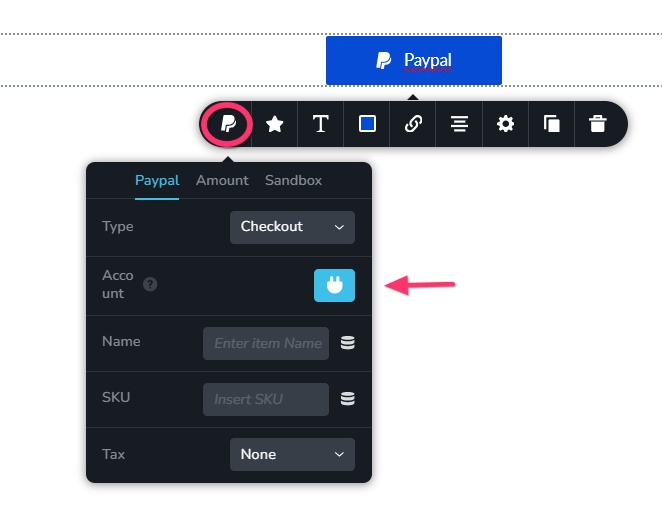
- Select the Paypal icon and then the plug icon, in the Paypal element.
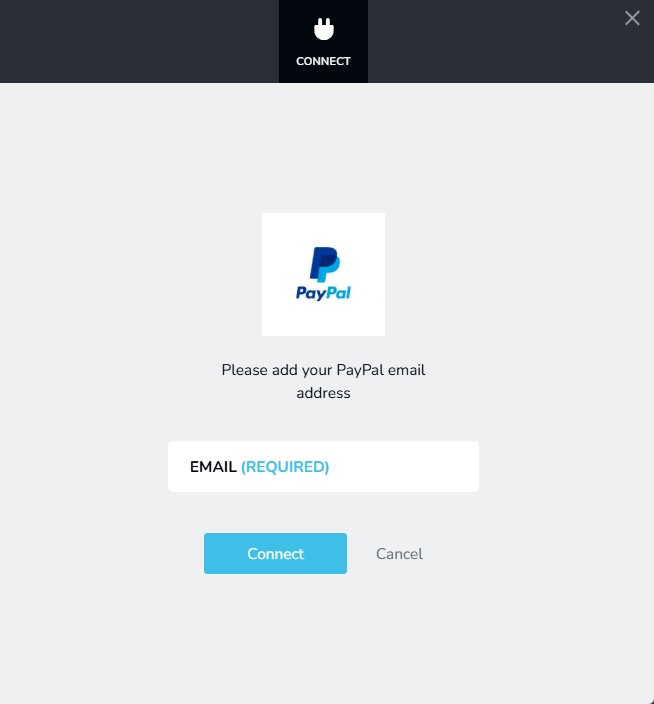
- Link your Paypal email address here.
- Disable the Sandbox option in the element
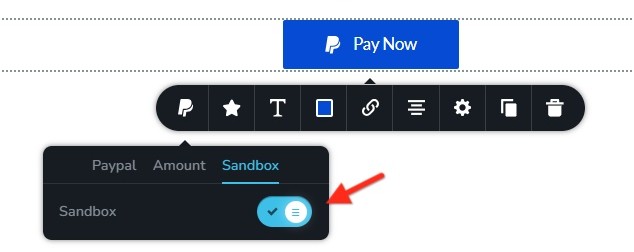
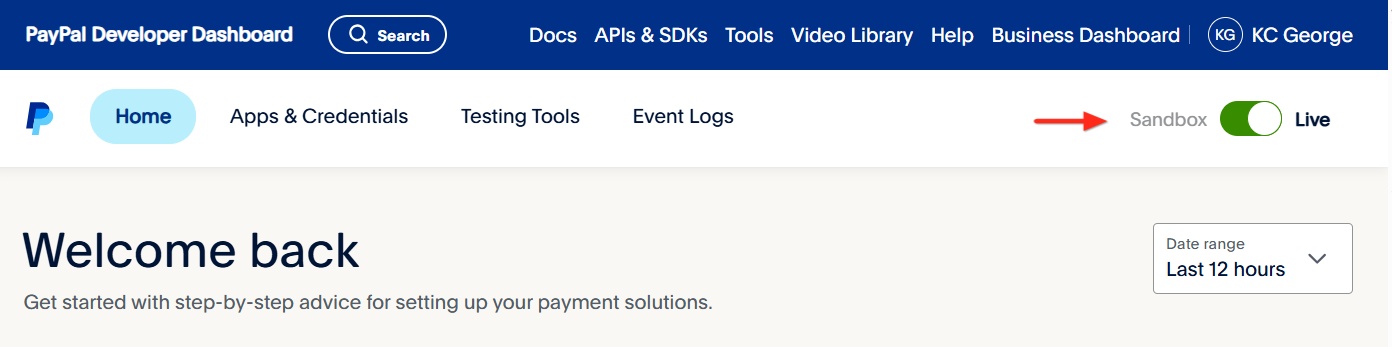
- In your Paypal Developer Dashboard at https://developer.paypal.com/ you have a toggle switch to set your PayPal checkout to "Sandbox" or "Live". The "Live" option (green color) must be selected in the toggle switch and not the Sandbox (blue color)
0 - Drag the PayPal element to a page
Please sign in to leave a comment.
Comments
1 comment