Can't change this photo

For the life of me, I can't change out this photo. There's no way I can access the pop-up things that allows me to switch it. Can you please help me? Thank you.
Found here: https://admin.brizy.io/projects/22536145/editor/page/7243733

-

Hello Steven,
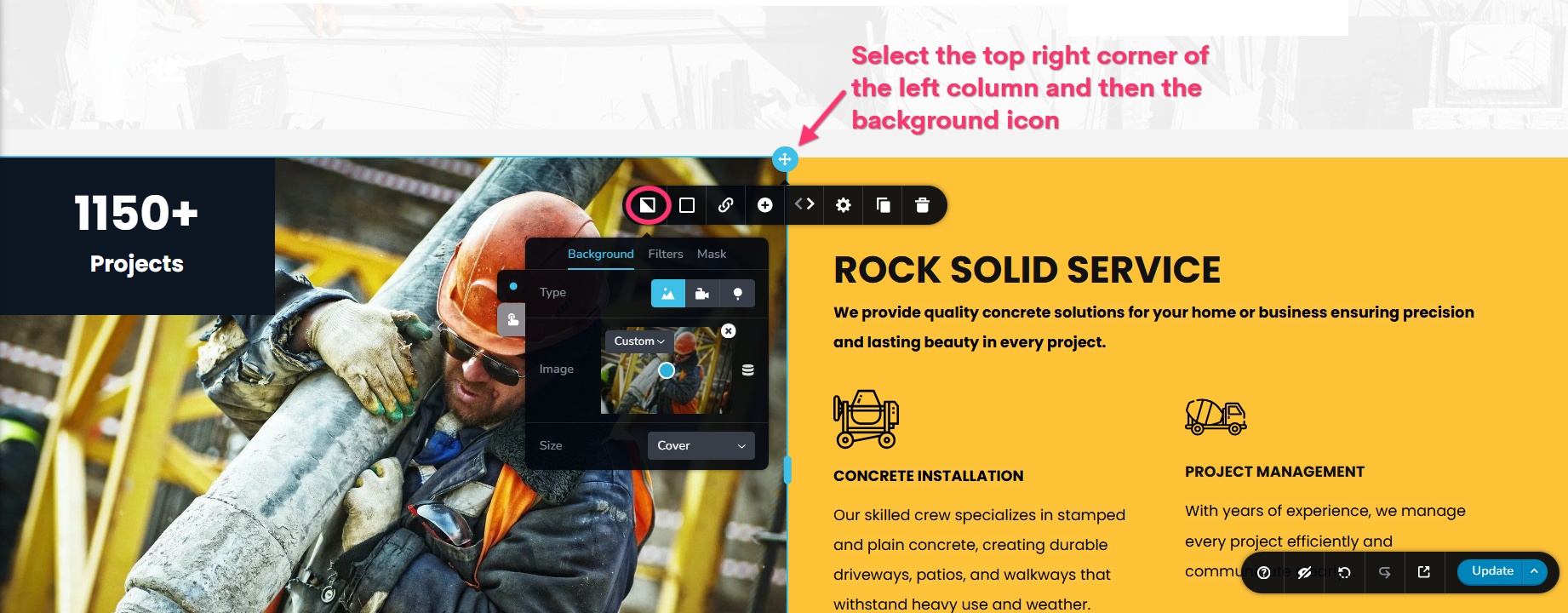
Kindly select the top right corner of the column around the image and then the background icon (the first icon from the left) to change the background image.
 0
0 -
Thanks for the fast response KC.
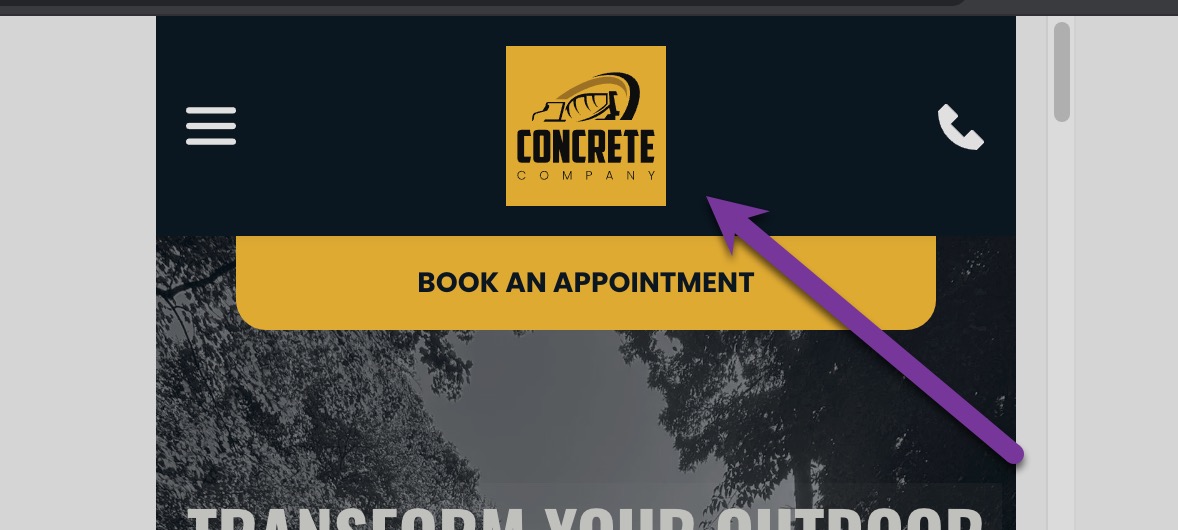
I have the same issue with this logo in mobile view at top of site.
How do I replace please?
Thanks!
 0
0 -
Hello Steven,
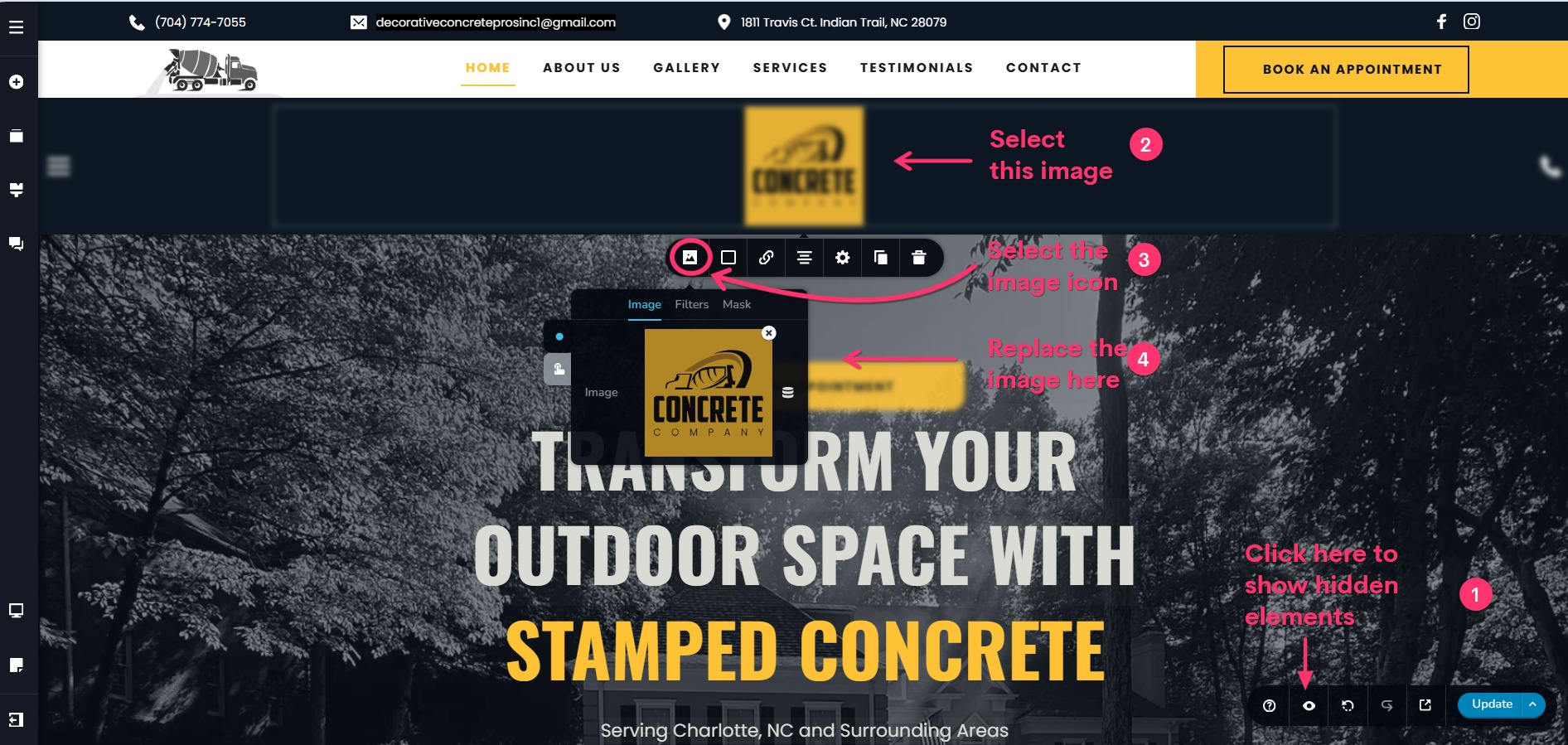
Kindly follow these steps
- In the Desktop design view, click the "eye" icon towards the bottom right corner
- The hidden logo for the mobile will become visible. Click on the hidden image
- Select the image icon in the image toolbar (the first icon from the left)
- Replace the image by uploading a new image
 0
0 -
Thanks again for the fast reply. What is the purpose of the hidden feature if the logo is not necessarily hidden? I mean, it shows up, so why do I have to make it visible if it's already showing up? Is it because it's a disappearing bar when you scroll up and down? Is that what it's for?
0 -
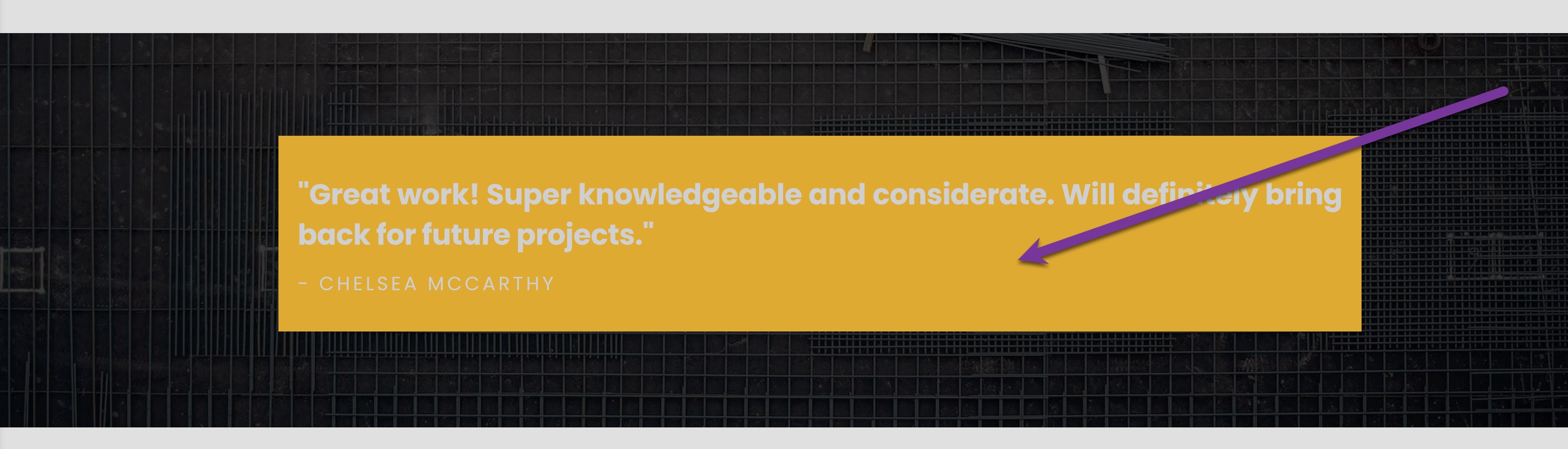
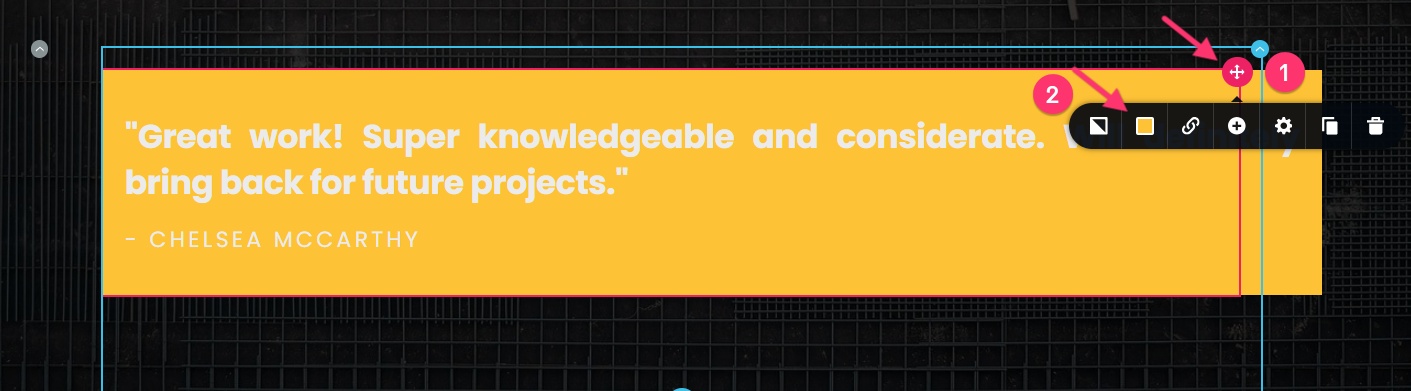
How do I change this background yellow color to something else? I can't find the thingy to allow me to modify it. Thanks for your help again.
 0
0 -
Additionally, how do I change this yellow corner top left color? I can't get to it at all change it. Thanks K C.
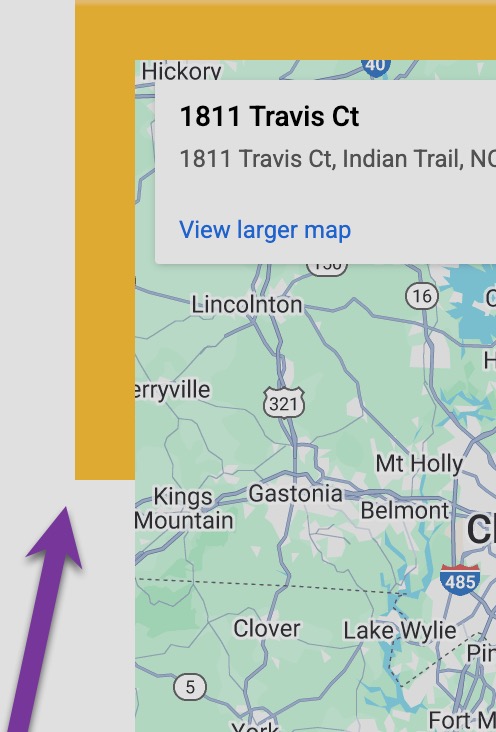 0
0 -
Hello Steven,
By default, the desktop design is customized for the tablets and mobiles. However, sometimes, you can't achieve the design you are looking for by customizing the desktop design, or you want a slightly different design on mobiles. In such cases, you have the option to create two designs for the same block. For instance you can have a
- A header that displays only on desktops and are hidden on mobile/tablet devices
- Mobile/Tablet header which is hidden on desktops
If your mobile designs can be achieved by customizing your desktop design, you don't need the hidden elements. Feel free to delete those elements.
You can change the background color for the yellow box by selecting the red container around it and then selecting the color icon.
You can remove the yellow background added to the map by selecting top right corner of the column around it and then the background image icon.
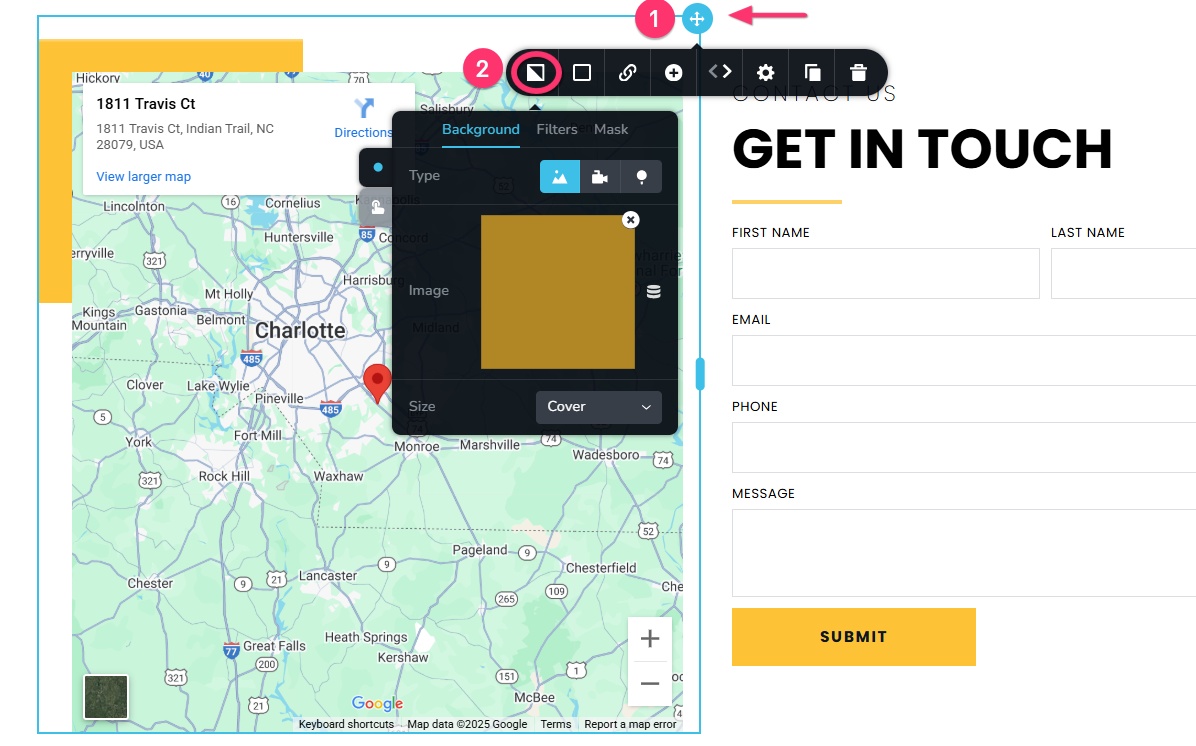 0
0 -
You're super helpful K C. Thank you!
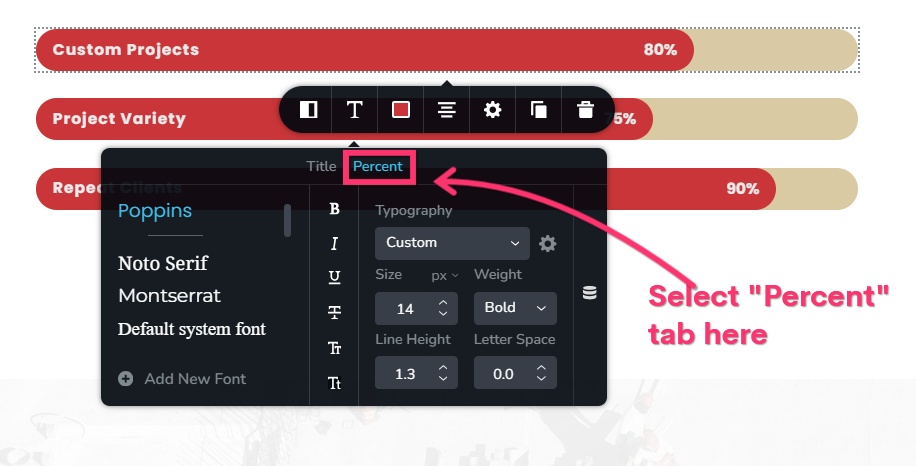
Another question please - I can change the font size on the left-hand bar label, but I can't change it on the right the numbers on the right (like the 80%). How do I do this?
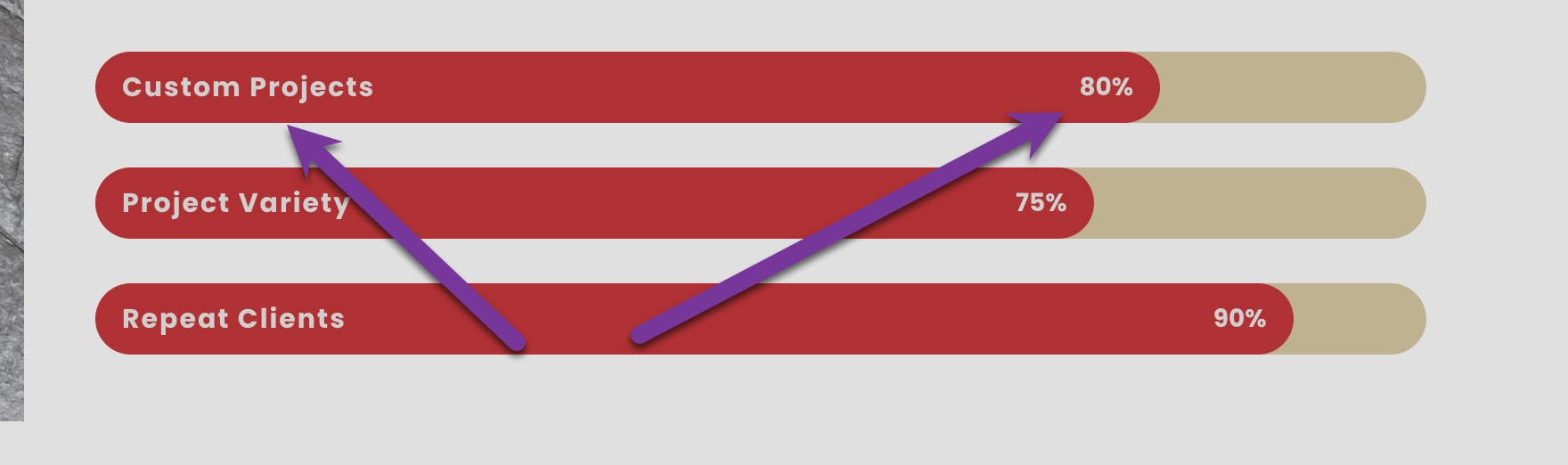 0
0 -
Hello Steven,
Please select the "Percent" tab and set the font size for the percentage value.
 0
0
Please sign in to leave a comment.
Comments
9 comments