Handover to Client

Hi Guys,
I have built a website page for a client. Is it possible to "hand it over" to them so that they can log in and make basic content changes?
Do they need to be any kind of paid member?
Kind Regards,
Amanda
0
-

Hello Amanda,
Kindly follow these steps to give your client access to the project
- Add a new workspace for your client by selecting the "Create New Workspace" option at the header of your Brizy Cloud dashboard. You could name the workspace after your client

- Move the project to the newly created workspace by selecting the "Move" option in your project thumbnail
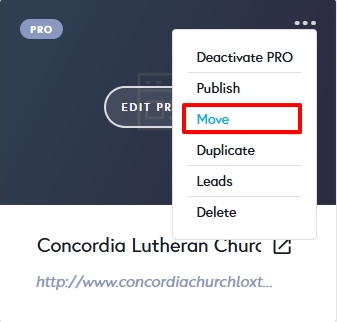
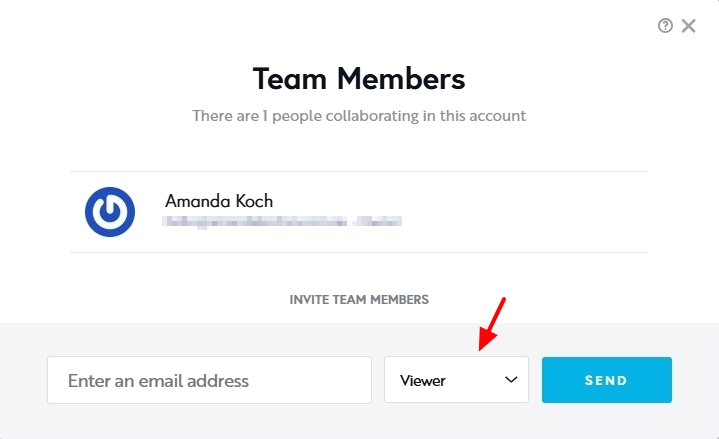
- Invite your client as a "Team Member" to your workspace by accessing the "Members" option in your Dashboard.

- Assign your client a role based on the level of access you want them to have. "Viewer" can only see the project and cannot make changes; "Editor" can make text changes, Designer can make design and text changes and "Manager" can add a new project, add Team Member etc.
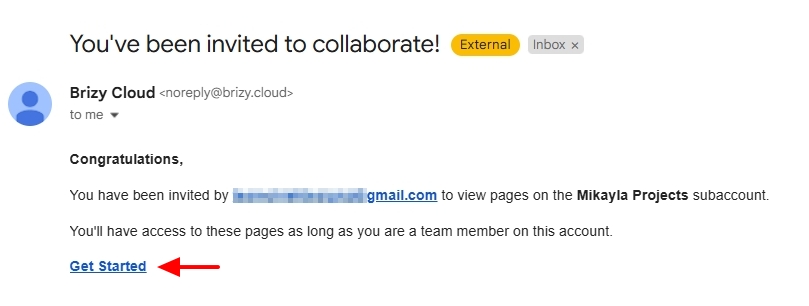
- Your client will receive an email like below. They must click the "Get Started" link to access their project. Once your client accepts your invitation, they will have access to all projects within the workspace. (Hence you must have one workspace per client)
Feel free to also look at these tutorials
- Team Members and Roles: Take a Look to this Functionality with Brizy Cloud 101
- Workspaces: Get Ready to Supercharge Your Workspace with Brizy Cloud
0 - Add a new workspace for your client by selecting the "Create New Workspace" option at the header of your Brizy Cloud dashboard. You could name the workspace after your client
Please sign in to leave a comment.
Comments
1 comment