Hamburger menu doesn't work anymore

Hi, I made some changed to the menu and updated the site.
Since then the menu has stopped working. It works in the editor mode but not on the live site!
Site is available here: kathmandukitchen.ie
Could you please suggest what to do?
Thanks.
-
Because the menu didn't work. I had to overlay a popup. Strangely doesn't work on the home page only.
No console error or anything.0 -

Hello Safal,
Access the block settings icon of your global header, then select the "menu" icon, save your Display Conditions by clicking on the "Save" button and click on the "Update" button at the bottom right corner. See the procedure at https://jmp.sh/unGCTI1W. Purge server cache and check if the hamburger menu issue resolves. If this does not help, we will take a look at your WordPress Dashboard to troubleshoot it.
If you want us to take a look at your WordPress Dashboard, please add a new user and send the following details to our email: communitysupport@brizy.io
- Support Forum link: https://support.brizy.io/hc/en-us/community/posts/23253927549458
- WordPress Admin URL:
- Username
- Password
Please let us know in this forum when you send us the email.
0 -
Hi,
Just emailed you with login details. Thanks.
Kind regards,
Safal
0 -

Hi Safal,
Thank you for your cooperation. I’ve asked one of my colleagues to investigate the issue further, and I’ll get back to you as soon as I have an update.
Best regards,
Ariel H.0 -
Thanks Ariel. Cheers.
Btw I tried what KC George mentioned again. Had tried it before reaching out and it didn't work.
0 -
Hi Safal,
Thank you for the update.
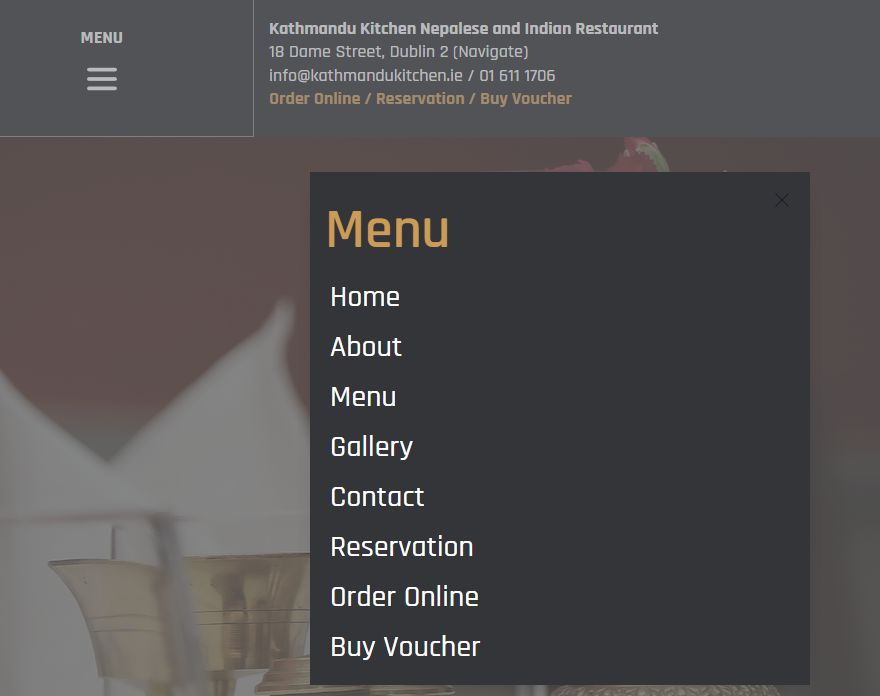
We managed to get the popup menu to work. However, I wanted to confirm if this is the intended design. If so, could you please replace the navigation element with an icon instead?
Best regards,
Ariel H.0 -
Hi Ariel,
That is my temporary fix because the hamburger menu didn't work. I had to layover a popup. Clicking on actual hamburger doesn't work.
Kind regards,
Safal0 -
Hi Safal,
Thank you for the update. The issue was resolved by resetting the global header display conditions. To do this, open the global header settings, review the current display conditions, and click save. Then, hit update to apply the changes. Make sure to purge the LightSpeed Cache to avoid any caching issues.
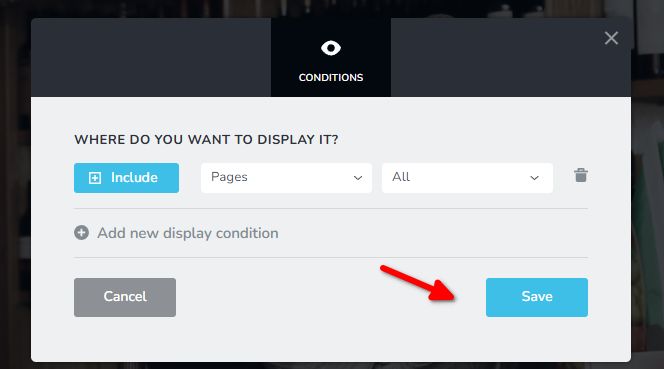
Please give it a try on your end and let us know if you have any other questions.
Best regards,
Ariel H.0 -
Thanks Ariel. Looking good.
Hmm, when I tried it, it hadn't worked. I had disabled lightspeed cache, may be I had to enable and clear it
Thanks very much for the help.
Kind regards,
Safal0
Please sign in to leave a comment.
Comments
9 comments