Brizy & Image Compression Tools

I noticed that brizy doesnt use "optimized" images from other compression tools like https://wordpress.org/plugins/squeeze/ or https://wordpress.org/plugins/compressx/
does this mean i dont need such tools since everything is optimized by brizy automatically?
i would love that, but from my tests the images served by brizy are much bigger than what those tools would serve.
-
 Hi Georg,
When you upload an image to WordPress Image gallery, 4 image sizes are created automatically for you-
Thumbnail size (150 x 150 pixels)
-
Medium size (maximum 300 x 300 pixels)
-
Large size (maximum 1024 x 1024 pixels)
-
Full size (the original size of the uploaded image)
When you add an image to WordPress using Brizy builder, 6 sizes of the image are created: 2 for desktop view, 2 for tablet view and 2 for mobile view. One for each normal and retina displays. When a user accesses that page, the image that is most suited to his device is loaded, thus optimizing the experience and load speed on the page. The resized images are always smaller and of lower resolution compared to the original image.While Brizy WP and Cloud continue to resize images for different devices for better performance, you have a choice not to resize images and retain its original resolution and size if you want to. In the image element, you can make this choice.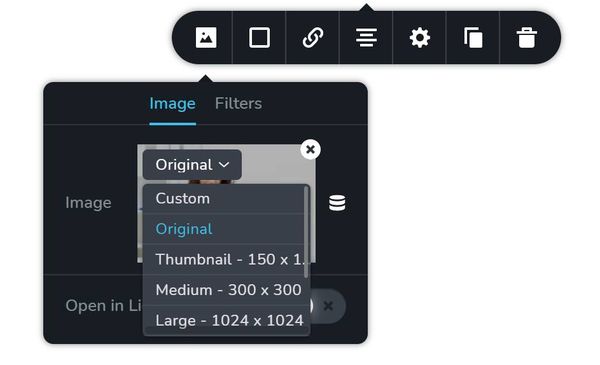 You have multiple image size options to choose from. These options can be categorized into two basic options
-
Resize for performance: If you want your images to be resized for performance for different devices, choose the “Custom” option. This option is selected by default for all images.
-
Do not resize for performance: If you would like to retain the original resolution and size of your images on your website, choose “Original”. You can also choose other available image sizes WordPress permits. When you choose either original or any other size, your image will not be resized for different devices.
Using image optimization plugins
When selecting the "Custom" size option, the images that you upload using the editor are saved in a Brizy specific folder (and not in the image folder that WordPress uses). If you select the "Original" size option, images are saved in the folder WordPress saves it's media files (and not in the Brizy specific folder). Hence while images with "Custom" size will not be optimized by Image Optimization plugins, images added using the "Original" and other size attributes will be optimized by the plugins.To use the "AVIF, WebP Converter" or the "Squeeze" plugins in your project, kindly upload images using the "Original" size option1 -
-
great support! what a detailed answer! thank you very much! i would be amazing if you could give the the user this information in a short form in a popup the first time they upload/pick an image in brizy, or maybe make a video and add it to the tutorial series as im sure hardly anyone is aware of this
0 -
Hi Georg,
Thanks for your suggestion. We are looking into the possibility of including this information in a tutorial video.
0
Please sign in to leave a comment.
Comments
3 comments