Image upload failed

Hi
I been updating all my websites making the steps to avoid the site broke. make some changes in the 2.4 version and then updating. In this case I cannot upload images. I've lost all the images I had except the featured images of the posts and when I want to upload a new image an alerts says that the upload failed.
Please helpme:
-

Hi Gera,
Thank you for providing access to your site. We’re currently looking into the issue and will get back to you as soon as we have any updates. Sorry for the inconvenience.
Best regards,
Ariel H.0 -
Please, if you can check this website too, I have a meet tomorrow to see the updates
0 -
Hi Gera,
Thank you for the update.
It may take us some additional time to address this issue. If this is urgent, please use the following link to download older versions: https://tinyurl.com/Brizy-Older-Versions
Best regards,
Ariel H.0 -

I had a similar issue and i saw an update like 2 minutes ago, and the issue seems resolved. The las round of updates for brizy have been breaking websites in one way or another, Images, headers & footers not appearing
0 -
Hi Gera,
Thank you for your patience.
Everything appears to be working after we installed the recent update.
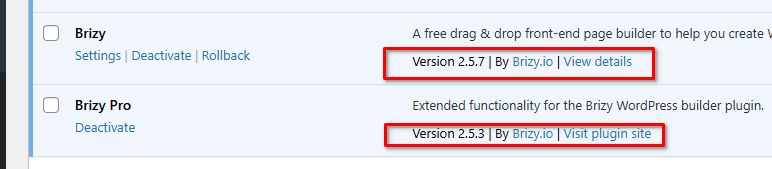
Please try it at your end to confirm.
Best regards,
Ariel H.0 -

I still have this issue on my main website, and only on the Homepage. All other websites in this Multisite installation seem to be working correctly.
All images have disappeared and only links like ?brizy media=wp6aaa6... etc visible on frontend instead of all images.
Trying to replace or change image it says "Failed to upload file".
Also in Main Menu the Mega Menu, that only should show on hover, freezes and does not disappear until you click on some other item on the Main Menu.
best regards Nina
0 -
Hi Nina,
Thank you for reaching out to us. We're sorry to hear you're having this issue with Brizy.
It looks like the issue might be related to caching. If you have any caching plugins installed, try clearing your cache. If the problem continues, see if you can replicate the issue with all other third-party plugins disabled. This might help determine if one of them is causing the problem.
To address the mega menu issue, you can select the global block containing the menu element. Then, make a small adjustment by increasing the padding by 1 pixel. Update to save your changes, preview your site, and check if this fixes the menu. You can revert the changes you've made if necessary.
If the issue continues, this is something we need to inspect from your WP Admin page. Please add us as an Admin user to your WordPress Dashboard and send the following details to: communitysupport@brizy.io
Community Post link: https://support.brizy.io/hc/en-us/community/posts/21426250093586
WordPress Admin URL:
Username:
Password:Please make a full backup of your site as a precaution.
Best regards,
Ariel H.0 -
Hi Ariel,
so this is not a caching problem. My hosting company looked into it and there is an issue with Brizy Media renaming the uploaded files from www to non-www and that messes up the images.
I will send a email with the chat transcript, that explains the problem.
best regards, Nina
0 -
Hi Nina,
My apologies for the inconvenience.
Could you please try rolling back to previous versions of Brizy to see if that resolves the issue? Please make sure to take a full backup of your website first, then download the following versions:
- Brizy 2.5.2: https://jmp.sh/2bXHLvAZ
- Brizy Pro 2.5.1: https://jmp.sh/s29vW87tTo roll back, follow these steps:
1. Deactivate and delete Brizy Pro.
2. Deactivate and delete Brizy.
3. In your WordPress Dashboard, go to Plugins → Add New → Upload Plugin, and upload Brizy 2.5.2.
4. Repeat the same for Brizy Pro 2.5.1.If the menu element doesn't work, try making a minor change to the global header (e.g., increase padding by 1 pixel). Then, hit the update button to save your changes and preview your site to see if this fixes the issue. You can revert your changes if necessary and hit update again. This should also apply to blocks with broken layouts after the update.
Best regards,
Ariel H.0 -
Hello,
the menu-element works now after changing the padding.
I am not able to download the files due to unsecure connection notices. Where can I find the previous versions elsewhere?
But the problem is different. I have not received a reply to my mail, that explains in detail the file-renaming issue on my main site in a Multisite Installation. On image upload it leaves out the www and converts to non-www.
0 -
Hi Nina,
Thank you for the update.
I have uploaded the files to Google Drive. You can use THIS LINK to download them.
Regarding your second concern, WordPress may convert media URLs from "www" to "non-www" due to several factors. First, check the Settings > General section to ensure both the WordPress Address and Site Address URLs are set to use "www." If they don't match, media uploads will follow the non-www format.
Additionally, the issue could also come from server configurations, such as redirects in your .htaccess file or a CDN setup that strips the "www" from URLs. Lastly, if the site was previously configured without "www," there may be old URLs stored in the database. Using a plugin like "Better Search Replace" can help fix any mismatches by updating the URLs to the correct format.
If you have any further questions, please let us know.
Best regards,
Ariel H.0 -
There is only 2 different versions of Brizy Pro in the link.
I have now deleted Brizy and all my sites are now down.
Also, I just want to mention I have 15 sites in my Multisite Installation and all other 14 sites are working well, it is just the main site that has the issue.
0 -
Hi Nina,
I apologize for the inconvenience.
If this issue is happening with just one domain while the others are functioning correctly, please try removing the "www" from your domain name in your multisite setup. Change "www.mydomain.com" to "mydomain.com."
After making this adjustment, please purge the cache and see if it resolves the issue.
Give this a try and let me know if it works for you.
Best regards,
Ariel H.0
Please sign in to leave a comment.
Comments
13 comments