Display WooCommerce Products by Category in a Brizy Carousel

Hi Brizy,
I want to create a carousel that shows WooCommerce products based on category. I have two categories, for example, Category A and Category B, each with three different products. I want to show Category A in the carousel. However, when I use dynamic content and choose Category A, it only shows 1 product not three different products. Please look at the image below.
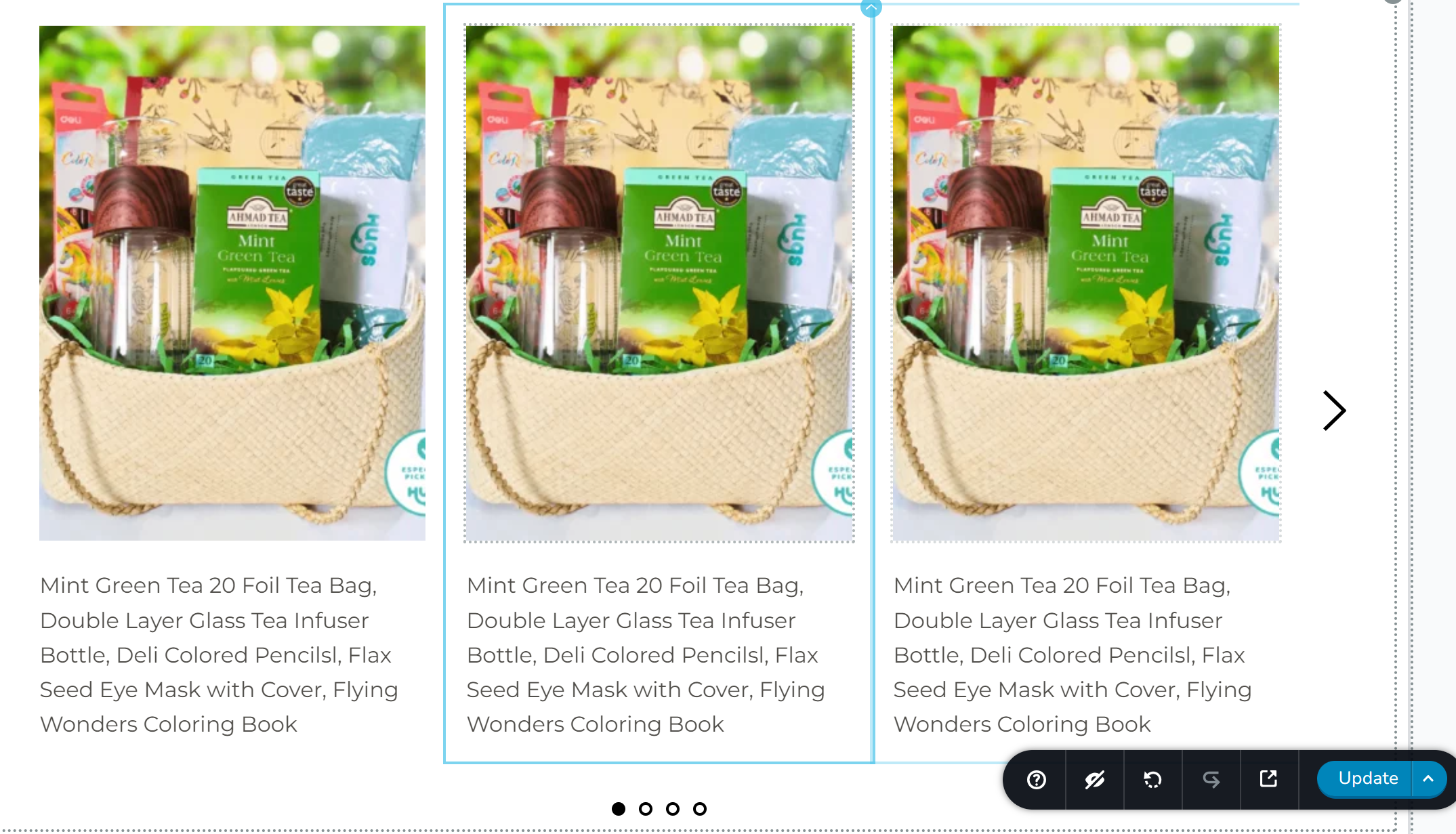
Please guide me on how to show different products based on category in the carousel.
Rgds,
GV
-

Hi Ganjar,
Thank you for contacting us.
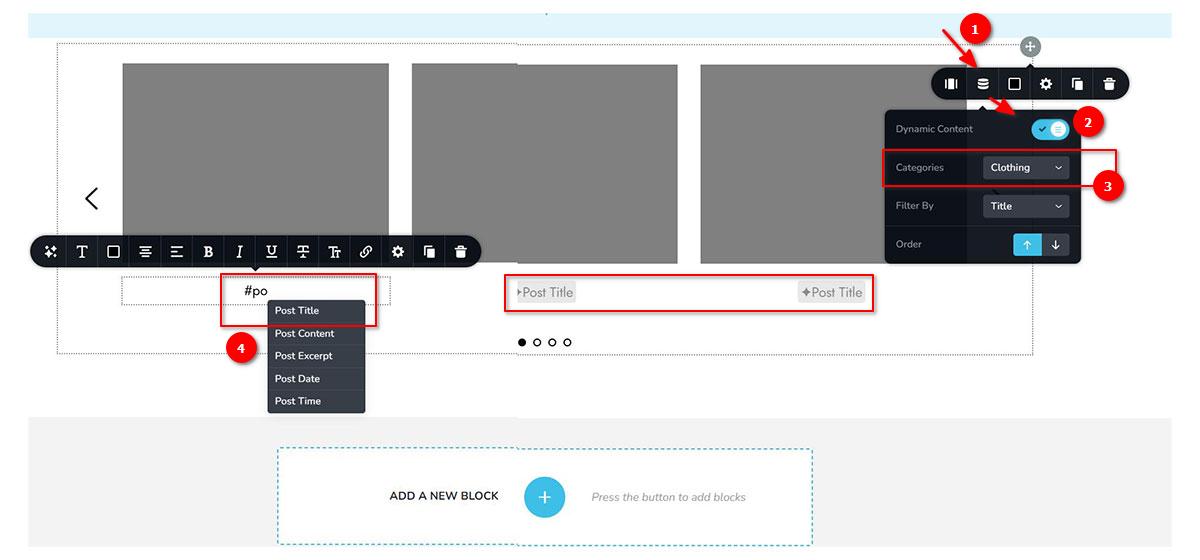
To achieve this, enable dynamic content in the carousel element and select the desired category to display. For displaying the post title or post excerpt of the products, use the text element. Use the "#" symbol to choose the dynamic field you wish to display, such as the post title. Kindly have a look at this screen recording for more detailed instructions https://jmp.sh/McibLAfS
I hope this helps.
Best regards,
Ariel H.0 -
Hi Ariel,
Thank you for the reply, it works. But now, how do I:
- Create a button to open the product?
- Create a button to add the product to the cart?
If I use the # symbol, there is no option to do it.
I found a manual way by putting a WooCommerce shortcode one by one in the carousel. It works well on mobile if I want to show just one product, but it will be a big task if I want to show more than 6 products.
I hope you have a simpler way to do it.
Regards,
GV
0 -
Hi GV,
Thank you for the update.
For the dynamic elements to work including '#' I suggest creating a dynamic templage for this pages where you want to display the carrousel. To accomplish this:
1. Create a regular page by naming it and saving it. You won’t need to make any changes to this page.
2. Create a dynamic template and assign it to the new page.
3. Design your page in the dynamic template. It should automatically include your global headers and footers.
4. Add the carousel element and select the specific category you want to display.
5. Set the image option to 'custom' so all the thumbnail sizes will match.
6. Configure the button to open the post URL, so clicking it will take you to the specific product page.
7. The '#' symbol works only in a dynamic template. You can also use it to show dynamic elements like 'post title,' 'category,' etc.
I’ve made a screencast for you to refer to for the above steps: https://youtu.be/9H0VreFoJjQ
I’m unclear about the part where you mentioned, "I found a manual way by putting a WooCommerce shortcode one by one in the carousel. It works well on mobile if I want to show just one product, but it will be a big task if I want to show more than 6 products."
Could you explain this in more detail?
Best regards,
Ariel H.0 -
Hi Ariel,
Thank you for the explanation via the video tutorial, it was easy to understand.
I followed all the steps, but I don't know how to show the carousel template on my homepage.
Would you mind creating a video tutorial on how to do it?
About my previous question, "I found a manual way by putting a WooCommerce shortcode...", no need to worry about it; please ignore it. Once you explain how to show Brizy templates on the homepage, it will be clear.
Best regards,
GV
0 -
Hi Gv,
Thank you for the update.
You did it correctly, except your home page is already edited with Brizy. For the template to work, you need to create a new page without making any changes to it. All your home page designs will be done in the template, as demonstrated in this example - https://youtu.be/IxX-dViKIcg
Please try this and let me know how it goes.
Best regards,
Ariel H.0 -
Hi Ariel,
It works well, but I need one more thing to make it perfect. How can I show the product price?
Best Regards,
GV
0 -
Hi GV,
Thank you for the update.
Unfortunately, some WooCommerce features are not accessible in a page template. To address this issue, you can create a temporary WooCommerce Archive page and build the carousel there. This way, you have access to all WooCommerce elements.
After you have built your carousel, save it as a block. Then switch back to your page template and import the saved block, as shown in this example - https://youtu.be/rbI7I8KJIF0
I hope this helps.
Best regards,
Ariel H.0 -
Hi Ariel,
Wow, it helps alot, this video tutorial should be put on Brizy's YouTube channel.
Thanks for your support.
Best Regards,
GV
0 -
Hi Ariel,
My pleasure! The review is done.
Best regards,
GV
0
Please sign in to leave a comment.
Comments
9 comments