Not able to edit font, color or do much

When I preview in Tablet, mobile but can do whatever needs to be done in desktop mode, if i duplicate and turn off to not view text boxes I cannot do that in the desktop mode. I also can not duplicate boxes in the two other view points, tablet and mobile.
Thanks for any help
Tomi
PS I have all the latest updates and versions for both pro and wordpress
-

Hi Tomi,
Thank you for reaching out to us.
To get a better grasp of the issue, would it be possible for you to create a short screencast demonstrating the problem? You can use Loom.com to easily record and share the screencast.
I am looking forward to your response.
Best regards,
Ariel H.0 -
Thank you for your reply,
how do I send the capture file I did?
0 -

Hi Tomi,
If you have used Loom.com to record your screen, you can copy its share link and paste it in your comment.
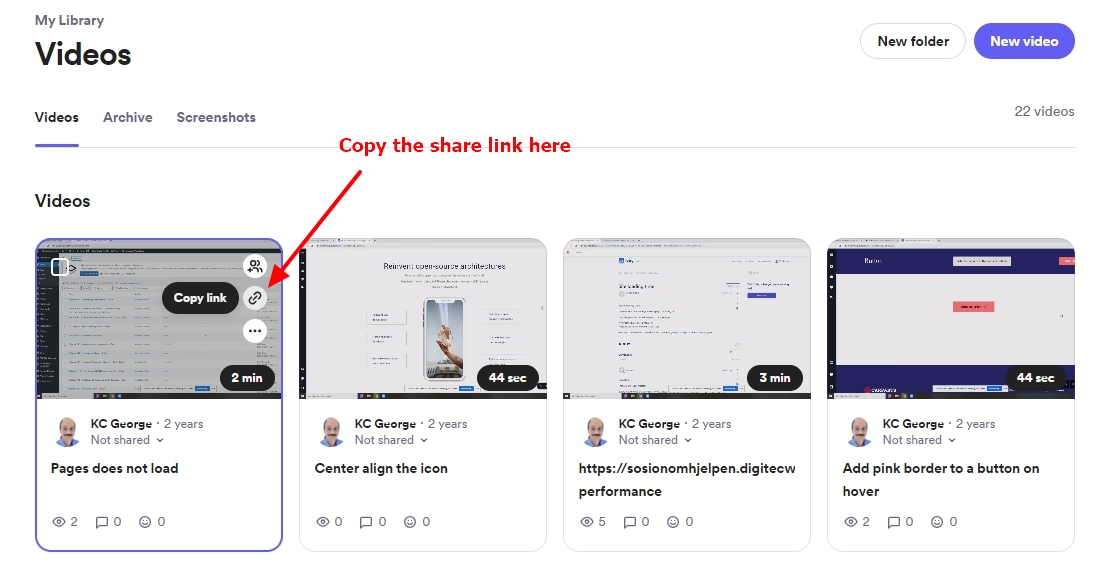
If you have downloaded the video, please upload it to an online drive (like Google Drive, One Drive, Dropbox, Jumpshare) and share with us the hyperlink to your video.
0 -
Please let me know if that link works for you.
Thanks again for all your help
Tomi
0 -
Hi Tomi,
What you have illustrated in the your screen recording is not a bug. That is the way Brizy is currently designed to work. Certain customization options set in the desktop design are locked for the tablet and mobile designs. Hence the mobile and tablet responsive design do not offer 100% flexibility to customize everything.
Let me explain why typography changes to 'Custom' when modifying typography settings. Broadly there are 2 ways to make typography and color changes.
- Modify Global Typography and Colors: The global styling panel allows you to preset typography and colors. Once you make a change to a global typography or color, they will be applied to all instances of the typography or color throughout your website as in the below image.
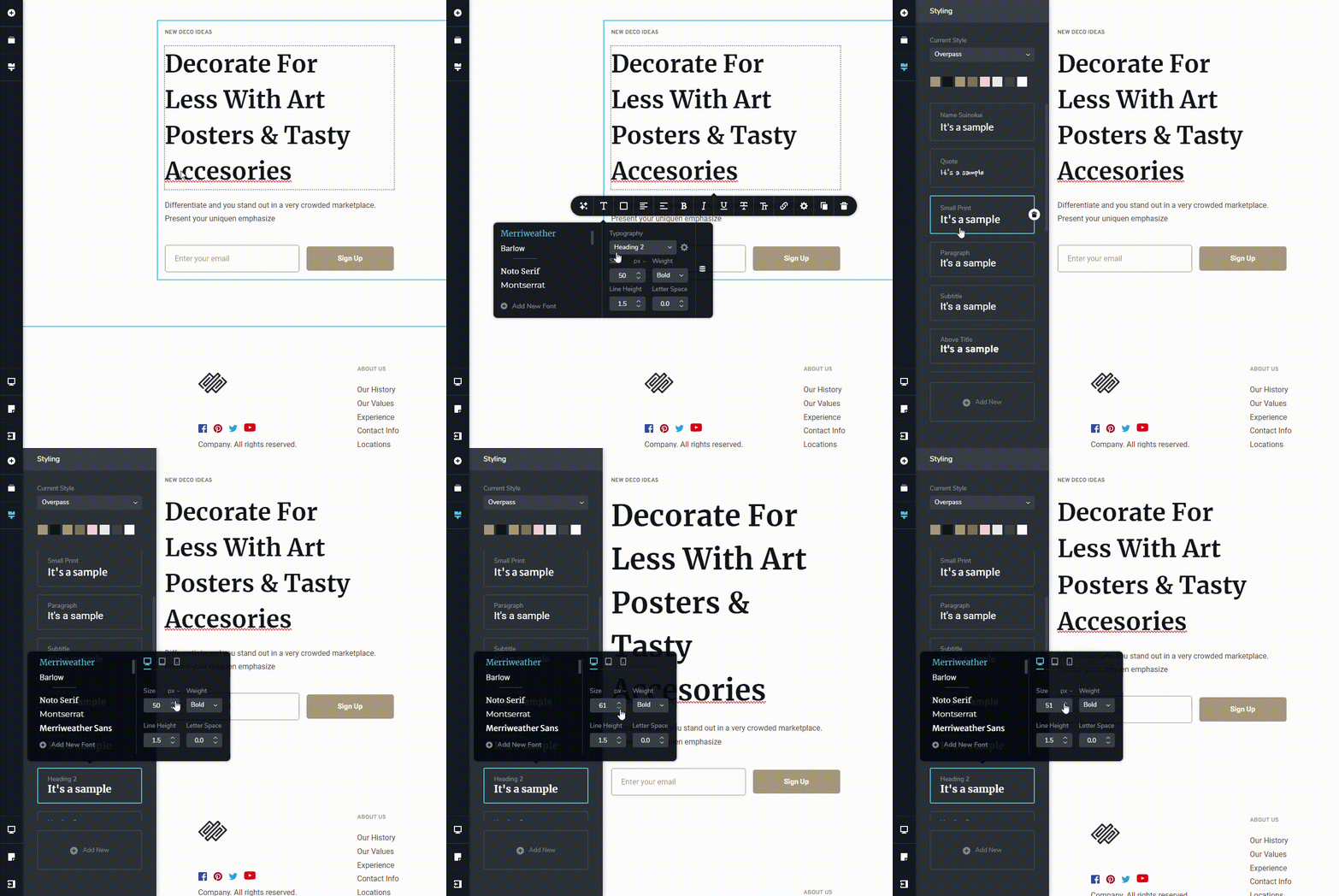
- Modify the typography/ color of an element: You can also modify the typography/ color of a specific element and the changes will apply only to the element. When you make a change that applies only to the specific element, it is called 'Custom Typography'.
Please have a look at this tutorial for more details on Global styling: Elevate Your Design with Typography & Global Styling: Lesson 10
If you would like have a different design for the mobile and tablets, you have the option to duplicate a specific element and give one design for the desktop and another for the tablet/mobile. You can hide the desktop design on tablets and mobiles and hide the mobile/ tablet design on desktops.
To hide an element in the desktop, please toggle the 'Show on Desktop' option in the Styling Side Panel
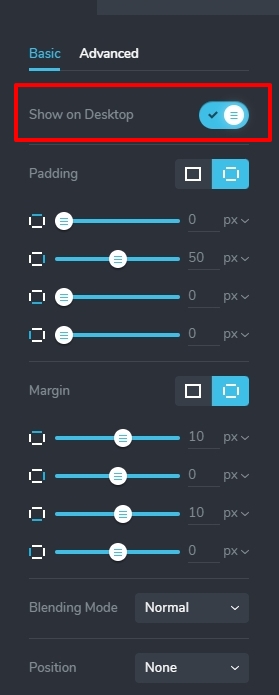
To hide an element in the tablet and mobile devices, please use the hide icon on the element settings
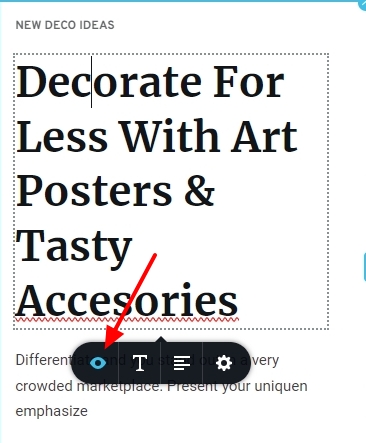 0
0
Please sign in to leave a comment.
Comments
6 comments