Make a page not indexable on Google

Good evening, on my website I sell an ebook and people can then download it from a thank you page.
The problem, however, is that the thank you page is indexed on Google (this is bad!) and people can download it from there for free without paying for it.
My question is: how can I make the thank you page un-indexable on Google?
-

Hi Cosimo,
If you are using Brizy Cloud, you can prevent search engines from indexing a page, by placing the following <meta> tag into the <head> section of your page. https://jmp.sh/l6zpqbT9 You can read more about it here https://developers.google.com/search/docs/crawling-indexing/block-indexing
<meta name="robots" content="noindex">
If you are on WordPress, you can noindex a page using an SEO plugin like Yoast /Rank Math
0 -
Thanks,
I have Brizy Cloud, but my interface is different:
And If I click on Settings (above on the right in this image), it acts on the entire website and not only on the desired page.
Any solutions?
0 -
It seem that I have an old interface on my projects on Brizy Could. In fact, if I try to create a new project, the new interface appears, but on old projects the old interface opens where the option you suggest does not exist
0 -
Hi Cosimo,
If you started developing your project before Feb 2021, it will have the old Brizy Cloud project format. Many of the Brizy Cloud current features are missing in the old project format. Migrating the old format projects to the new is a massive undertaking; hence we don't see this happening anytime soon.
It would be ideal to recreate your old project in the current Brizy Cloud project format. It may take 1-2 hours of work to migrate the design. Please let us know if you need help with this.
0 -
Do you have any guide or tutorial?
Or may be can I do it by FTP?0 -
Hi Cosimo,
These are the steps recreate your old project in the current project format.
- Saved each page as a layout in the old project (see the attached image below)
- Create new pages and import each page as a layout into the new project.
- Copy paste the Global Typography and colors from the old to the new project.
- Recreate menu, re-setup email notifications for forms and copy paste embed codes and other project settings from the old project to the new
- When everything is transferred, delete the custom domain from the old project and add it to the new project
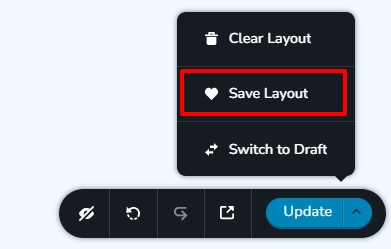 0
0
Please sign in to leave a comment.
Comments
6 comments