Image link after website moved to the main folder

Hi,
i just moved a customer website (www.palazzotilli.it) from a subfolder to the main.
Now the site is working good, but why is Brizy using now weird media links for images?

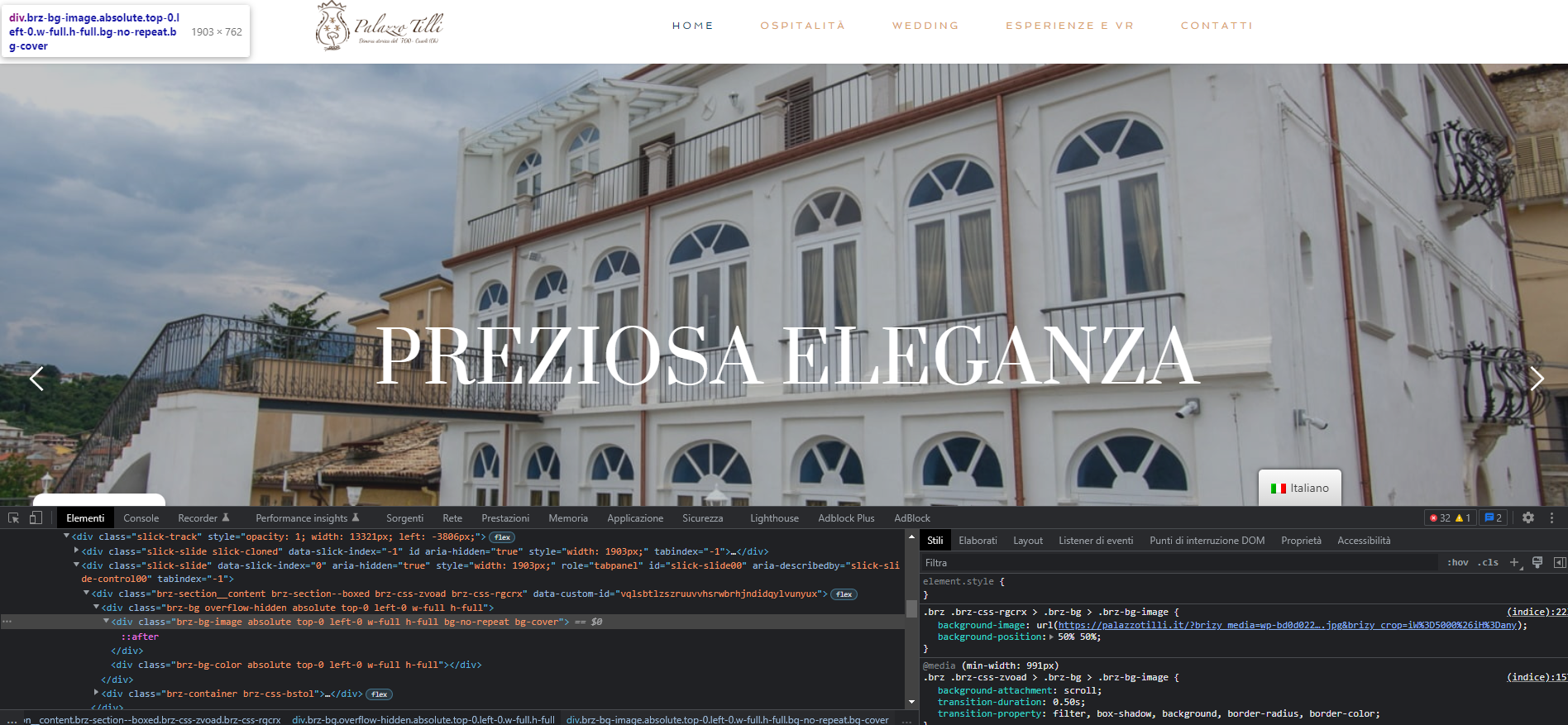
This is just an example, all image links are now like that...
They're not pointing to my original file. That's an issue for caching plugin, now useless for image optimization...
-

Hi Edoardo,
Thank you for reaching out to us.
I have inspected your site; however, I am unable to reproduce the issue.
Please see screenshot on this link - https://jmp.sh/In7Ko7mePlease try clearing your browser's cache or using another browser to see if this helps.
Best regards,
Ariel H.0 -
Thank you for the reply, i still see a weird link in some of the image but will keep an eye on that...
Now i know there're currently some issues with LiteSpeed Cache, but didn't read anything about image optimization not working on Brizy images.
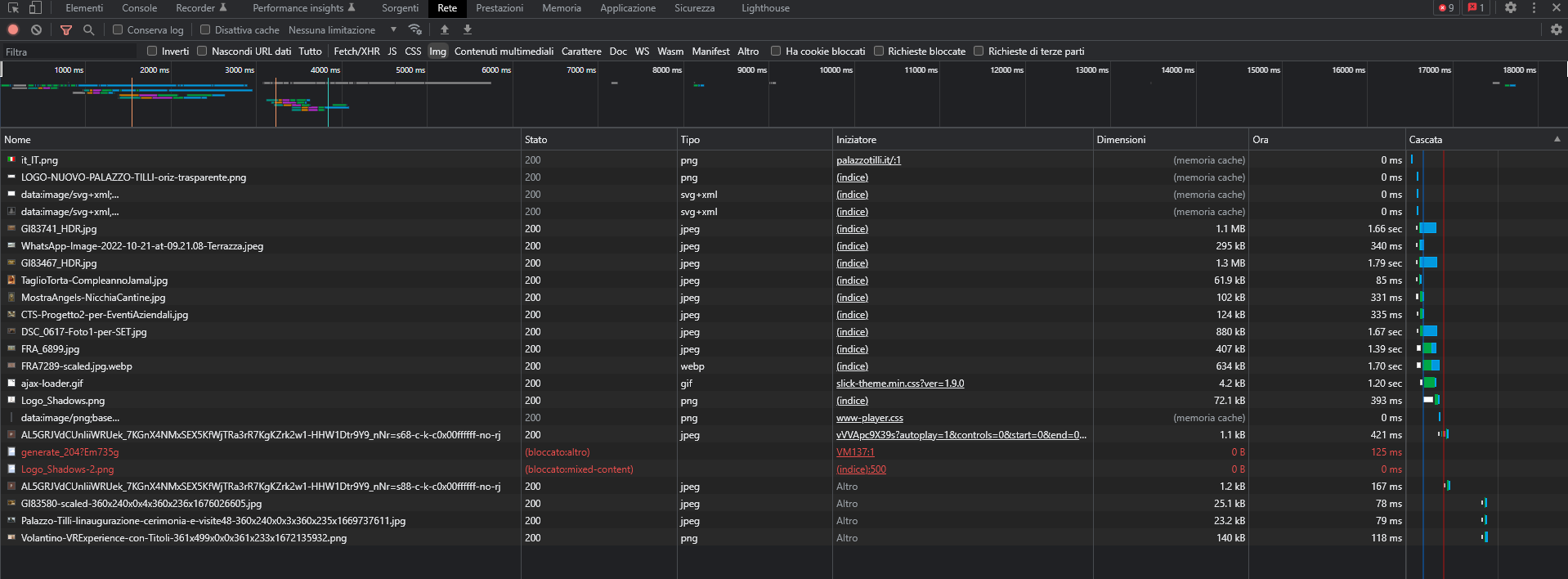
I have set up the Webp replacement and, for the homepage for example, it's only working on one image, see screenshot below.
Is there any specific class i need to add to LiteSpeed Webp settings in order to make it work?
 0
0 -

Hi Edoardo,
When you add an image using the Brizy Image element, by default the Custom Size option is selected.
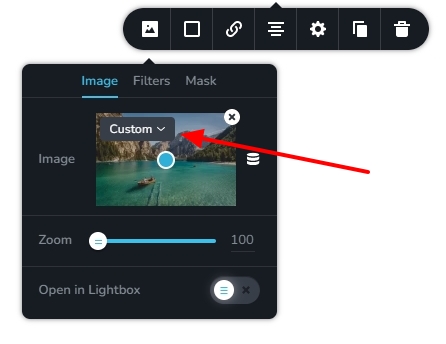
When custom size option is selected here, Brizy resizes its images for different devices. If you would like to use an image optimization plugin to optimize your images, please choose 'Original' or other size options here.
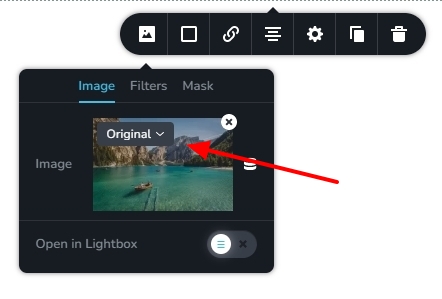
Please choose "Original" or size options other than "Custom" if you want to use the Webp conversion option in the Litespeed cache plugin.
0 -
Thank you for the instructions. The problem doesn't seems to be solved tho...
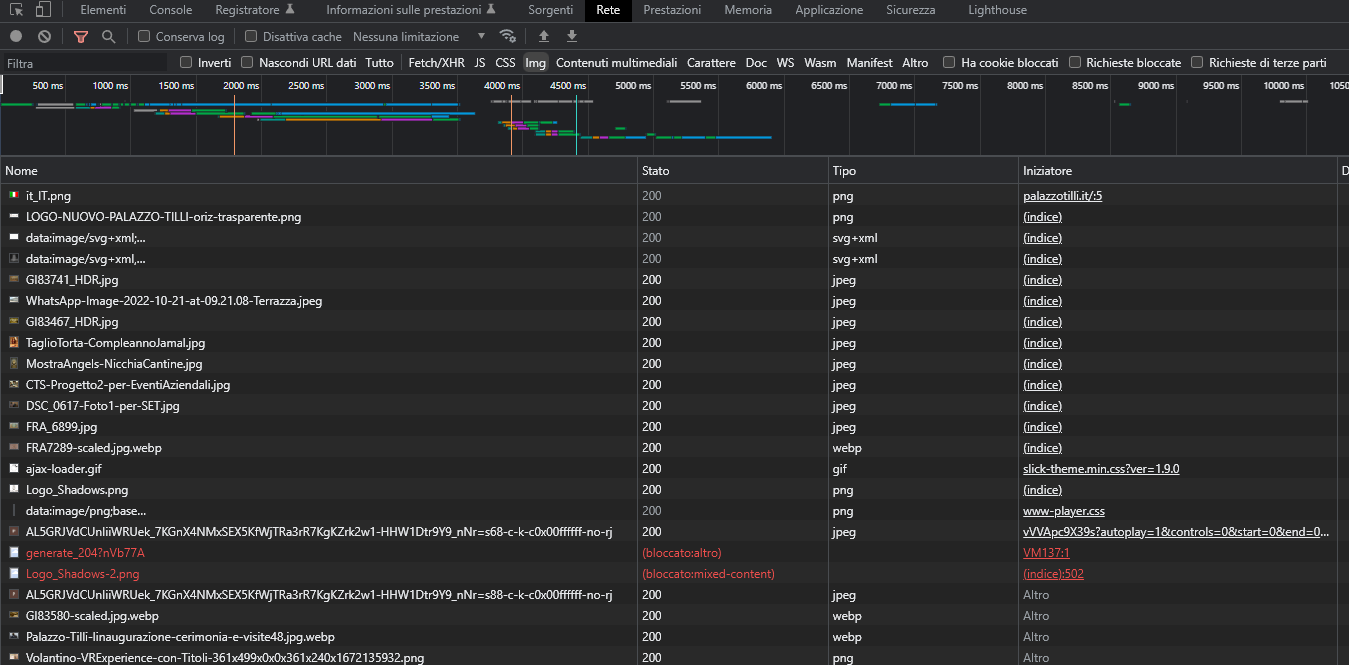
Here's an example of the loading of the homepage. Only three images has been changed in webp.Are there any css classes/selector i need to specify in LiteSpeed's settings in order to make it swap the jpeg in the Brizy pages?
 0
0 -
Hi Edoardo,
Thank you for the update.
The issue appears to be related to mixed content as shown on this screenshot - https://prnt.sc/7bLyMmBvJctj
I would suggest trying the steps suggested in the following articles to see if this will help.
https://www.wpbeginner.com/plugins/how-to-fix-the-mixed-content-error-in-wordpress-step-by-step/
https://wordpress.org/support/topic/cant-get-the-webp-images-to-be-served/
Please try this and let me know how it goes.
Kind regards,
Ariel H.0 -
Hi Edoardo,
In your WordPress Dashboard under Litespeed Cache - Image Optimization - Image Optimization Summary tab please also check what percentage of your images are optimized? https://jmp.sh/kf7Hptzu
0 -
Hi,
i have all images optimized.
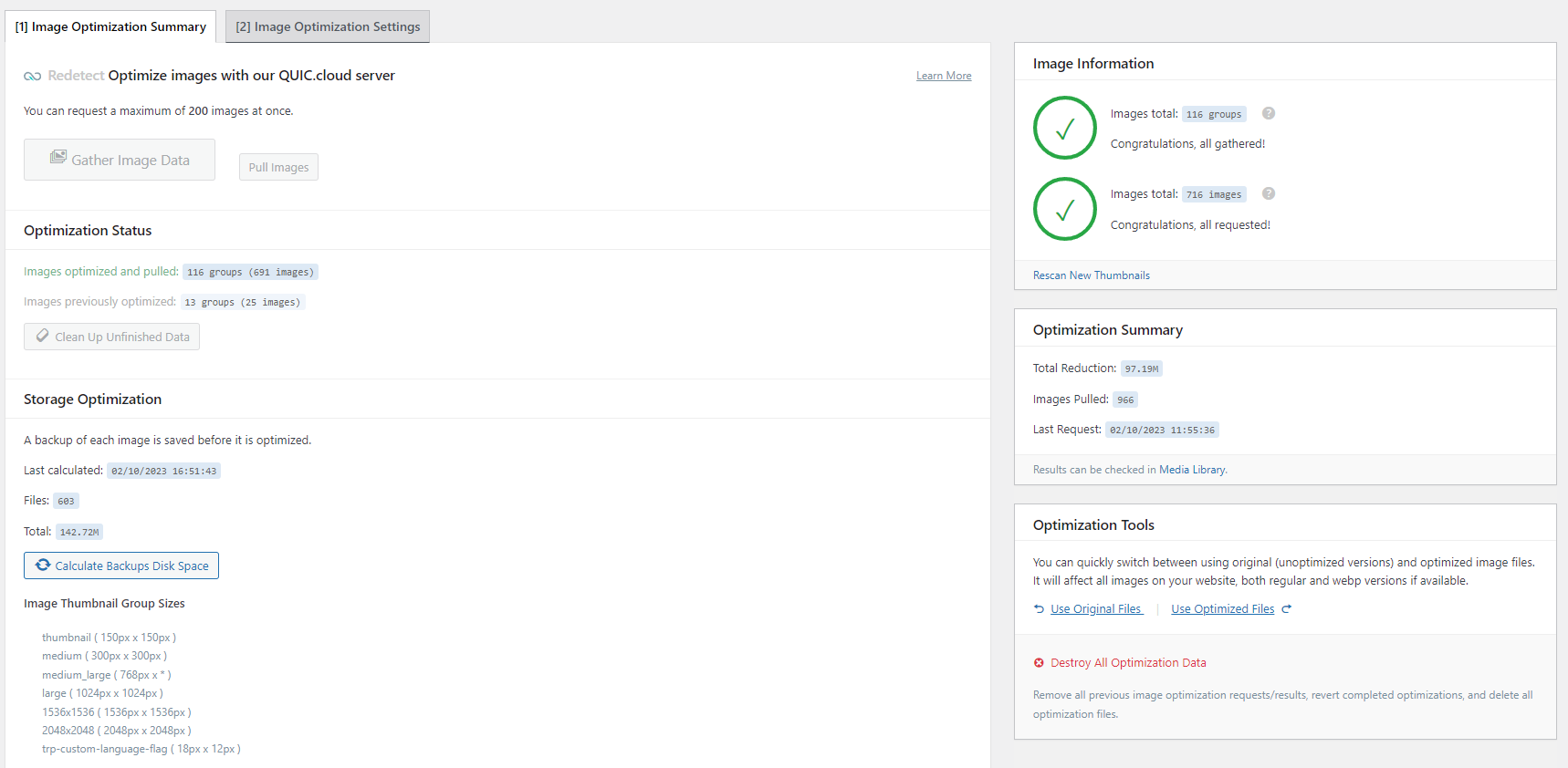
If you want to take a look yourself i'll add an admin user for you...
0 -
Hi Edoardo,
Please confirm if you have selected the 'Original' size option for ALL images including the background images on your homepage. Once you do this, go back to the screen you have shared above and check if 100% of images are optimized.
If this does not help, may be you should take the help of Litespeed Cache plugin Support to find out what else you could do to fix this issue.0
Please sign in to leave a comment.
Comments
8 comments