Images not attaching in the editor using S3 bucket

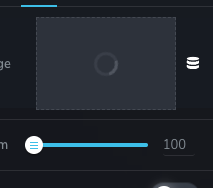
We are currently experiencing an issue with adding images using WP Offload Media and an S3 bucket. Although the images can be successfully loaded into the media library, we are encountering problems when attempting to add them using the page builder. Specifically, the images display a quick loading animation but do not get attached.

-

Hi
Recent Brizy versions have incompatibilities with Jetpack Image optimizations and GoDaddy CDN. If you have enabled any of the following options, please disable it to upload images using Brizy.
- In your WordPress Dashboard under Jetpack - Dashboard scroll down to the heading "Performance and Growth" and disable the option 'Image Accelerator' https://jmp.sh/SU32wfE9
- Under Jetpack - Settings, under the Performance tab, disable the option 'Speed up image load times' https://jmp.sh/neap53iR
- If you have installed Jetpack Boost, under Jetpack - Boost disable the option 'Image CDN' https://jmp.sh/FUSoE1ZP
- If you are hosting with GoDaddy and using their CDN, please disable the CDN option from your GoDaddy account. You can follow instructions in this article. Enable or disable my CDN
If none of the above helps, please get back to us with your website URL. We will take a look.
0 -
Hey George,
We do not use Jetpack and we self-host so don't use GoDaddy. Does this error affect all CDN image usage, since we use Offload Media to call our S3 image CDN.
Is there a workaround for this? Disabling our CDN for images is not an option.
Cheers
0 -
Hi
We have a fix for this bug on our end, and we will deploy it with one of our next releases. In the meantime, you could try reverting to an earlier version to resolve this issue.
Please use these ZIP files
- Brizy 2.4.20: https://jmp.sh/2jWKfESr
- Brizy Pro 2.4.19: https://jmp.sh/f9gihHbS
Here is the procedure to roll back
- Deactivate and delete Brizy Pro
- Deactivate and delete Brizy
- Download Brizy 2.4.20 and in your WordPress Dashboard under Plugins - Add New - Upload Plugin, upload Brizy
- Download Brizy Pro 2.4.19 and under Plugins - Add New - Upload Plugin, upload Brizy Pro
0 -
Thanks George,
Will this wipe out any of the existing Brizy settings like customised themes or the white label settings?
Cheers
0 -
Hi
When you say customized themes are you referring to the changes you have made to a premade Brizy design? Designs created using Brizy would not get affected by rolling back to a previous version. Features/ fixes that were added to the most recent versions will be missing in a previous version.
Brizy will momentarily lose its white-label identity when you deactivate it. When you reinstall and activate Brizy, the white-label brand will be restored.
0 -
Hello,
Even after rolling back the plugins, the images still do not work with the editor. I have tested this with the older plugins and a clean install, without any other plugins.
Are there any compatible plugins that allow the Brizy WordPress editor to work with an external CDN that has been tested by the Brizy team?
Cheers.
0 -
Hi
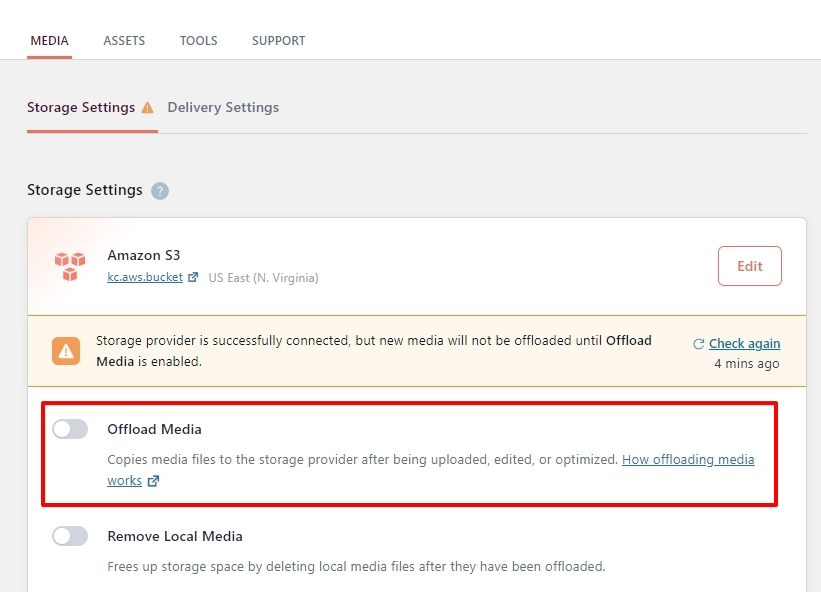
You cannot upload images using the recent Brizy versions to an external storage for your images. Until we are able to release a fix for this issue, please consider this work around to upload images.
- Disable the Offload Media option temporarily
- Upload the Image
- Enable the Offload Media option
You can also have a look at this screen recording for more detailed instructions. https://jmp.sh/HvHfg7Si
 0
0 -
Thanks George,
Do you have any information on the priority level of this issue and when it might be fixed? We are planning to release this across multiple sites by the end of the year, and not having a CDN would cause significant performance issues.
Cheers
0 -
Hi
For the Image CDN problem with GoDaddy and Jetpack, we have a fix ready. This fix has not yet been made available as a Brizy release. Before we can determine whether Brizy uploads are compatible with image offloading to an Amazon S3 bucket, we need to resolve a related issue that is in the works. A release date for a fix is difficult to forecast due to a few unknown variables at play.
If you apply the above mentioned workaround, I suppose you could upload the images first and then enable Offload Media option to use the AWS image CDN in the interim. You may want to withhold the plans to use Image CDN across multiple websites until we have a fix available.
0 -
Hey George,
Has there been any update on this issue? I remember you mentioned having a fix ready, and it has been a few months since the last update.
Cheers
0 -
Hi
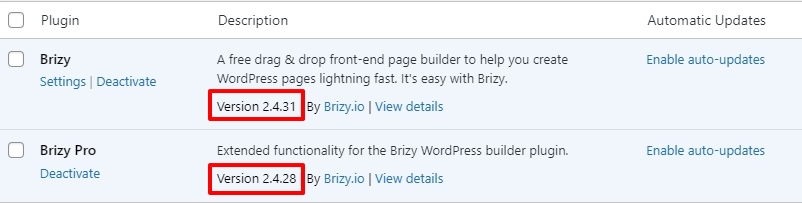
I have uploaded an image on a Brizy page with the Offload Media option is enabled in the WP Offload Media Lite plugin. It worked well. You can see my test here https://jmp.sh/CpA59EKz
I am using the most recent Brizy versions for this test. The image upload bug looks fixed. Please try this at your end and let us know if everything works well.
 0
0 -
Hey George,
Sorry, but I'm not sure if it's fixed. In your video, it seems like you attached an image that points to your local WordPress instance.
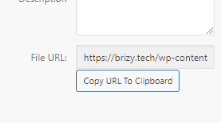
The problem is that the editor isn't allowing images uploaded to the CDN. The image URL should be using the CDN's address, which, based on your video, should be this?
It might be this Delivery setting which is not enabled on your end?
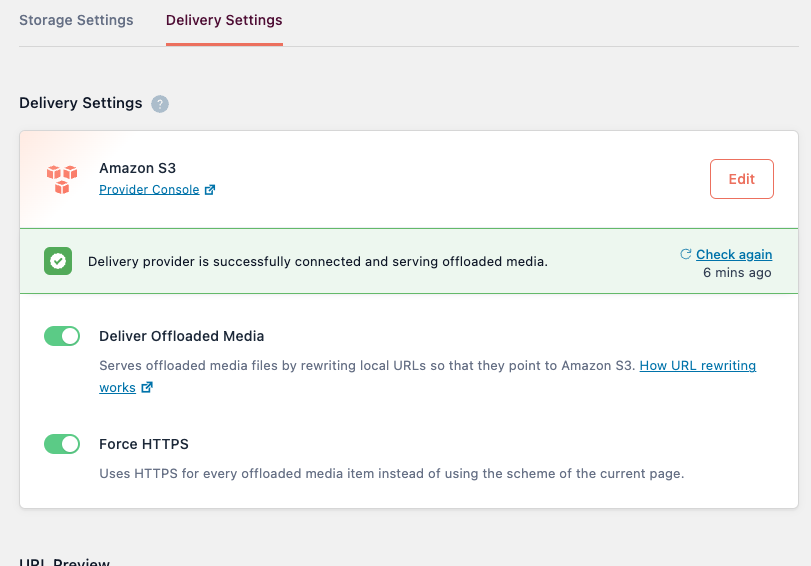
I hope that helps!Cheers
0 -
Hi
I can confirm these things
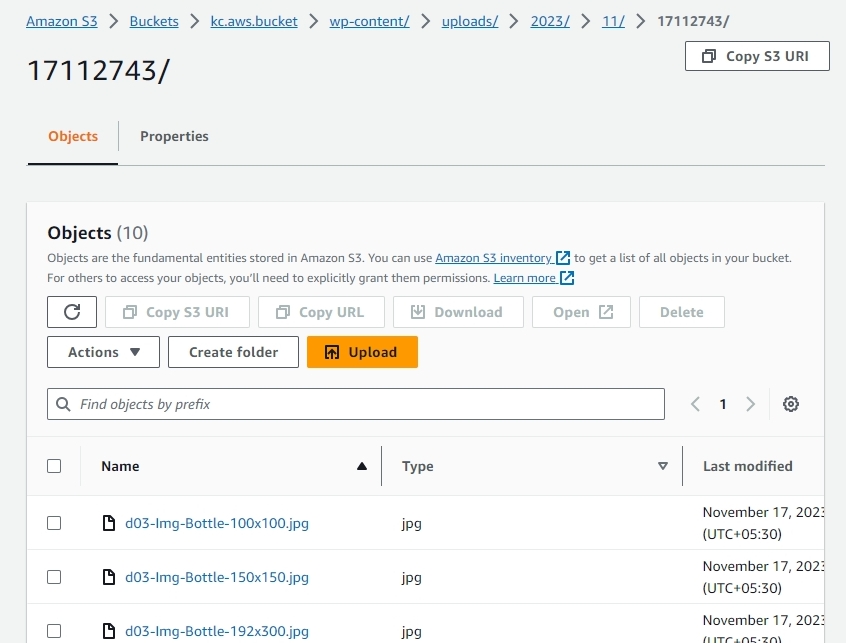
- The S3 bucket is successfully connected and is ready to offload media
- Offloaded media files are being sent to the AWS S3 bucket in accordance with the configurations found under the plugin's "Storage Settings" section. You can view the offloaded media files at https://ap-southeast-2.console.aws.amazon.com/s3/buckets/kc.aws.bucket?region=us-east-1&prefix=wp-content/uploads/2023/11/17112743/&showversions=false
- I'm using the free version of WordPress Offload Media. Because of this, just 3% of the media files are being offloaded.
I'm not sure, though, if the local URLs for the media files are being rewritten to point to AWS S3. I cannot locate any evidence supporting URL rewriting. This may have nothing to do with Brizy. Regarding the URL rewriting, you may want to speak with the WP Offload Media plugin support.
I am using these Delivery Settings
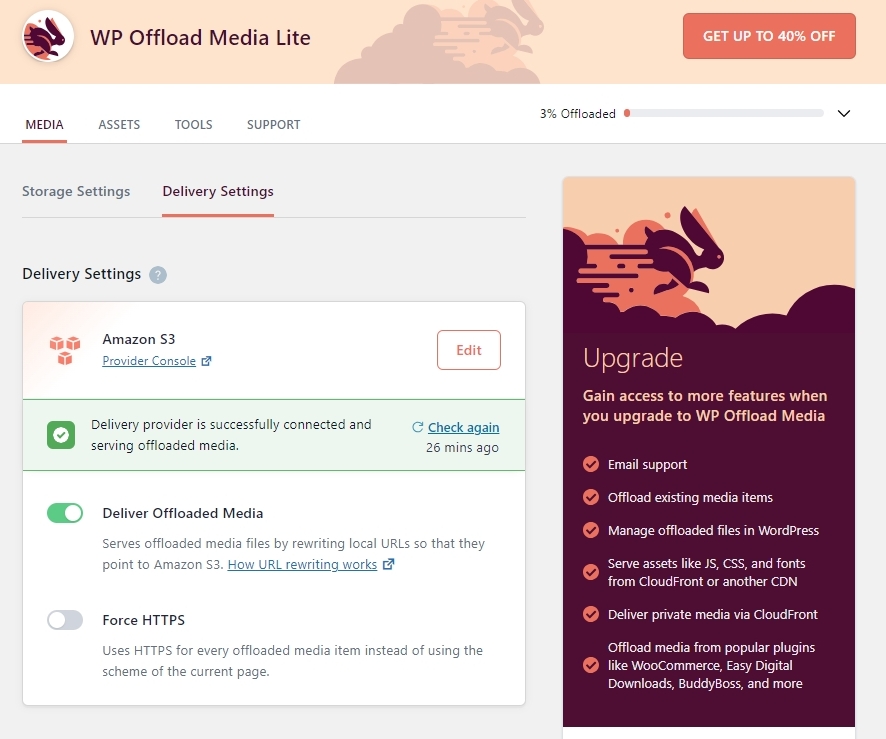 0
0 -
Hey George,
Just for my peace of mind, can you confirm that when adding an image using the Brizy editor, it points to the offloaded Amazon bucket link and not a local WordPress link? Does it work correctly in that case?
You can see in my video below. The first link is the offloaded link, which doesnt attach using the image widget. The second time is the local wordpress link which attaches fine.
Cheers
0 -
Hi
You are right; a file uploaded to the Media Library cannot be added to Brizy if it is offloaded to the storage bucket right away.
If you have the plugin's Premium version though, you can use the 'Original' size option in the Brizy image element to upload the image first, and then 'bulk offload' the media files to the cloud bucket.
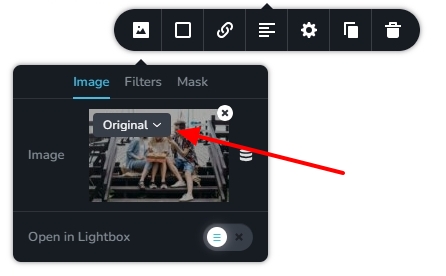
You can read more about the bulk offload here https://deliciousbrains.com/wp-offload-media/#features
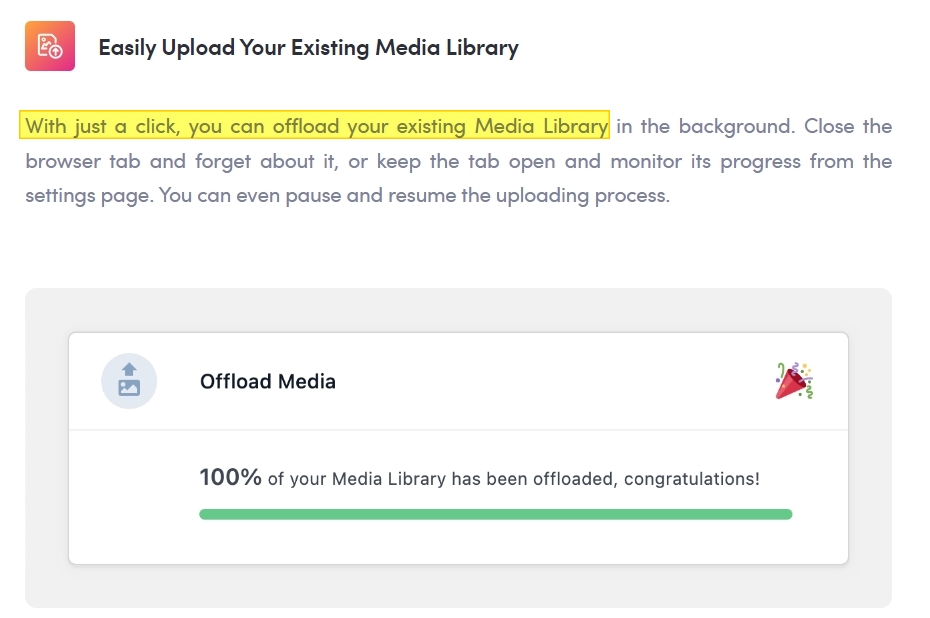
Please try this approach and let us know if you are able to offload your Media Library to your cloud storage.
0 -
Hey George,
Setting the file to Original works for offloaded images if they had been uploaded already but only if the "Deliver Offloaded Media" button was disabled when uploading the image.
Which means to make this work I need to do all these steps.
- Disable the "Deliver Offloaded Media" button before uploading the image.
- Edit the page where we want to insert the image.
- Upload the image and attach in the editor.
- Save the page.
- Enable the "Deliver Offloaded Media" button again.
- Edit the page once more and set the image to be displayed as the original.
And since we need the average user to be able to use this editor and they won't have access to disable/enable offloaded media, it's not really a feasible option. Is there really no other solution to this? It works fine in every other page editor except Brizys.
0 -
We regret that Brizy is not fully compatible with the WP Offload Media plugin. To offload images to S3 bucket when using Brizy, the long process you have mentioned above is the only solution.
0 -
That's unfortunate! Is there any urgency to address this issue?
It's quite a common task that users need to do. The workaround provided is not really suitable even for us. We want even the most beginner users to be able to upload an image easily.
Otherwise if this issue won't be fixed soon, we might have to explore other page builders.
0
Please sign in to leave a comment.
Comments
18 comments