Brizy Templates for Woo shopping page inconsistent update

Running all the latest Brizy, Brizy Pro and Woo as of 1/11/23. Theme is Themefuse "The Core" Molino child theme, This nagging issue has been happening for at least 6 months so it must be something I am missing in terms of process steps. It just happened again today so I figured I would bring it up for discussion. For reference, the shop page is https://cherishazelcream.com/shop/
I use Brizy Templates for my Woo Commerce Shopping Page. They function correctly until I make a change to the template. When I do minor maintenence such as a layout changes or adding content for a sale, I have trouble getting the update to take hold. In this instance, I was removing some extra holiday images and an extra tab in my layout that I had for a holiday sale.
After I save the template changes and view preview, everything looks good . But when I go out and try various incognito browsers to test appearance, I only see the older version of the page.
Now I manually flush my browser cache, flush all my page caches/ minify caches in WP Optimise and I also flush the Woo Commerce template cache. Sometimes this works, but often there is no change. I then go out to Siteground and flush all the various caches at the server level, then reflush my browser and go incognito. Sometimes this works but usually no change.
It is behaving like there is some other cache somewhere that retains the old version of the template.
Another fix that sometimes works is I delete the template display conditions for my template so Woo goes back to its default shop page, save, flush everything, then re-assign the template to the Woo Commerce product archive display condition. If that doesn't work sometimes I repeat the above method but rename the template. It can sometimes take 3 or 4 tries before the change is finally displayed. Unfortunately I have not found a sequence of changes that consistently works.
There must be something I am doing wrong that is causing this. Any suggestions are appreciated.
-

Hi Chris,
The SiteGround Optimizer plugin works better with the Server caching options available with SiteGround. Once you install this plugin, you can enable Automatic Purge option. This will purge all cache every time you make an update.

The plugins also provides an option to manually purge cache.

May be you should try replacing WP Optimize with SG Optimizer so that you have better control of your website cache.
If you face this issue in the future, you may like to contact SiteGround Chat support and they should be able purge all cache for you.
0 -
Seven months later; the problem persists. Running latest versions all around. Example of problem today below:
During routine maintenence, I found two minor issues to be fixed on Woo Shopping template. An image too large and a broken link.

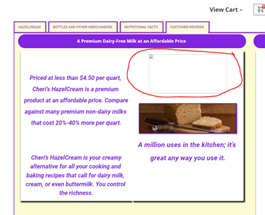
I went in to edit the template with following result.
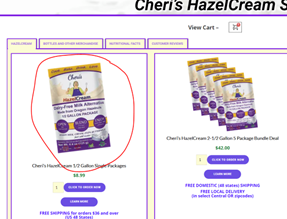
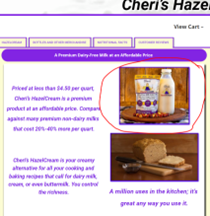
Unfortunately even though I can see the change when I save the template and preview, It always displays the previous version when I test the site. I can return to editing the template and see Brizy did save the update as I saved it.
I can switch to the default woo shopping page and site responds immediately. I can also switch to an alternate Brizy Template so I know there is no cache problem at the siteground server. I have tried deleting the template displayed condition, saving then resetting to "product achive" (which is where I want it to display).
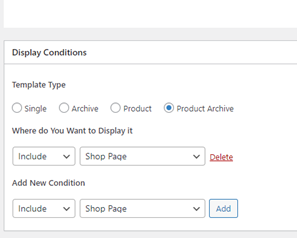
I have even tried moving the template to other display conditions just to see if I could move the problem. No Luck. I have tried purging the woo commerce template cache without success.
It is behaving like there is some additional local cache within Brizy or WP that just does not receive the instruction to flush the old version and load the new update. Very frustrating. I'm stuck. Looking for ideas...
0 -
Hi Chris,
Please have a look at this screenshot. https://jmp.sh/yPqLQ0wo This screenshot indicates that you are still using WP Optimize after 7 months. Can you please get back to us with your feedback on these points?
- Please confirm if you have followed my advice 7 months ago to deactivate this plugin and use SiteGround Optimizer plugin in its place?
- Please confirm if you have enabled the Automatic Purge option in SiteGround Optimizer as I had recommended above?
- Have you tried the Manual purge option mentioned above?
0 -
I have found by experience that the SiteGround optimizer has not performed as well with the site and that the WP Optimizer (Pro) provides a faster user experience expecially for mobile.
Having said that, during the last round of debugging, I completely deactivated WP-Optimize and ran no cache. I found it made no difference to the issue.
As part of my normal method of trying to get the shopping template to update, I usually do the following:
- Save the template change in Brizy, exit to prview and confirm the change. The change is always active at this point.
- I go incognito on Chrome or edge to see if it is visible to users. Nearly always fails to update.
- Go back to template edit menu.
- Delete the display condition, set the template to default, update and check again. Always goes back to Woo default shopping page, visible to users at once, which strongly suggests server cache and WP optimize cache are not causing a problem, at least with default Woo template. Can't say if there is a Brizy to WP Optimize bug but no direct evidence of this in any other activity.
- Go back to template edit menu. Re-add the product archive page to include shop page, reset to Brizy Template and update.
- Inspect using incognito, about a 20% success rate. If it fails then go to next step.
- Flush WP Optimize Cache, Flush Page Minify, Flush Woo Template Cache. Recheck site; about a 20% success, if it fails go to next step.
- Login to Siteground. Flush all caches, Turn off NGnix, Flush Dynamic Cache and MemCached then manually restart NGnix. Recheck again.
- If all this fails (50% chance). Repeat process again until law of averages catch up and it eventually updates. Unfortunately, I have not been able to prove cause and effect for any particular step.
This time around it has been more stubborn that ususal.
0 -
Hi Chris,
When SiteGround server caching is enabled, if you use another cache plugin in your WordPress Dashboard, such as WP Optimize, your website will have two caching systems. With these two systems employing numerous caching methods, clearing all cache can get complicated. Because of complex caching, you may have needed to take a 9-step process to delete all cache. Typically, clearing all cache is a one-step operation. Please explore one of these options to simplify caching for your website.
WP Optimize with no Server Caching
If you prefer using WP Optimize, please ensure that 4 server caching options in your SiteGround account are disabled
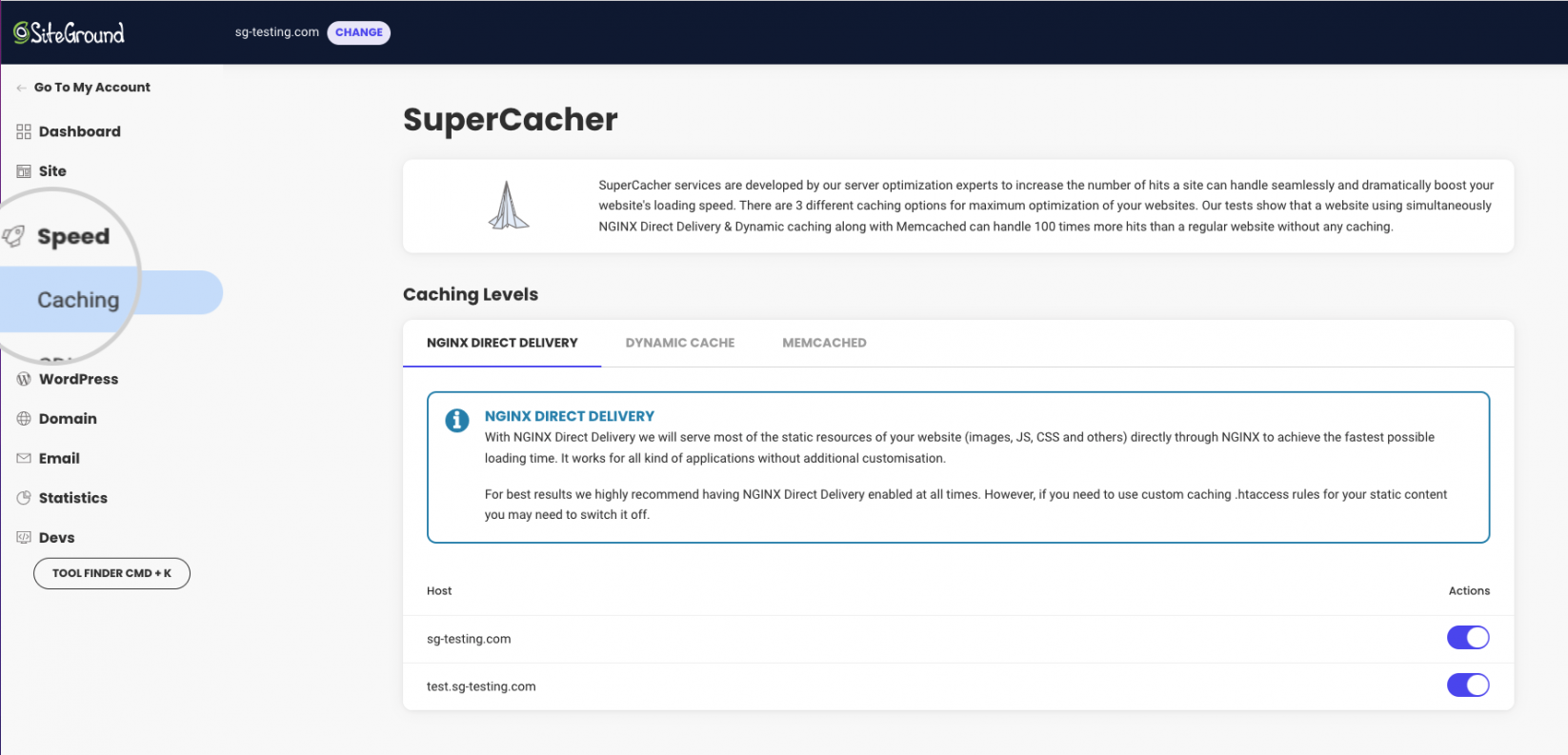
SiteGround Server caching with the SG Optimizer plugin
The SG Optimizer plugin allows you to manage SiteGround server cache directly from your WordPress Dashboard. This plugin allows you to enable, disable, and purge server caching. The plugin's 'Automatic Purge' feature is extremely useful. Every time you make a change in your WordPress Dashboard, this option executes a smart cache purge. If this works well, you won't need to go through the 9-step method outlined above to clear all cache.

If this option does not work for the shop template, you can also try the 'Manual Cache Purge' option the plugin provides.

This could help shorten the cache purging procedure from 9 steps to 0 or 1.
0
Please sign in to leave a comment.
Comments
5 comments