Weird page title & menu (all live pages!!) showing on "auto-generated" page

I'm still in the process of finishing my site. I currently only have a few pages live and ready to be accessed. (Some others are password protected or old, imported pages from Squarespace still... in the process of deleting those).
I just added a Cookie plugin and banner etc. to meet any legal tracking notification requirements. I'm using the plugin "Complianz | GDPR/CCPA Cookie Consent". I went through the setup (adding my privacy policy to be linked etc). For the "Cookie opt-out preference page" I selected to use a page that this plugin creates for me based on my data. It can be found here: https://jennacopywrites.com/opt-out-preferences/ (the cookie banner links to this)
This page was auto-generated by the plugin for me and I can't seem to make any edits with Brizy in it (it looks "empty" with no elements when trying).
Here's my problem: when you open the page, it shows an ugly "header"/menu section. It shows my page name (the entire long name, ugh) AND then (biggest issue!!) it shows a "menu" that lists ALL MY CURRENT LIVE PAGES!!! Doesn't matter if they're password protected, not even linked anywhere or whatever – every single page that is published is being listed!! This is very bad.
Here's a screenshot of the header:
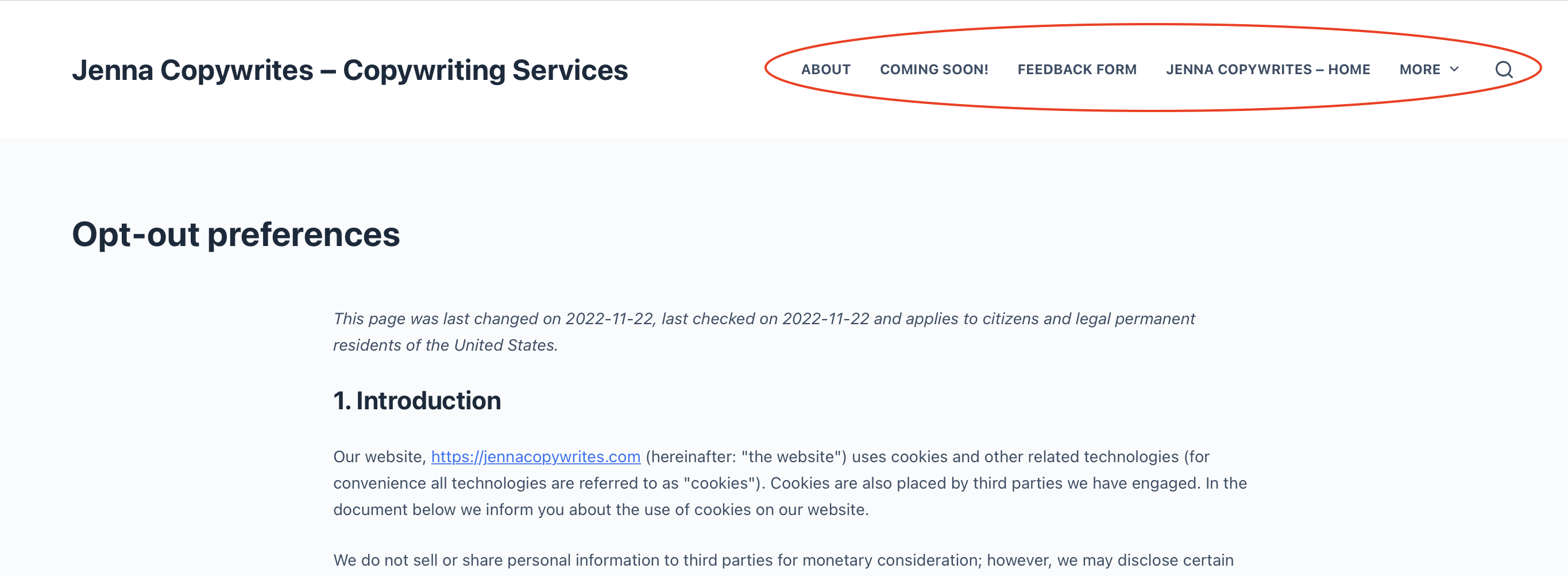
How can I edit this (or just remove this top section)??
Also, the page is NOT only simple text (some dropdowns stuff to select further down) so I cannot simply copy the content and add to a newly created page to replace it (where this ugly header section wouldn't show).
NOTE: I've noticed this problem with other "old"/unfinished pages as well. I assumed it was due to my clunky, imported Squarespace pages (that I want to eventually all delete), but now I'm seeing it like this, which is a problem.
Thanks in advance for any help.
-

Hi Jenna,
The page https://jennacopywrites.com/opt-out-preferences/ now looks blank. Probably when you attempted to edit the page with Brizy, you lost all the autogenerated content. You may have to recreate the autogenerated page in Brizy. Here are the steps.
- Delete the auto generated page https://jennacopywrites.com/opt-out-preferences/
- Auto-generate the page using Complianz plugin again. Visit the page by typing its URL.
- In a separate browser window add a new page and edit it with Brizy. Add your global header and footer to the page.
- In the content area of the Brizy page, copy paste the text from the auto generated page.
- After you have recreated the page in Brizy, delete the auto generated page. You can also apply its slug to the newly created page.
0 -
Hi KC George, yes I noticed that last night and already did the steps to recreate it again (and it then showed populated as described again)... I didn't go into the page again, so that's strange that it went "blank" again. I'll check and do the steps with the plugin again.
RE your help steps:
"4.In the content area of the Brizy page, copy paste the text from the auto generated page."
-- This step won't work because, as I explained above, the page does not only contain text; it includes drop downs, fields for visitors to enter their information, check-marked boxes, etc etc. This is all auto-generated by the plugin, and I was glad it all rendered well in the auto-generated page. So unfortunately, I cannot simply "copy and paste" the content.
(And as a general note, as explained above, this "error" -- the full page name and all live pages-menu showing -- happens with multiple (all?) pages that aren't created fresh. I've even read about other users having the same problem. It'd be good if there was a way to "turn this off". It's really weird and ugly. Thank you.)
0 -
The page shows for me again: https://jennacopywrites.com/opt-out-preferences-2/
<<< no idea why the plugin added the "-2" to the URL. 🙄 must have been bc I created a second page. I can update this later. This is what my current cookie banner links to. Thank you.
0 -
Is there a way to copy the HTML of an (entire) page? I've worked with WordPress many years ago and I know it was easily accessible in the classic WP editor format, but I don't see it anymore since I have installed Brizy as my main editor (I still have the classic one though).
That way, I could copy all the HTML (minus the weird ugly header and menu portion, if I can figure out what to exclude) and then simply paste that into a newly created page?
0 -
Hi Jenna,
Please watch this video for the procedure to give your auto generated page the Brizy look. https://jmp.sh/vSMGrnVF
0 -
Hi KC George,
This is a great tip with the template, thanks. It doesn't answer my main question/problem however. 🙁 the weird menu display persists and is very strange/annoying/problematic for business. :/
RE this solution (for the opt-out page only): how can I change the font in the CONTENT section please? I do not want it to have my regular brand font, but rather a neutral font instead. (I was able to change the Title's font, however cannot select any parts of the content. When I click the "T" at the bottom it only changes parts of the content section.)
Thanks again in advance!
0 -
Hi Jenna,
When you click on the Content element and then on the Typography icon, you will see a list of typographies on top of the screen that popsup. This screen allows you to map the Gutenberg typographies to Brizy typographies.
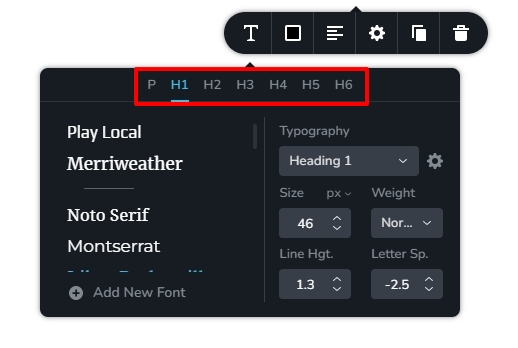
To set a different paragraph and heading font for the Opt-out Preference page, please follow these steps
- Under Global Typography please click on the 'Add New' option. A new typography will be created. Rename the newly added typograph to 'Optout Paragraph'. Add another new typography and rename it to 'Optout Heading' and and set preferred font, size etc for these two new typographies.
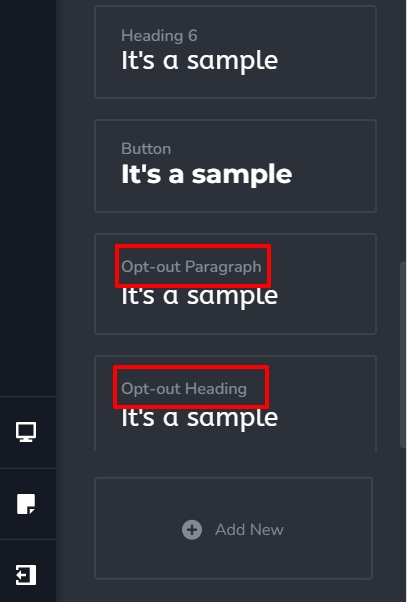
- In the Brizy Template for the Opt-out Preferences, click on the Content element and select the Typography icon and map the Paragraph in Gutenberg to Optout Paragraph in Brizy
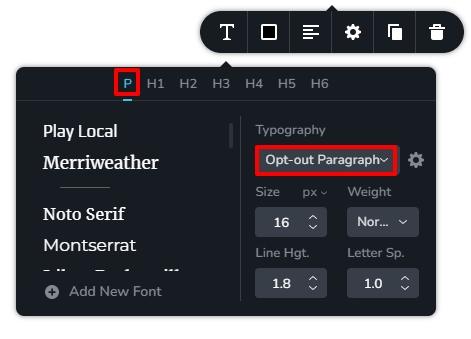
- In the same way, map the heading in Gutenberg to Optout Heading in Brizy. For example if you have set headings in the Opt-out Preferences page to Heading 2 in Gutenberg, make the following selection
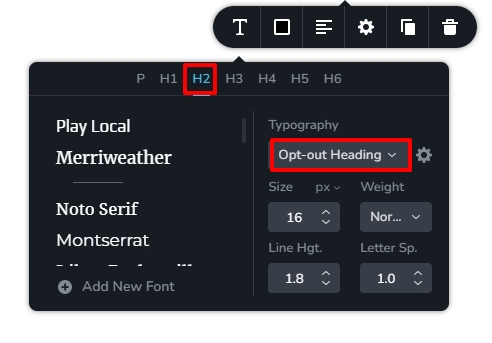
Once you complete the above steps, the paragraphs in your Opt-out Preference page will have the Optout Paragraph typography and its headings will have Optout Heading typography which is different from your regular paragraph and heading typographies for the rest of the website.
0 -
Thank you for the detailed explanation, KC George. I used a workaround for now.
0
Please sign in to leave a comment.
Comments
8 comments